Housekeeping · XLSX
Free 2026 Hotel Room Inspection Checklist Spreadsheet Excel Template
Hotel room inspection checklist spreadsheet with scoring, action tracking, overdue flags, cost fields, and a date-filtered dashboard.
Formula and workbook structure checked before publication
This hotel room inspection checklist spreadsheet is a free Excel template for documenting room condition, cleanliness, equipment checks, inspection results, and corrective work in 2026. It gives rooms managers, housekeeping supervisors, inspectors, and maintenance teams one structured workbook for inspection records.
The file contains four worksheets: Dashboard, Room Inspections, Action Items, and Setup. Inspection formulas calculate checked, passed, failed, and not-checked items, as well as an inspection score and final result. A separate corrective-action log tracks ownership, deadlines, costs, resolution time, and reinspection status.
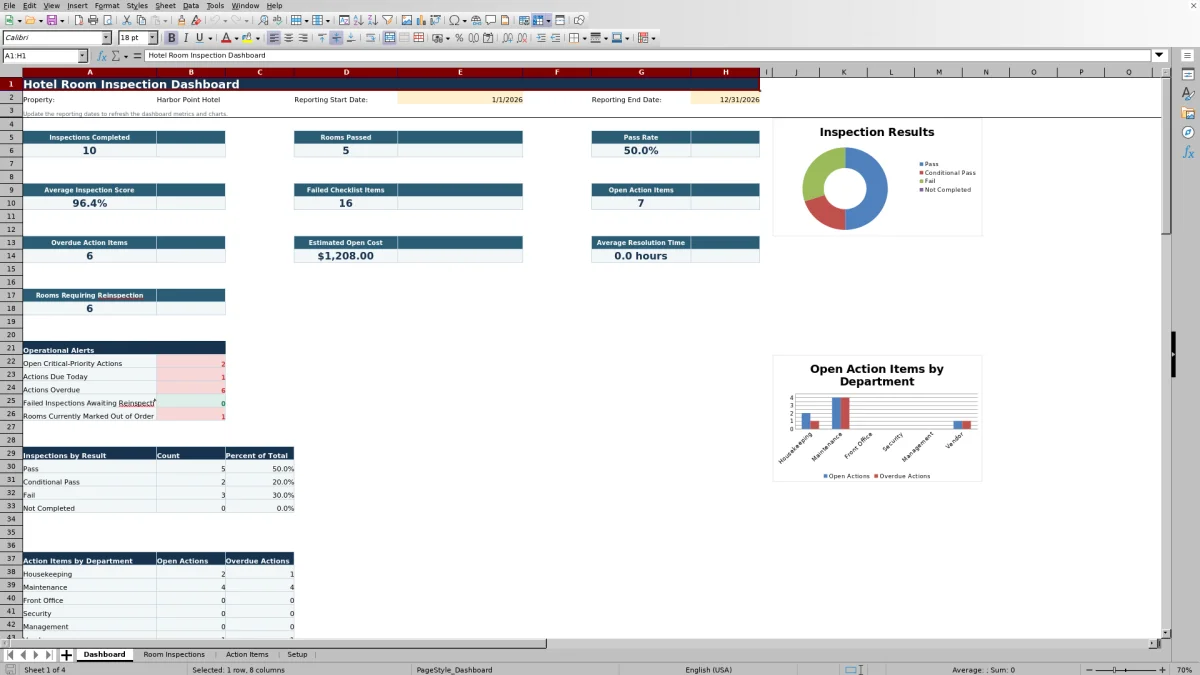
The Dashboard summarizes performance for a selected reporting period. Operators can review completed inspections, pass rate, failed checklist items, open and overdue actions, estimated open cost, average resolution time, and rooms requiring reinspection.
At a glance
What this workbook helps you manage
- Keeps room details, checklist findings, inspection outcomes, and follow-up work in one workbook.
- Calculates inspection scores and assigns Pass, Conditional Pass, or Fail results from setup thresholds.
- Connects action items to inspection IDs and automatically returns the related inspection date and room number.
- Summarizes current inspection and corrective-action metrics for a selected reporting date range.
See the actual file
Inside the workbook
Included in the file
- Four worksheets: Dashboard, Room Inspections, Action Items, and Setup.
- Room checklist fields cover entry, cleanliness, bathroom, amenities, furnishings, electrical items, HVAC, plumbing, and leaks.
- Action tracking includes priority, department, assignee, due dates, status, costs, vendor reference, and reinspection details.
- Dashboard includes two charts plus operational alerts for critical, due, overdue, reinspection, and out-of-order conditions.
How to use the template
1. Configure the Setup sheet
Replace the sample property information with the hotel’s property name, property code, city and state, rooms manager, and default building or wing. Review the lists for properties, buildings or wings, floors, room types, and employees so the related selection fields reflect the operation.
Set the scoring assumptions, including the passing score target, failure threshold, and maximum number of not-checked items before review. These settings affect the calculated inspection result and whether a room requires reinspection.
2. Record each room inspection
Use one row on Room Inspections for each inspection. Assign an inspection ID, then enter the date, time, property, building or wing, floor, room number, room type, inspection type, inspector, housekeeper, inspection status, and occupancy status.
Complete the room checklist using Pass, Fail, N/A, or Not Checked where provided. The checklist includes entry and security, general cleanliness, bathroom condition, linens and guest amenities, furniture, lighting, outlets, appliances, HVAC, water, drainage, and leaks. Available inspection types include Arrival Ready, Post-Clean, Stayover, Quality Assurance, Preventive, Out-of-Order Review, and Reinspection.
3. Review calculated inspection results
The worksheet counts applicable checks, passed items, failed items, and items marked Not Checked. It calculates the score and applies the Setup thresholds to return Pass, Conditional Pass, or Fail after the inspection status is Completed. The result also considers the critical-failure field.
Check the record-check output for issues such as a missing or duplicate inspection ID, a completed inspection without an inspector, or a completed inspection with no applicable checklist items.
4. Create and manage action items
For each defect requiring follow-up, assign an action ID and select the related inspection ID. The Action Items sheet retrieves the inspection date and room number. Enter the defect category and description, priority, assigned department, assigned person, date opened, due date, and status.
- Add estimated and actual costs in U.S. dollars when applicable.
- Record resolution notes and a vendor reference when relevant.
- Set whether reinspection is required, then record its date and status.
- Update the action to Completed or Canceled when appropriate.
Calculated fields show cost variance, age in days, days until due, overdue status, and resolution hours. The record check can identify issues such as duplicate action IDs, inspection IDs that are not found, and due dates before opening dates.
5. Set the Dashboard reporting period
Enter a reporting start date and end date on the Dashboard. Its formulas refresh the inspection metrics, alerts, result summary, and department summary. Review the two charts for inspection results and open versus overdue actions by department.
What does the hotel room inspection checklist cover?
The Room Inspections sheet begins with identifying and operational details for each inspection. These include inspection ID, date and time, property, building or wing, floor, room number, room type, inspection type, inspector, housekeeper, inspection status, and occupancy status.
The checklist then addresses room entry and security, including the door and lock, door viewer and latch, and room number sign. Cleanliness fields cover the entry area, carpet or floor, walls and baseboards, windows and mirrors, dust-free surfaces, trash removal, and odor.
Bathroom checks include the sink and counter, toilet, tub or shower, floor, mirror, towels, and bath mat. Additional fields cover bed linens, pillows and presentation, guest amenities, beverage setup, closet and luggage area, furniture, drapes, artwork, telephone, television, lighting, outlets, charging ports, appliances, HVAC, room temperature, water, drainage, and observed leaks.
How are hotel room inspection scores calculated?
The workbook counts applicable checklist responses and separates passed, failed, and not-checked items. The inspection score is calculated from passed items divided by applicable checked items. Items marked N/A are not treated as passed or failed checks.
When the inspection status is Completed, the formula compares the score with the thresholds on Setup. A score at or above the passing target returns Pass. A lower score can return Conditional Pass or Fail according to the failure threshold. A critical failure produces a failed result regardless of the calculated percentage.
The sample Setup values show a 95% passing target and an 85% failure threshold, but operators can change these assumptions. Reviewing those values before entering live inspections keeps result classifications aligned with the property’s internal process.
How does the spreadsheet track room defects?
The Action Items sheet links each corrective task to an inspection ID. This connection automatically brings in the associated inspection date and room number, helping teams trace a defect to its source inspection without retyping those details.
Each action can include a defect category, description, priority, assigned department, assigned person, opening date, due date, status, completion date, resolution notes, estimated cost, actual cost, vendor reference, and reinspection details. Available departments are Housekeeping, Maintenance, Front Office, Security, Management, and Vendor.
Formulas calculate cost variance, action age, days until due, overdue status, and resolution hours. These fields support follow-up accountability during room inspections, maintenance coordination, and daily operations meetings.
What does the hotel inspection dashboard report?
The Dashboard uses the selected start and end dates to report inspections completed, rooms passed, pass rate, average inspection score, and failed checklist items. Corrective-action measures include open actions, overdue actions, estimated open cost, and average resolution time.
Operational alerts identify open critical-priority actions, actions due today, actions overdue, failed inspections awaiting reinspection, and rooms currently marked out of order. A separate metric reports rooms requiring reinspection.
The result summary groups inspections as Pass, Conditional Pass, Fail, or Not Completed. The department summary shows open and overdue actions for Housekeeping, Maintenance, Front Office, Security, Management, and Vendor. Two Dashboard charts visualize these summaries.
Questions about this workbook
Can the spreadsheet record different types of room inspections?
Yes. The Inspection Type field includes Arrival Ready, Post-Clean, Stayover, Quality Assurance, Preventive, Out-of-Order Review, and Reinspection.
What response choices are available for checklist items?
Most checklist fields use Pass, Fail, N/A, or Not Checked. The Leaks Observed field uses No, Yes, Not Checked, or N/A. These choices feed the workbook’s inspection counts and score calculations.
Can action items be assigned to different hotel departments?
Yes. An action can be assigned to Housekeeping, Maintenance, Front Office, Security, Management, or Vendor. The sheet also has an Assigned To field linked to the employee list maintained on Setup.
Does the workbook track repair or correction costs?
Yes. Action Items includes Estimated Cost and Actual Cost fields formatted in U.S. dollars. A formula calculates cost variance, while the Dashboard totals estimated cost for actions with Open, In Progress, or On Hold status.
How are overdue action items identified?
For actions with Open, In Progress, or On Hold status, the workbook compares the due date with the current date. It returns Overdue when the due date has passed and Due Today when the dates match. The Dashboard counts overdue actions separately.
Transparent credits
Editorial and workbook QA bylines
The named editorial signatures and their responsibilities stay consistent across the library.

Workbook guide and editorial context
Audrey Whitmore
Audrey Whitmore is the consistent editorial byline for practical setup guidance written from each workbook’s final manifest and published features.
Meet the editorial byline →
Workbook structure and formula QA byline
Ethan Cole
Ethan Cole is the consistent QA byline shown only when recorded checks pass for worksheet structure, formulas, validations, recalculation, and the published XLSX bytes.
See the QA byline and checks →