Housekeeping · XLSX
Free Hotel Linen Inventory Excel Template for 2026
Hotel linen inventory Excel template for tracking physical counts, stock status, reorder needs, transaction activity, and replacement value.
Formula and workbook structure checked before publication
This hotel linen inventory workbook is a free Excel template for organizing item records, physical counts, linen movements, stock status, and replacement costs. It gives housekeeping and hotel management one structured file for monitoring bedding, bath linens, pool towels, spa linens, food and beverage textiles, and other categories.
The workbook contains four sheets: Dashboard, Linen Inventory, Linen Transactions, and Instructions. Enter operating details and counts in the designated fields, record individual movements, and use the calculated results to review expected quantities, variances, reorder needs, and stale or missing counts.
The file distinguishes total property-owned pieces from clean pieces currently available to operations. That distinction helps teams assess both overall linen holdings and the stock ready for rooms, outlets, or service areas.
At a glance
What this workbook helps you manage
- Separates physical owned quantity from clean stock currently available to operations.
- Compares physical counts with expected quantities based on opening balances and recorded transactions.
- Calculates suggested reorder quantities and costs using par levels, availability, unit costs, and an editable trigger.
- Summarizes active items, replacement value, variances, stock status, and recent transaction activity.
See the actual file
Inside the workbook
Included in the file
- Four sheets covering dashboard reporting, item inventory, transaction entry, and workbook instructions.
- Calculated ownership effects, availability effects, expected quantities, variances, and transaction values.
- Inventory filters, frozen headers, data-entry validation, and operational checks for common record issues.
- Dashboard metrics and two charts summarizing category value and item stock status.
How to use the template
1. Set the property assumptions
Start on the Dashboard by entering the property name and reviewing the yellow assumption cells. These include the low-stock trigger, stale count threshold, quantity variance alert, value variance alert, and dashboard lookback period. The supplied low-stock trigger is 75%, while the stale-count and lookback settings are 30 days; adjust them to fit the property's operating approach.
2. Build the linen item list
On Linen Inventory, replace or remove the sample records and assign a unique Item ID to every linen item. Enter the category, description, size or specification, primary storage location, unit of measure, preferred supplier, active status, unit replacement cost, and par level.
Complete the opening owned and available quantities before adding ongoing activity. The sheet accepts categories including guest room bedding, guest room bath, housekeeping, pool, spa, food and beverage, events, and other. Unit choices include each, pair, set, and dozen.
3. Record linen movements
Enter one transaction per row on Linen Transactions. Each entry can include the date, transaction ID, item ID, transaction type, quantity, locations, supplier or reference, unit cost, employee name, and notes.
Select the transaction type carefully because it determines the calculated ownership and availability effects. Supported movements include purchase receipts, transfers, ownership adjustments, laundry sends and returns, issues to rooms or operations, returns to storage, and discard or loss activity.
4. Enter physical counts
After a cycle count or full count, update the last count date, physical owned quantity, and physical available quantity on Linen Inventory. Physical owned quantity includes all property-owned pieces, including stock in storage, in use, soiled, or at laundry. Physical available quantity represents clean pieces ready to issue from storage.
5. Review calculated exceptions
Check the inventory calculations and Dashboard after updating transactions or counts. Review reorder status, quantity and value variances, suggested reorder cost, and stale or missing count notices. Investigate operational checks such as duplicate Item IDs, negative values, or available quantity exceeding owned quantity.
What does the hotel linen inventory sheet track?
The Linen Inventory sheet stores the identifying and operating details for each item. Fields cover Item ID, category, linen description, size or specification, storage location, unit of measure, supplier, active status, unit replacement cost, par level, opening quantities, last count date, and physical quantities.
Calculated columns show net ownership and availability changes from the transaction log. These results are added to opening quantities to produce expected owned and expected available quantities. The workbook then compares those expectations with physical counts to calculate owned and available variances.
Additional outputs include physical replacement value, suggested reorder quantity, stock status, suggested reorder cost, operational checks, and an absolute owned variance value. Notes remain available for item-specific context.
How are laundry movements handled?
The transaction sheet treats ownership and operational availability as separate measures. Sending pieces to laundry reduces availability but does not reduce ownership. Returning pieces from laundry increases availability without changing ownership. This reflects the fact that the hotel still owns those linens while they are away from clean storage.
Purchase receipts and transfers in increase both measures. Transfers out and ownership adjustment decreases reduce both. Issues to rooms or operations reduce availability without reducing ownership. A discard or loss entry reduces ownership; transaction behavior should be reviewed against the guide on the Instructions sheet before entries are posted.
Every transaction is tied to an Item ID from the inventory list. Calculated fields provide the ownership effect, availability effect, and transaction value based on the entered quantity and unit cost.
How does the workbook identify linen reorder needs?
Each active item has a par level and a physical available quantity. If available stock falls below the par level multiplied by the editable low-stock trigger, the stock status changes to Reorder. Otherwise, it shows Sufficient Stock. An inactive record is labeled Inactive, and an active item without an available count is marked Count Needed.
For a reorder item, the suggested quantity is the amount needed to restore available stock to the entered par level. The workbook multiplies that quantity by the unit replacement cost to calculate a suggested reorder cost. These figures support review of lead time, storage space, and purchase quantity rather than serving as purchase approval.
What can management review on the Dashboard?
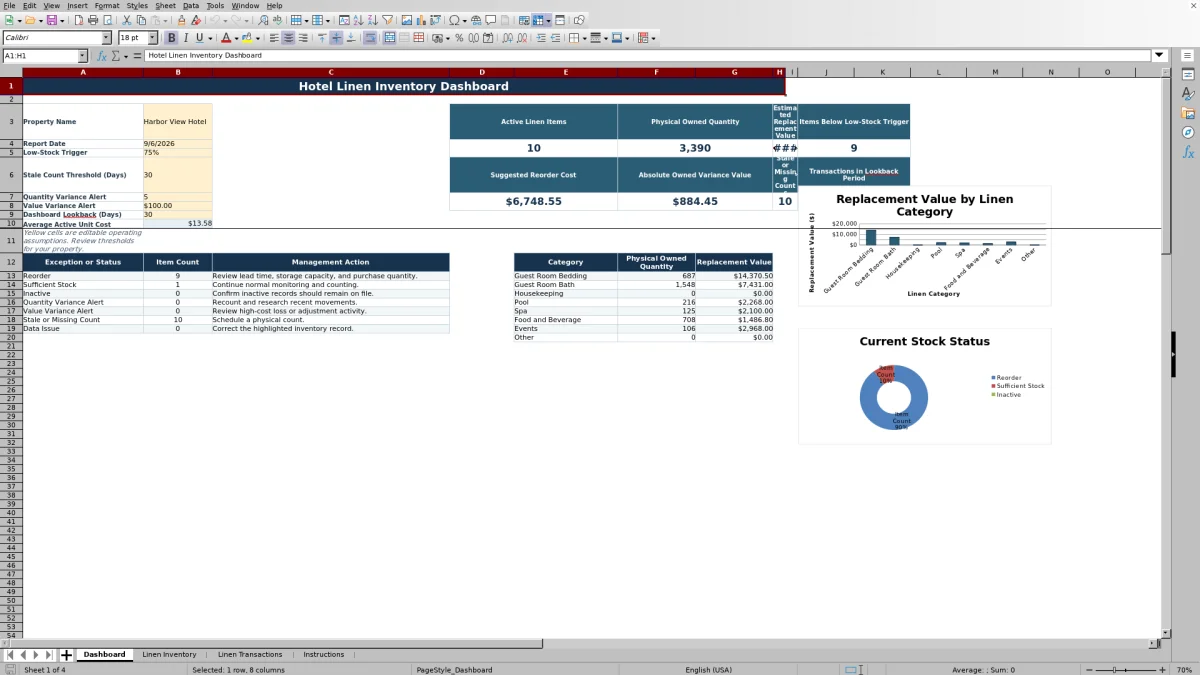
The Dashboard displays the report date and summary measures for active linen items, physical owned quantity, estimated replacement value, and items below the low-stock trigger. It also reports suggested reorder cost, absolute owned variance value, stale or missing counts, recent transaction count, and average active unit cost.
Status counts identify items marked Reorder, Sufficient Stock, or Inactive, along with quantity variance, value variance, and count exceptions. Category summaries show physical owned quantity and replacement value for guest room bedding, guest room bath, housekeeping, pool, spa, food and beverage, events, and other items.
Two charts summarize replacement value by category and item counts by stock status. Management action notes beside the exception summary point users toward recounting, transaction research, count scheduling, or purchase review.
Questions about this workbook
What sheets are included in the hotel linen inventory Excel template?
The workbook contains Dashboard, Linen Inventory, Linen Transactions, and Instructions. The Dashboard summarizes results, while the two operating sheets hold item and movement records. Instructions explains setup, recurring use, physical-count definitions, and transaction effects.
What is the difference between owned and available linen quantity?
Owned quantity covers all pieces belonging to the property, including linens in storage, in use, soiled, or at laundry. Available quantity covers clean pieces currently ready to issue from storage. Tracking both helps distinguish an ownership shortage from a temporary availability issue.
Can the template track different hotel linen categories?
Yes. The inventory category list includes Guest Room Bedding, Guest Room Bath, Housekeeping, Pool, Spa, Food and Beverage, Events, and Other. The Dashboard summarizes physical owned quantity and replacement value across these categories.
How does the workbook calculate quantity variances?
Expected quantities begin with the entered opening balances and incorporate the calculated effects of transactions. Owned quantity variance equals physical owned quantity minus expected owned quantity. Available quantity variance equals physical available quantity minus expected available quantity.
Does the workbook flag missing or outdated counts?
Yes. The operational check identifies a missing count date and compares entered count dates with the editable stale-count threshold on the Dashboard. The Dashboard totals stale or missing counts so the property can schedule follow-up physical counts.
What data issues can appear in the operational check?
The inventory formulas can identify duplicate Item IDs, negative quantities or costs, and a physical available quantity greater than physical owned quantity. The check also reports count-related, quantity-variance, and value-variance exceptions based on the workbook's entered assumptions and data.
Transparent credits
Editorial and workbook QA bylines
The named editorial signatures and their responsibilities stay consistent across the library.

Workbook guide and editorial context
Audrey Whitmore
Audrey Whitmore is the consistent editorial byline for practical setup guidance written from each workbook’s final manifest and published features.
Meet the editorial byline →
Workbook structure and formula QA byline
Ethan Cole
Ethan Cole is the consistent QA byline shown only when recorded checks pass for worksheet structure, formulas, validations, recalculation, and the published XLSX bytes.
See the QA byline and checks →