Housekeeping · XLSX
Free Hotel Housekeeping Schedule Excel Template for 2026
Hotel housekeeping schedule Excel template tracks room assignments, cleaning status, labor time, inspections, and readiness from one dashboard.
Formula and workbook structure checked before publication
This free Excel template gives hotel housekeeping teams a structured way to assign room work, record cleaning progress, document inspections, and monitor room readiness for the selected operating date.
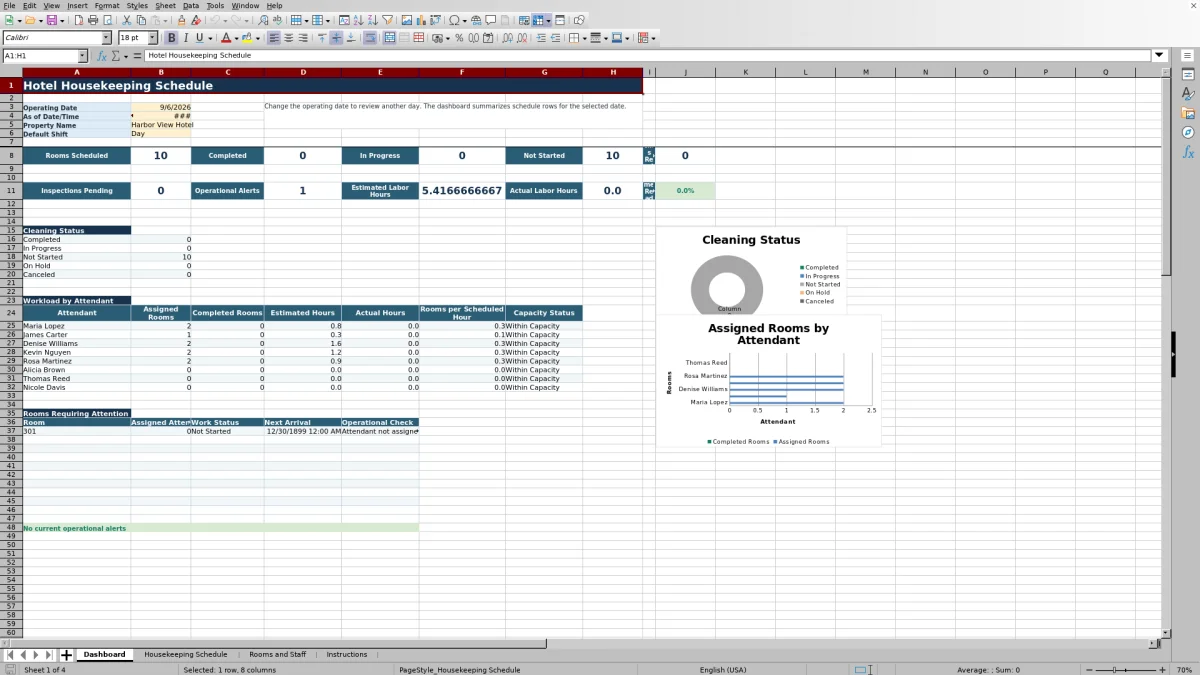
The workbook contains four sheets: Dashboard, Housekeeping Schedule, Rooms and Staff, and Instructions. Its daily operating view summarizes scheduled rooms, work status, inspections, labor hours, operational alerts, and rooms requiring attention. The schedule provides 100 rows for individual room tasks.
Built-in formulas calculate estimated and actual minutes, labor costs, status, readiness, and timing results from the information entered by the team. Room and employee reference lists keep recurring property details separate from the daily schedule.
At a glance
What this workbook helps you manage
- Organizes room assignments, priorities, planned times, actual times, inspections, and notes in one daily schedule.
- Summarizes completed, in-progress, not-started, on-hold, and canceled work for the selected operating date.
- Compares estimated and actual cleaning minutes, labor hours, and labor costs using property assumptions and staff rates.
- Flags schedule records that may need review, including duplicate rooms, missing attendants, and invalid time sequences.
See the actual file
Inside the workbook
Included in the file
- Four worksheets covering the dashboard, daily housekeeping schedule, room and staff records, and operating instructions.
- A 100-row housekeeping table with filters, frozen headers, list selections, calculated fields, and conditional formatting.
- Dashboard metrics for scheduled rooms, status counts, rooms ready, pending inspections, alerts, labor hours, and on-time readiness.
- Two dashboard charts showing cleaning-status counts and assigned versus completed rooms by attendant.
How to use the template
1. Set up property assumptions
Start on Rooms and Staff. Replace the sample property room count and standard cleaning times for checkout, stayover, deep-clean, touch-up, and public-area work. Review the labor target, required room-ready buffer, labor variance warning threshold, and on-time ready-rate target.
Use real Excel values for times, percentages, and U.S. dollar hourly rates so the workbook can calculate correctly.
2. Update rooms and staff
Enter room records beginning in row 16. Available fields include room type, floor, building or wing, standard cleaning zone, default inspection requirement, active status, and room notes.
Complete the staff list with each employee's name, role, primary shift, shift start and end, scheduled hours, hourly rate, primary zone, active status, and supervisor notes. The role choices include room attendant, housekeeping supervisor, inspector, houseperson, and public-area attendant.
3. Choose the operating date
On the Dashboard, update the Operating Date before building the day's assignments. The Housekeeping Schedule formula fills its Schedule Date from this dashboard date when a room is entered. The dashboard also uses that selected date for its summaries.
4. Enter and dispatch assignments
Use one row per room task. Select the room, occupancy status, cleaning type, priority, assigned attendant, and shift. Add check-out and next-arrival times along with planned start and finish times. The schedule includes list selections for common occupancy, cleaning, priority, shift, DND, inspection, room, and staff entries.
Before dispatch, review the Operational Check result for missing or conflicting information. Avoid overwriting formula columns, including room details, calculated minutes, costs, work status, room-ready results, and operational checks.
5. Record progress during the shift
Enter actual start and finish times as work moves through the floor. Add DND status, inspection requirements, inspector, inspection result, ready time, guest requests or notes, and an external reference when applicable. Review the Dashboard during the day for rooms requiring attention, inspections pending, readiness, labor hours, and attendant workload.
What does the hotel housekeeping schedule track?
The Housekeeping Schedule covers the main information needed to coordinate a room task. Each row can identify the room, room type, floor, occupancy status, cleaning type, priority, assigned attendant, shift, departure time, next arrival, and planned work window.
During service, supervisors can record actual start and finish times, DND status, inspection requirements and results, and the final ready time. Additional columns hold guest requests or notes and an external reference. This creates a single task record from assignment through release.
The schedule uses list selections for occupancy statuses such as Vacant Dirty, Vacant Clean, Occupied, Due Out, Out of Order, and Out of Service. Cleaning choices include Checkout, Stayover, Deep Clean, Touch-Up, Public Area, and Canceled. Priorities are Rush, High, Standard, or Low.
How are room status and readiness calculated?
Work Status responds to activity entered in the schedule. A task is Not Started without an actual start, In Progress after a start is entered, and Completed after an actual finish is entered. Selecting DND places the row On Hold, while a canceled cleaning type returns Canceled.
The Room Ready calculation requires completed work. If an inspection is required, the inspection result must be Passed before the room is marked ready. If no inspection is required, completed work can qualify the room as ready. Ready On Time also evaluates the ready time against the next-arrival information and the workbook's timing assumption.
How does the workbook estimate housekeeping labor?
Estimated Minutes are based on the standard cleaning times maintained on Rooms and Staff. Separate assumptions are provided for checkout, stayover, deep-clean, touch-up, and public-area tasks. Canceled work receives zero estimated minutes.
Actual Minutes are calculated from the entered actual start and finish. Minute Variance compares actual time with estimated time. The workbook then applies the assigned employee's hourly rate to calculate estimated and actual labor cost in U.S. dollars.
The Dashboard converts scheduled and actual minutes into labor hours. Its attendant workload area shows assigned rooms, completed rooms, estimated hours, actual hours, rooms per scheduled hour, and a capacity-status result for the listed attendants.
What should a housekeeping supervisor review on the Dashboard?
At the start of a shift, confirm the operating date, property name, and default shift. The primary summary shows Rooms Scheduled, Completed, In Progress, Not Started, and Rooms Ready. A second group reports Inspections Pending, Operational Alerts, Estimated Labor Hours, Actual Labor Hours, and On-Time Ready Rate.
The cleaning-status area breaks work into Completed, In Progress, Not Started, On Hold, and Canceled. The workload section compares assignments and completed rooms by attendant. A separate attention list identifies the room, assigned attendant, work status, next arrival, and operational check for records requiring review.
How do operational checks support daily review?
The Operational Check formula evaluates schedule details and returns OK when the row passes its checks. Examples visible in the workbook logic include Room not found, Duplicate room assignment, Attendant not assigned, Actual finish is before start, and Planned finish is before start.
These messages help supervisors find data-entry or dispatch issues before relying on the dashboard totals. The Instructions sheet specifically advises reviewing duplicate-room alerts before attendants are dispatched. Correct the source entry in the schedule or reference lists rather than replacing the check formula.
Questions about this workbook
How many room tasks can the housekeeping schedule hold?
The Housekeeping Schedule provides 100 task rows, from row 2 through row 101. The workbook instructions specify one schedule row per room task.
Can I assign attendants and inspectors from a staff list?
Yes. Assigned Attendant and Inspector use the names maintained on Rooms and Staff. That sheet includes fields for role, primary shift, scheduled hours, hourly rate, primary zone, active status, and supervisor notes.
Does the template track housekeeping inspections?
Yes. Each task includes Inspection Required, Inspector, and Inspection Result fields. Results can be Passed, Failed, Reinspect, or Not Required. The Dashboard also counts completed tasks that require an inspection but do not yet have an inspection result.
Can the schedule account for DND rooms?
Yes. DND Status options include Clear, DND, Guest Contacted, and Supervisor Override. When DND is selected, the calculated Work Status becomes On Hold.
What charts are included in the workbook?
The Dashboard contains two charts. One displays counts by cleaning status, and the other compares assigned rooms with completed rooms for the attendants listed in the workload section.
What information should not be typed over?
Do not overwrite formula columns. These include the schedule date, room type, floor, estimated and actual minutes, minute variance, estimated and actual labor cost, work status, room-ready results, operational checks, and related helper calculations. Enter daily information in the designated input fields instead.
Transparent credits
Editorial and workbook QA bylines
The named editorial signatures and their responsibilities stay consistent across the library.

Workbook guide and editorial context
Audrey Whitmore
Audrey Whitmore is the consistent editorial byline for practical setup guidance written from each workbook’s final manifest and published features.
Meet the editorial byline →
Workbook structure and formula QA byline
Ethan Cole
Ethan Cole is the consistent QA byline shown only when recorded checks pass for worksheet structure, formulas, validations, recalculation, and the published XLSX bytes.
See the QA byline and checks →