Hotels · XLSX
Free Vacation Rental Property Operations Spreadsheet Excel Template for 2026
Track reservations, turnovers, maintenance, guest balances, occupancy, and revenue in one vacation rental property operations spreadsheet.
Formula and workbook structure checked before publication
This vacation rental property operations spreadsheet is a free Excel template for coordinating reservations, property details, turnovers, inspections, maintenance, guest requests, and other recurring work. It brings booking and task records into one structured workbook for daily operational review.
The four included sheets are Dashboard, Reservations, Operations, and Property Setup. Formulas calculate reservation totals, balances, occupancy measures, task timing, and cost variance from the information entered in the workbook. The Dashboard then summarizes today’s priorities, upcoming activity, monthly performance, and items that may need attention.
Sample records show how the file is organized. Before using it for active properties, replace the examples and confirm every editable assumption, including rates, fees, tax percentages, occupancy limits, alert windows, contacts, and operating targets.
At a glance
What this workbook helps you manage
- Keeps reservation, guest, charge, payment, and stay details in one structured worksheet.
- Coordinates turnover cleaning, inspections, maintenance, restocking, and other operating tasks.
- Summarizes upcoming arrivals, departures, open work, balances, occupancy, and booked revenue.
- Compares estimated and actual task costs while identifying overdue and urgent items.
See the actual file
Inside the workbook
Included in the file
- Four worksheets: Dashboard, Reservations, Operations, and Property Setup.
- Reservation table with formulas for stay length, charges, taxes, totals, balances, and monthly nights.
- Operations table with task scheduling, assignment, costs, follow-up, and manager review fields.
- Dashboard with property filtering, two charts, current-month metrics, and attention indicators.
How to use the template
1. Review Property Setup
Start on Property Setup and replace the sample portfolio information. Enter each property’s name, active status, type, address, time zone, bedrooms, bathrooms, maximum occupancy, unit count, standard arrival and departure times, default rates, fees, charge assumptions, targets, primary contacts, access notes, and operating notes.
Confirm the portfolio assumptions at the top of the sheet. These include the upcoming operations window, portfolio occupancy target, balance alert timing, unassigned turn alert timing, and maintenance cost variance alert. Blue cells are identified in the workbook as editable assumptions.
2. Enter and maintain reservations
Use one row in Reservations for each booking. Record the reservation IDs, property, booking source, status, booking date, guest contact information, stay dates, guest counts, nightly rate, cleaning fee, other charges, discounts, payments, payment due date, arrival and departure times, access-instruction status, special requests, and internal notes.
The worksheet calculates nights, total guests, rental revenue, taxable lodging amount, estimated lodging tax, service charge, reservation total, balance due, payment status, days until arrival, and monthly night allocations. Review the occupancy check whenever the entered guest count exceeds the selected property’s maximum occupancy.
3. Coordinate operating tasks
Add turns, inspections, maintenance, guest requests, supply restocking, landscaping, pool or spa service, and other work to Operations. For each task, record the property, related reservation when applicable, description, area, priority, dates, time, assignee, vendor, status, estimated cost, actual cost, file reference, completion notes, follow-up requirement, follow-up date, and manager review status.
Calculated fields show cost variance, days open, and schedule status. Update the status and completed date as work progresses so due-today, overdue, and open-item counts remain meaningful.
4. Use the Dashboard for daily review
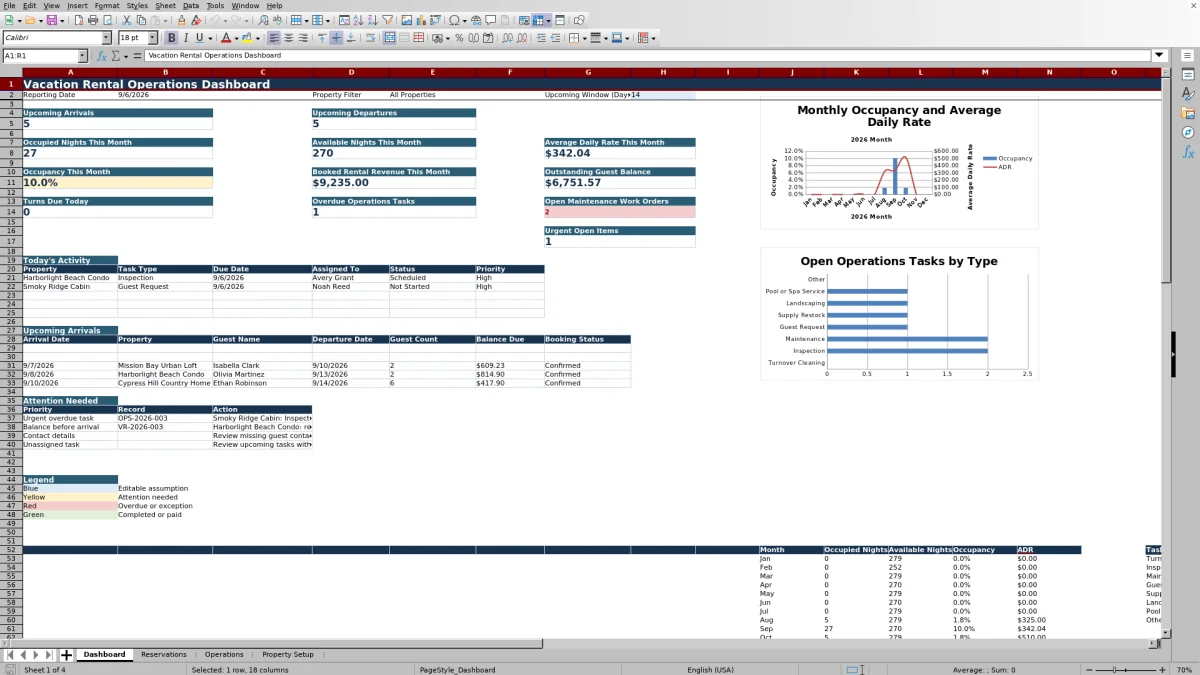
Choose All Properties or an available property from the Dashboard filter. Review upcoming arrivals and departures, occupied and available nights for the current month, average daily rate, occupancy, booked rental revenue, outstanding guest balances, turns due today, overdue tasks, open maintenance work orders, and urgent open items.
Check Today’s Activity and Upcoming Arrivals for immediate coordination. The Attention Needed area points to records such as urgent overdue work, balances before arrival, missing guest contact details, and unassigned tasks. Treat these prompts as a review queue and verify the underlying reservation or task before acting.
What does the vacation rental operations dashboard show?
The Dashboard provides a date-based operating view using the records entered elsewhere in the workbook. At the top, it shows the reporting date, a property filter, and the upcoming window pulled from Property Setup.
Summary measures include upcoming arrivals and departures, occupied nights, available nights, average daily rate, occupancy, booked rental revenue, and outstanding guest balance. Operational measures count turns due today, overdue tasks, open maintenance work orders, and urgent open items. A Today’s Activity list displays property, task type, due date, assignee, status, and priority, while a separate list shows upcoming arrival details.
The property selector supports an all-properties view as well as individual properties included in its list. Two charts are also present on the Dashboard, using calculated Dashboard data.
How are reservation charges and balances calculated?
The Reservations sheet uses the arrival and departure dates to calculate nights, then multiplies nights by the entered nightly rate to calculate rental revenue. It combines rental revenue with the cleaning fee, other guest charges, discounts, estimated lodging tax, and service charge to produce the reservation total.
Taxable lodging amount depends on the property assumption for whether the cleaning fee is taxable. Lodging tax and service charge rates come from Property Setup. Payments received are deducted from the reservation total to calculate the balance due. Payment status can display Paid, Past Due, Partially Paid, Unpaid, or Canceled based on the booking status, amount paid, balance, and payment due date.
Rates, tax percentages, fee treatment, and service charge percentages are editable assumptions. Operators should confirm them for each property before relying on calculated amounts.
How does the spreadsheet support turnover and maintenance coordination?
The Operations sheet gives each task a dedicated row and can connect work to both a property and a reservation ID. Task categories include turnover cleaning, inspection, maintenance, guest request, supply restock, landscaping, pool or spa service, and other work.
Priority choices range from Low to Urgent, and status choices include Not Started, Scheduled, In Progress, On Hold, Completed, and Canceled. Due dates and statuses feed the calculated schedule status, which identifies work as overdue, due today, upcoming, completed, canceled, or without a due date.
Estimated and actual costs produce a cost variance. Additional fields support photo or file references, completion notes, follow-up requirements, follow-up dates, and manager review. These records also feed the Dashboard’s daily and exception-focused task summaries.
What should be checked before using the workbook?
Review the sample data and replace it with current portfolio records. Property names should be consistent across Property Setup, Reservations, and Operations because formulas and selection lists use those values to connect records.
Confirm maximum occupancy, unit count, default nightly rate, cleaning fee, whether the cleaning fee is taxable, lodging tax rate, service charge rate, occupancy targets, standard times, and operating contacts. Also review the upcoming window and alert thresholds. The workbook labels these as operating assumptions rather than fixed requirements.
After entering records, spot-check reservation totals, guest counts, due dates, payments, assignments, task statuses, and completed dates. Consistent updates are important because the Dashboard uses current workbook entries to calculate its metrics and attention items.
Questions about this workbook
What sheets are included in the workbook?
The workbook contains four sheets: Dashboard, Reservations, Operations, and Property Setup. Reservations and Operations use structured Excel tables, while Property Setup contains property assumptions and contact records used by worksheet selections and formulas.
Can the Dashboard be filtered by property?
Yes. Cell E2 on the Dashboard contains a list selector with All Properties and the properties included in that selector. Dashboard formulas use the selected value to show portfolio-wide or individual-property results.
Which reservation details can be tracked?
The Reservations sheet includes booking IDs, source, status, booked date, guest name and contact information, stay dates, adult and child counts, rates, fees, discounts, taxes, payments, due dates, arrival and departure times, access-instruction status, special requests, and internal notes.
Does the spreadsheet flag overdue operations work?
Yes. The Operations sheet calculates schedule status from the due date and task status. The Dashboard counts overdue tasks and urgent open items, and its attention area can identify urgent overdue work and upcoming tasks without an assignee.
Does the workbook calculate vacation rental occupancy and revenue?
Yes. The Dashboard calculates current-month occupied nights, available nights, occupancy, average daily rate, and booked rental revenue. These results depend on reservation dates, status, nightly rates, and property unit counts entered in the workbook.
Transparent credits
Editorial and workbook QA bylines
The named editorial signatures and their responsibilities stay consistent across the library.

Workbook guide and editorial context
Audrey Whitmore
Audrey Whitmore is the consistent editorial byline for practical setup guidance written from each workbook’s final manifest and published features.
Meet the editorial byline →
Workbook structure and formula QA byline
Ethan Cole
Ethan Cole is the consistent QA byline shown only when recorded checks pass for worksheet structure, formulas, validations, recalculation, and the published XLSX bytes.
See the QA byline and checks →