Hotels · XLSX
Free Hostel Bed Inventory Spreadsheet Excel Template for 2026
Track hostel bed status, inspections, nightly rates, cleaning, and maintenance with a bed-level Excel inventory and dashboard.
Formula and workbook structure checked before publication
This free Excel template gives hostel operators a structured way to maintain a bed-level inventory in 2026. It connects physical bed details with status changes, inspection dates, nightly rates, condition notes, and operational alerts.
The workbook includes four worksheets: Dashboard, Bed Inventory, Status Log, and Instructions. Its formulas summarize active, available, occupied, dirty, held, and out-of-order beds while preserving a separate record for each status change.
Use it to support front desk, housekeeping, and maintenance coordination when bed availability must be reviewed by individual bunk rather than only by room.
At a glance
What this workbook helps you manage
- Keeps identification, location, amenities, condition, inspection, and rate details together for each bed.
- Calculates the latest logged status and the number of days each bed has remained in that status.
- Flags duplicate IDs, missing records, overdue inspections, and unresolved held or out-of-order entries.
- Summarizes active and sellable bed counts, status mix, and estimated available nightly revenue.
See the actual file
Inside the workbook
Included in the file
- Four worksheets covering dashboard reporting, bed records, status history, and workbook instructions.
- Bed Inventory table with filters, frozen headers, validated inputs, and calculated status and inspection fields.
- Status Log table with checks for duplicate Log IDs, invalid Bed IDs, future dates, and resolution timing.
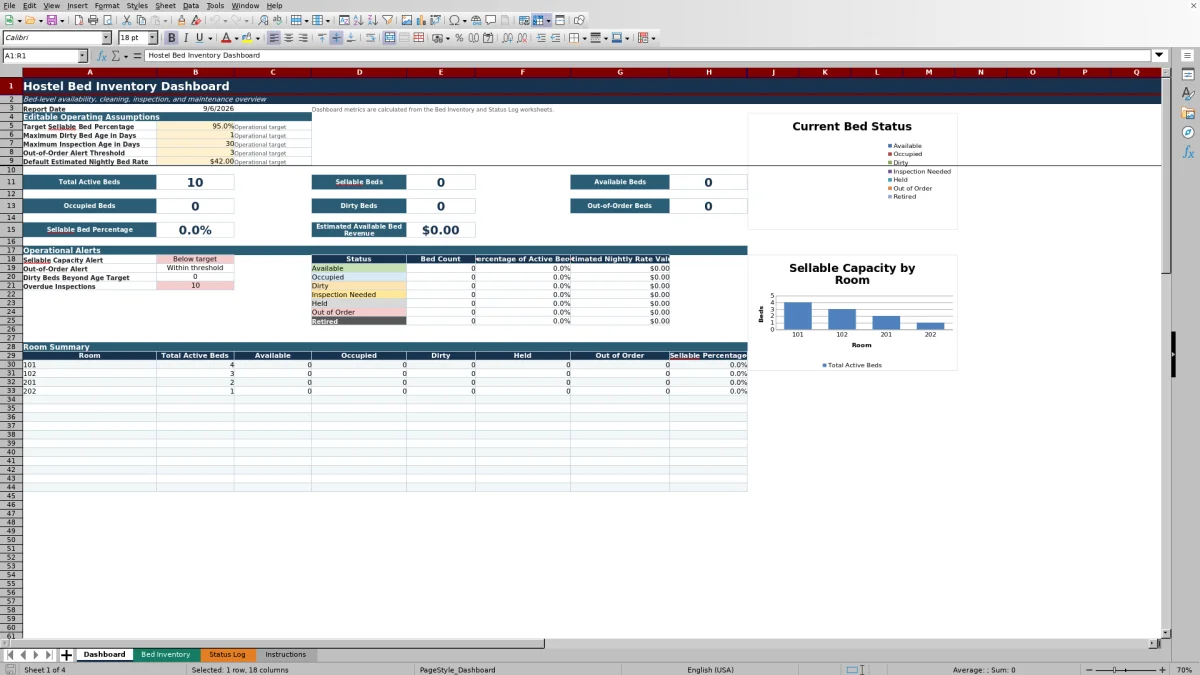
- Dashboard with editable assumptions, room-level summaries, conditional formatting, and two charts.
How to use the template
1. Review the instructions and operating assumptions
Start on the Instructions worksheet to understand the workbook's daily-use process and the supplied lists for property areas, bed positions, room types, bed sizes, statuses, reasons, teams, shifts, and conditions.
On the Dashboard, review the editable assumptions for target sellable bed percentage, maximum dirty-bed age, maximum inspection age, out-of-order alert threshold, and the default estimated nightly bed rate. These settings drive several dashboard calculations and alerts.
2. Build the physical bed register
Enter each physical bunk or single bed on its own row in Bed Inventory. Assign a unique Bed ID, then record its property area, floor, room, label, position, room type, bed size, locker number, reading light, power outlet, active setting, and base nightly rate.
Add the last inspection date, condition, and notes where applicable. The worksheet includes 150 inventory rows and checks for duplicate Bed IDs, active beds without a status log, and active beds missing inspection dates.
3. Record every status change
Add a new row to Status Log whenever a bed changes state. Complete the Log ID, status date, shift, Bed ID, previous status, new status, reason, assigned team, staff initials, and relevant details. Work order references, target ready dates, and resolved dates can be entered when needed.
Available status choices include Available, Occupied, Dirty, Inspection Needed, Held, Out of Order, and Retired. Do not overwrite the calculated Bed ID Check, Log ID Check, or Resolution Check columns. The log provides 300 rows for entries.
4. Review calculated inventory fields
Bed Inventory uses the latest matching log entry to calculate each bed's current status, latest status date, and days in current status. It also determines whether an active bed is sellable. Available and Occupied beds are treated as sellable by the workbook's formula.
The effective nightly rate uses the bed's base rate when one is entered. If that field is blank, it uses the Dashboard's default estimated nightly bed rate. Inspection calculations display the next inspection date and identify a date as Current, Overdue, or Missing Date.
5. Use the dashboard for shift review
Check the Dashboard for total active beds, sellable beds, available beds, occupied beds, dirty beds, out-of-order beds, sellable percentage, and estimated available bed revenue. Review the operational alerts for capacity, aging dirty beds, overdue inspections, and the out-of-order threshold.
The room summary and two charts provide additional views of inventory results. Investigate source rows in Bed Inventory and Status Log before updating operational records.
What information can a hostel track for each bed?
The Bed Inventory worksheet identifies each bed by Bed ID, property area, floor, room, bed label, and bed position. Operators can also record room type, bed size, locker number, reading-light availability, power-outlet availability, active status, and base nightly rate.
Operational fields include the last inspection date, condition, and notes. Calculated columns return the effective nightly rate, latest Log ID, current status, latest status date, days in status, sellable result, next inspection date, inspection status, and duplicate-ID check. This supports bed-level control across dorm rooms where individual bunks may have different conditions or availability.
How does the spreadsheet determine current bed availability?
The current status is based on the latest Status Log record that matches the Bed ID. Each log row stores a status date and a new status, allowing Bed Inventory to display the most recent result without requiring the current-status field to be typed manually.
The workbook counts active beds by status on the Dashboard. Its sellable calculation marks an active bed as sellable when its current status is Available or Occupied. Beds listed as Dirty, Inspection Needed, Held, Out of Order, Retired, or No Log are not marked sellable by that formula.
How can housekeeping and maintenance use the status log?
Housekeeping can record changes such as a guest checkout leaving a bed Dirty or cleaning completion returning it to Available. Maintenance-related entries can include a reason, work order reference, assigned team, target ready date, resolved date, staff initials, and details.
For Held and Out of Order records, the Resolution Check identifies an open item as Past Target when its target ready date has passed and no resolved date is present. It also identifies cases where the resolved date is earlier than the status date for review. Summary cells count open items past target for both statuses.
What data-quality checks are included?
Bed Inventory counts rows with duplicate Bed IDs, active beds without a status log, and active beds without inspection dates. Status Log counts duplicate Log IDs, invalid Bed IDs, and future status dates.
Drop-down lists standardize several inputs, including property area, bed position, room type, bed size, yes-or-no fields, condition, shift, Bed ID, statuses, reasons, and assigned teams. Date, whole-number, decimal, and staff-initial length validations are also applied to relevant entry ranges. These controls help teams spot recording exceptions during routine review.
Questions about this workbook
Which worksheets are included in the hostel bed inventory spreadsheet?
The workbook contains exactly four worksheets: Dashboard, Bed Inventory, Status Log, and Instructions.
How many bed records and status entries are provided?
Bed Inventory provides 150 rows, from row 5 through row 154. Status Log provides 300 rows, from row 5 through row 304.
Which bed statuses can be recorded?
The supplied statuses are Available, Occupied, Dirty, Inspection Needed, Held, Out of Order, Retired, and No Log. The New Status entry list runs through Retired, while No Log is a calculated result for an active inventory record without a matching log entry.
How is the effective nightly rate calculated?
If a base nightly rate is entered for a bed, the effective nightly rate uses that amount. If the base rate is blank, the formula uses the default estimated nightly bed rate entered on the Dashboard. The supplied default assumption is $42.
What inspection information does the workbook show?
Operators enter the last inspection date in Bed Inventory. The workbook adds the Dashboard's maximum inspection age to calculate the next inspection date, then labels the inspection Current, Overdue, or Missing Date. The supplied inspection-age assumption is 30 days and can be edited.
What does the estimated available bed revenue represent?
The Dashboard sums effective nightly rates for active beds whose current status is Available. It is an estimated nightly rate value based on the inventory and Dashboard assumptions, not a record of collected revenue.
Transparent credits
Editorial and workbook QA bylines
The named editorial signatures and their responsibilities stay consistent across the library.

Workbook guide and editorial context
Audrey Whitmore
Audrey Whitmore is the consistent editorial byline for practical setup guidance written from each workbook’s final manifest and published features.
Meet the editorial byline →
Workbook structure and formula QA byline
Ethan Cole
Ethan Cole is the consistent QA byline shown only when recorded checks pass for worksheet structure, formulas, validations, recalculation, and the published XLSX bytes.
See the QA byline and checks →