Hotels · XLSX
Free Hotel Vendor Contact Spreadsheet Excel Template for 2026
Organize hotel vendor contacts, service details, follow-ups, insurance dates, and contract renewals in one practical Excel workbook.
Formula and workbook structure checked before publication
This hotel vendor contact spreadsheet is a free Excel template for organizing supplier details, property contacts, service coverage, and follow-up activity. It gives hotel teams a central directory for routine purchasing relationships and operational service providers.
The workbook includes a Dashboard, Vendor Directory, Contact Log, and Instructions sheet. Built-in formulas summarize active, preferred, and emergency-capable vendors while identifying upcoming insurance expirations, contract renewals, record reviews, and follow-up dates.
Use it across departments such as housekeeping, engineering, food and beverage, purchasing, security, events, and information technology. Editable monitoring thresholds let the property align internal reminders with its own vendor-management practices.
At a glance
What this workbook helps you manage
- Keeps vendor contacts, services, account details, and internal ownership in one structured directory.
- Tracks vendor conversations, outcomes, reference numbers, next steps, and assigned follow-ups.
- Flags insurance dates, contract renewals, stale records, and overdue follow-up activity using workbook formulas.
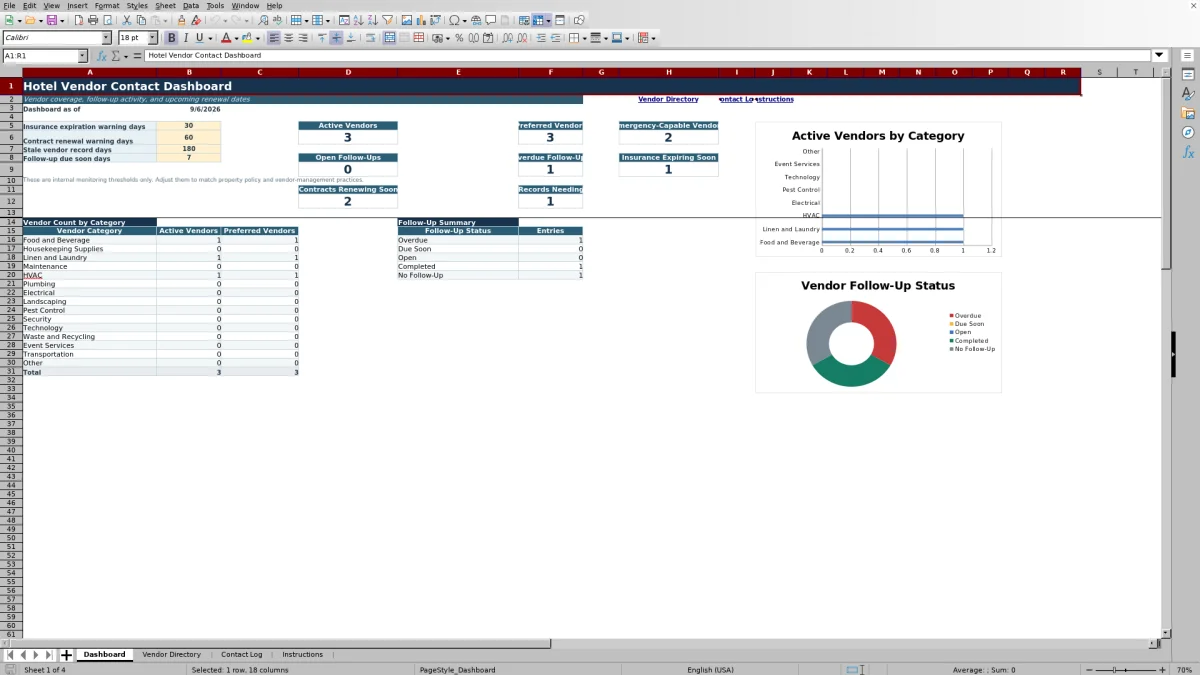
- Summarizes vendor coverage and follow-up status on a dedicated dashboard with two charts.
See the actual file
Inside the workbook
Included in the file
- Four worksheets: Dashboard, Vendor Directory, Contact Log, and Instructions.
- Structured directory for up to 150 vendor rows and contact log for up to 300 entries.
- Drop-down lists for vendor categories, departments, vendor status, contact method, and follow-up selections.
- Formula-driven status fields plus charts for active vendors by category and follow-up entries by status.
How to use the template
1. Review the instructions and dashboard settings
Start with the Instructions sheet, then review the four editable monitoring thresholds on the Dashboard. The starting settings are 30 days for insurance expiration warnings, 60 days for contract renewal warnings, 180 days for stale vendor records, and 7 days for follow-ups due soon. These are internal monitoring thresholds and can be adjusted from 0 to 365 days.
2. Replace the fictional vendor records
Enter one vendor account or service location per row in the Vendor Directory. Keep every Vendor ID unique, since the Contact Log uses that ID to retrieve the vendor name. Complete the fields that apply to the relationship, including:
- Vendor category, primary service, property department, and status
- Preferred-vendor and emergency-service indicators
- Primary contact, phone numbers, email, website, and address
- Service area, account number, ordering method, and payment terms
- Minimum order, standard lead time, insurance expiration, and contract renewal dates
- Last verified date, internal owner, and notes
3. Record meaningful vendor interactions
Add one row to the Contact Log for each interaction that the property needs to retain. Select the Vendor ID from the list so the vendor name fills automatically. Record the date, time, contact method, department, hotel team member, vendor contact, reason, summary, and any reference number.
4. Assign and close follow-ups
Mark whether follow-up is required. When it is, enter the follow-up date and owner. The status formula identifies entries as Open, Due Soon, Overdue, Completed, or No Follow-Up based on the dates entered. Add a resolution date, outcome, and next step when the matter is completed or progresses.
5. Review the dashboard regularly
Use the Dashboard to monitor vendor coverage and pending work. Review totals for active, preferred, and emergency-capable vendors, along with open or overdue follow-ups, expiring insurance, upcoming contract renewals, and records needing review.
What information can a hotel vendor contact spreadsheet organize?
The Vendor Directory covers more than names and phone numbers. Each row can identify the vendor’s category, primary service, assigned hotel department, current status, preferred-vendor designation, and emergency-service capability. Contact fields include the primary contact’s name and title, business and mobile phones, email, website, street address, city, state, and ZIP code.
Operational fields document service area, account number, ordering method, payment terms, minimum order, and standard lead time in days. The workbook also includes insurance expiration and contract renewal dates, a last verified date, an internal owner, and notes. This structure helps employees determine who provides the service, how to reach the vendor, and which department owns the relationship.
How does the workbook track vendor follow-ups?
The Contact Log connects each interaction to a Vendor ID from the directory. After an ID is selected, a lookup formula displays the vendor name. The log captures contact date and time, contact method, property department, property team member, vendor contact, reason, and a written summary.
When action is required, employees can enter a follow-up date and follow-up owner. The formula-driven status compares that information with the Dashboard’s due-soon setting. An entry becomes Overdue after its follow-up date passes, Due Soon when it falls within the selected warning period, or Open when it remains outside that period. A resolution date changes the status to Completed, while an interaction marked as requiring no follow-up is listed as No Follow-Up.
How are insurance, renewal, and record-review dates monitored?
The Vendor Directory calculates status labels from the dates entered and the Dashboard settings. An insurance record can display Not Tracked, Expired, Expiring Soon, or Current. A contract can display Not Tracked, Past Renewal Date, Renewing Soon, or Current.
The Last Verified Date supports a separate record review status. If no verification date is entered, or the record is older than the selected stale-record threshold, it is marked Review Needed. The directory also retrieves the latest logged contact date for each Vendor ID and labels contact activity as Recent, Stale, or No Activity Logged.
These labels are intended for internal monitoring. Properties should set review intervals according to their own policies and vendor agreements.
What does the hotel vendor dashboard show?
The Dashboard provides an as-of date and headline counts for Active Vendors, Preferred Vendors, Emergency-Capable Vendors, Open Follow-Ups, Overdue Follow-Ups, Insurance Expiring Soon, Contracts Renewing Soon, and Vendor Records Needing Review.
A category summary compares active and preferred vendors across listed service categories, including food and beverage, housekeeping supplies, linen and laundry, maintenance, HVAC, plumbing, electrical, landscaping, pest control, security, technology, waste and recycling, and event services. A second summary counts follow-up entries by status. Two charts visualize active vendors by category and the follow-up status totals.
Questions about this workbook
How many vendors and contact entries does the spreadsheet accommodate?
The Vendor Directory is set up with 150 vendor rows, from rows 2 through 151. The Contact Log is set up with 300 entry rows, from rows 2 through 301.
Does the vendor name fill automatically in the Contact Log?
Yes. Select a Vendor ID from the Contact Log list, and the Vendor Name field uses a lookup formula to return the matching name from the Vendor Directory. Vendor IDs should remain unique for reliable matching.
Can hotel departments use consistent selections?
Yes. The workbook includes department lists covering Administration, Banquets, Engineering, Events, Finance, Food and Beverage, Front Office, Grounds, Housekeeping, Information Technology, Purchasing, Sales, Security, Spa, and Other. Department lists appear in both the Vendor Directory and Contact Log.
Which contact methods can be recorded?
The Contact Log provides selections for Email, Phone, Text Message, Video Call, In Person, Vendor Portal, and Other. Employees can also record the reason, interaction summary, outcome, reference number, and next step.
What information should not be stored in the workbook?
The Instructions sheet specifically advises users not to store passwords, payment card numbers, bank account numbers, or other sensitive credentials. Keep entries limited to appropriate vendor-contact and operational follow-up information.
Transparent credits
Editorial and workbook QA bylines
The named editorial signatures and their responsibilities stay consistent across the library.

Workbook guide and editorial context
Audrey Whitmore
Audrey Whitmore is the consistent editorial byline for practical setup guidance written from each workbook’s final manifest and published features.
Meet the editorial byline →
Workbook structure and formula QA byline
Ethan Cole
Ethan Cole is the consistent QA byline shown only when recorded checks pass for worksheet structure, formulas, validations, recalculation, and the published XLSX bytes.
See the QA byline and checks →