Hotels · XLSX
Free Hotel Purchase Order Tracker Excel Template for 2026
Track hotel purchase orders, approvals, receipts, invoices, and open commitments with a dashboard and configurable Excel workbook.
Formula and workbook structure checked before publication
This hotel purchase order tracker is a free Excel template for recording purchasing activity across hotel properties and departments. It organizes PO details, approval progress, delivery status, receiving, invoices, payments, and buyer notes in one structured register.
The four-sheet workbook includes Dashboard, Purchase Orders, Settings, and Instructions. Formulas calculate expected totals, approval days, receipt status, invoice variance, uninvoiced commitment, days open, and attention flags, while the dashboard presents filtered purchasing metrics for operational review.
At a glance
What this workbook helps you manage
- Keeps purchasing, approval, receiving, invoice, and payment details in one register.
- Highlights purchase orders that may require operational follow-up.
- Summarizes expected PO value and open commitments by property or department.
- Standardizes property, department, vendor, cost code, and status entries with dropdown lists.
See the actual file
Inside the workbook
Included in the file
- Four sheets: Dashboard, Purchase Orders, Settings, and Instructions.
- A 250-row purchase order register with validated lists, date controls, and numeric entry rules.
- Dashboard KPI cards, exception results, summary tables, and two charts.
- Automatic calculations for totals, receipt status, variances, commitments, aging, and attention flags.
How to use the template
1. Review the workbook instructions
Start on the Instructions sheet to understand the recommended workflow, field guidance, assumptions, and operational review checklist. Editable cells are identified separately from gray formula cells. Preserve the formula columns so calculated fields continue to update.
2. Configure settings and lists
Use the Settings sheet to adjust the default sales tax rate, approval amount threshold, approval follow-up days, delivery grace days, invoice variance tolerances, and open PO aging threshold. Confirm these user-controlled assumptions against the hotel’s own purchasing practices.
Maintain the supporting lists for:
- Properties and active status
- Departments and active status
- Vendors, contact details, and related information
- Cost codes and active status
3. Enter each purchase order
On the Purchase Orders sheet, enter a unique PO number and select the property, department, vendor ID, approval status, PO status, cost code, taxable status, and payment status where applicable. Add dates as actual Excel dates and complete the requester, external reference, description, ordered quantity, unit cost, discount, tax rate, and freight fields.
The register provides 250 prepared rows. Vendor Name is retrieved from the Settings list, while expected total calculations use the line subtotal, tax amount, and freight. Do not overwrite the calculated columns.
4. Update receiving and invoice activity
Enter quantity received, the last received date, receiving notes, invoice number, invoice date, invoice amount, payment status, and payment date as activity occurs. The workbook compares ordered and received quantities to assign a receipt status. It also calculates invoice variance, invoice variance percentage, uninvoiced commitment, and days open.
5. Review the dashboard and attention flags
Use the Property Filter and Department Filter on the Dashboard to review one operational area or select All for a workbook-wide view. Check attention-required purchase orders alongside pending approvals, overdue deliveries, partial receipts, invoice variance, and open commitments. Follow up in the source row and update the relevant status, date, quantity, invoice, or note.
What information can a hotel purchasing team track?
The Purchase Orders register covers the purchasing cycle from the initial PO through approval, receiving, invoicing, payment, and closure. Core identification fields include PO Number, Property, Department, Requester, Vendor ID, Vendor Name, External System Reference, PO Date, Need-By Date, Cost Code, and Item or Service Description.
Approval fields include Approval Status, Approved By, Approval Date, and calculated Approval Days. PO Status and Closed Date distinguish draft, open, closed, and canceled records. Buyer Notes provide space for internal context without changing calculated results.
Receiving fields capture Quantity Received, Last Received Date, and Receiving Notes. Invoice and payment fields cover Invoice Number, Invoice Date, Invoice Amount, Payment Status, and Payment Date. This creates a consistent hotel purchasing record for departments such as Housekeeping, Engineering, Food and Beverage, Front Office, Events, Security, and Administration when those departments are included in Settings.
How does the Excel purchase order tracker calculate costs?
The workbook calculates Line Subtotal from Quantity Ordered multiplied by Unit Cost, less Discount, with a minimum result of zero. When Taxable is set to Yes, Tax Amount is based on the line subtotal and entered Tax Rate. Expected Total is the line subtotal plus tax amount and freight.
When an Invoice Amount is entered, Invoice Variance is calculated as invoice amount minus expected total. Invoice Variance Percent expresses that difference relative to expected total. The uninvoiced commitment calculation shows the remaining expected value for purchase orders that are not closed or canceled, with any recorded invoice amount considered.
Currency fields use U.S. dollar formatting. Tax rates and variance tolerances are editable assumptions, so operators should confirm tax treatment and internal review rules before using them.
How are approvals, deliveries, and exceptions monitored?
Approval Days measures the time between the PO Date and Approval Date for approved orders. Settings include the number of days before a pending approval is flagged for follow-up. The register can also identify approved records that are missing approval details.
Receipt Status compares Quantity Received with Quantity Ordered and returns statuses including Not Received, Partially Received, Fully Received, Over Received, or Canceled. Delivery review uses the Need-By Date and the configurable delivery grace period. Open-order aging uses Days Open and the aging threshold maintained on Settings.
The Attention Flag supports review of conditions such as approval follow-up, missing approval information, overdue delivery, over-receipt, invoice variance, and aging open orders. The Instructions sheet also directs users to review duplicate PO numbers and inactive vendors. These exception indicators help managers focus on records that need verification or an operational update.
What does the hotel purchase order dashboard show?
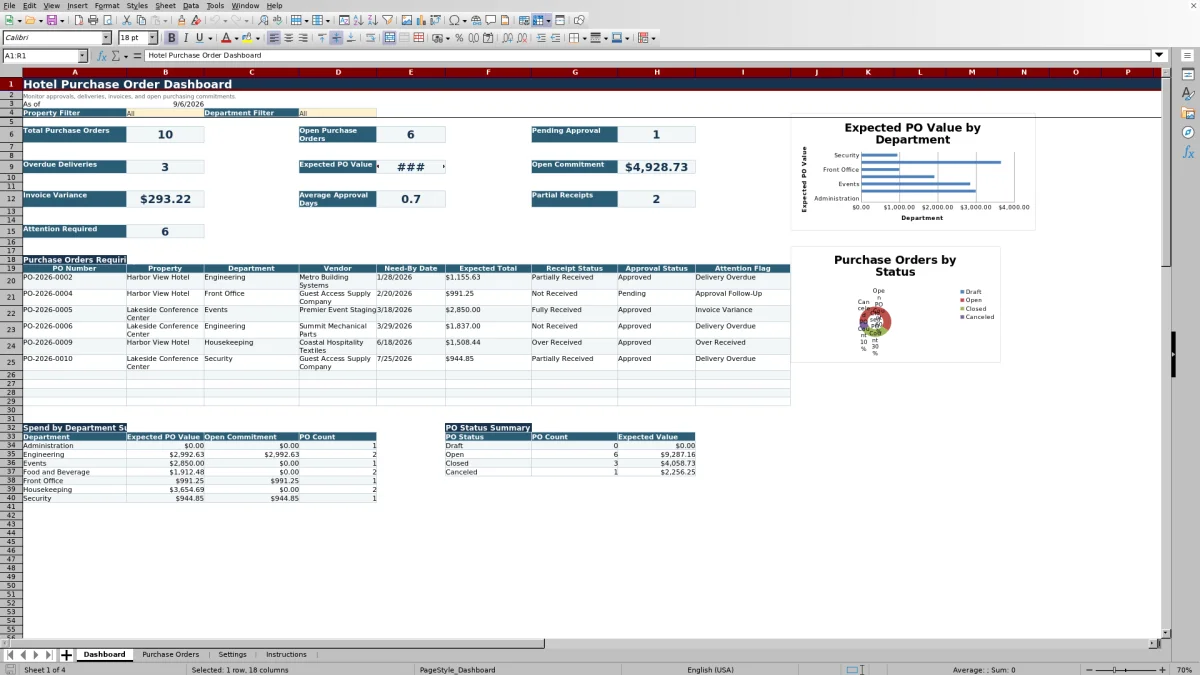
The Dashboard displays Total Purchase Orders, Open Purchase Orders, Pending Approval, Overdue Deliveries, Expected PO Value, Open Commitment, Invoice Variance, Average Approval Days, Partial Receipts, and Attention Required. Its as-of date uses the current date.
A dedicated attention table lists PO Number, Property, Department, Vendor, Need-By Date, Expected Total, Receipt Status, Approval Status, and Attention Flag for applicable open records. Property and Department filters apply to the KPI cards, exception results, and summaries.
The dashboard also contains a Spend by Department Summary with expected PO value, open commitment, and PO count. A PO Status Summary reports PO count and expected value for Draft, Open, Closed, and Canceled statuses. Two charts visualize department expected value and PO counts by status.
Questions about this workbook
How many purchase orders can the template hold?
The Purchase Orders sheet contains 250 prepared data rows, running from row 6 through row 255. Each row includes entry fields and the associated calculated fields.
Can the dashboard be filtered by hotel property and department?
Yes. The Dashboard includes list-based Property and Department filters. Select a configured value or choose All to view workbook-wide KPI cards, attention results, and summary information.
Does the workbook calculate purchase order totals automatically?
Yes. It calculates line subtotal, tax amount, expected total, invoice variance, invoice variance percentage, and uninvoiced commitment from the entered values. Taxable status and tax rate must be entered appropriately for each record.
What receiving statuses are included?
Receipt Status can show Not Received, Partially Received, Fully Received, Over Received, or Canceled. The result is based on PO status and the comparison between quantity ordered and quantity received.
Can hotel teams maintain their own vendors and cost codes?
Yes. The Settings sheet contains structured lists for properties, departments, vendors, and cost codes, with prepared blank rows for additional entries. Vendor IDs support automatic Vendor Name lookup in the Purchase Orders register.
Transparent credits
Editorial and workbook QA bylines
The named editorial signatures and their responsibilities stay consistent across the library.

Workbook guide and editorial context
Audrey Whitmore
Audrey Whitmore is the consistent editorial byline for practical setup guidance written from each workbook’s final manifest and published features.
Meet the editorial byline →
Workbook structure and formula QA byline
Ethan Cole
Ethan Cole is the consistent QA byline shown only when recorded checks pass for worksheet structure, formulas, validations, recalculation, and the published XLSX bytes.
See the QA byline and checks →