Hotels · XLSX
Free Boutique Hotel Operations Dashboard Excel Template for 2026
Track boutique hotel rooms, revenue, labor, guest service, and operational issues with a free Excel dashboard and editable targets.
Formula and workbook structure checked before publication
This boutique hotel operations dashboard is a free Excel template for recording daily rooms, revenue, labor, guest service activity, and operational issues in one workbook. It gives managers a structured view of property performance without requiring separate spreadsheets for daily results and task follow-up.
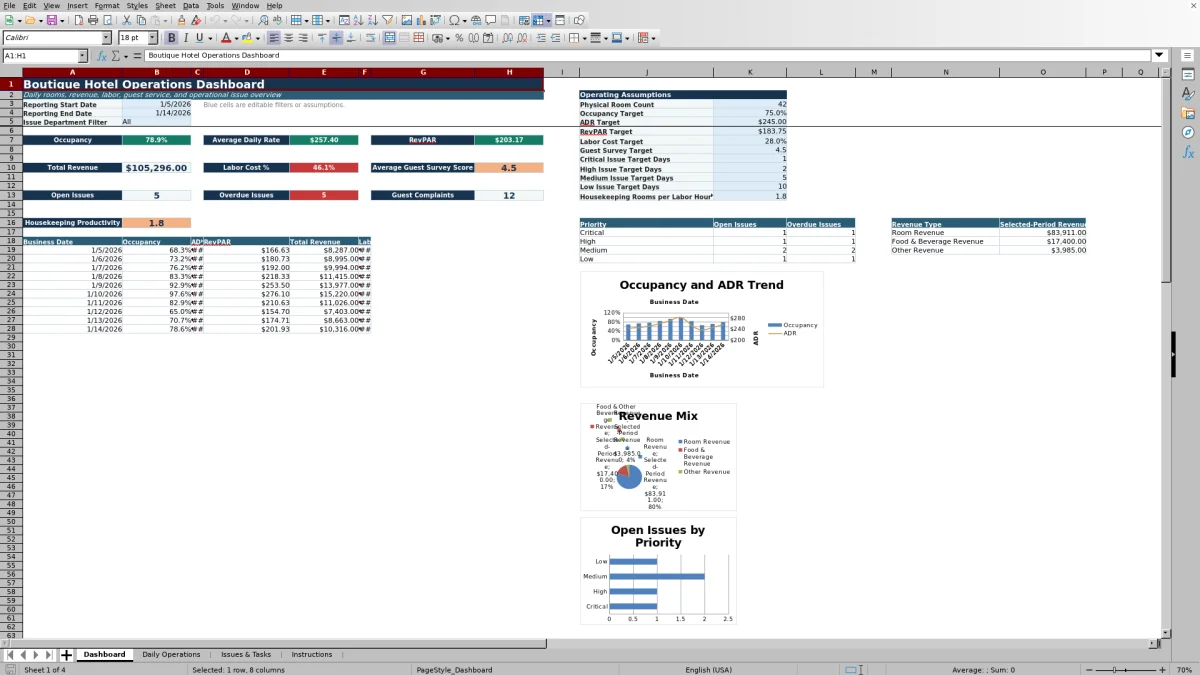
The file contains four sheets: Dashboard, Daily Operations, Issues & Tasks, and Instructions. Formulas calculate core hotel metrics, issue aging, and target status, while editable reporting filters and assumptions let the property review a selected date range and department.
Sample records illustrate the intended workflow. Hotel teams can replace them with property data after confirming that formulas and validations remain intact.
At a glance
What this workbook helps you manage
- Combines room activity, revenue, labor, guest feedback, and issue tracking in one workbook.
- Calculates occupancy, ADR, RevPAR, labor cost percentage, and housekeeping productivity from daily entries.
- Shows open and overdue issues by priority using editable internal target days.
- Provides date and department filters for focused management reviews and shift handoffs.
See the actual file
Inside the workbook
Included in the file
- Four worksheets: Dashboard, Daily Operations, Issues & Tasks, and Instructions.
- Daily Operations table with prepared rows for business dates from row 5 through row 370.
- Issues & Tasks table with prepared rows for 200 operational records and validated status lists.
- Three Dashboard charts covering daily performance, selected-period revenue types, and open issues by priority.
How to use the template
1. Review the instructions and save a clean copy
Start on the Instructions sheet. It explains the daily workflow, data-entry conventions, metric definitions, operating assumptions, and workbook maintenance practices. Save a clean copy before clearing the included sample records.
2. Set Dashboard assumptions
On the Dashboard, update the physical room count and performance targets to reflect the property’s internal operating goals. Editable assumptions include occupancy, ADR, RevPAR, labor cost percentage, guest survey score, housekeeping rooms per labor hour, and target days for Critical, High, Medium, and Low issues.
Enter the reporting start and end dates, then use the issue department filter to select All or a listed department. Blue cells are intended for editable filters or assumptions.
3. Enter one daily operating record
Use one row per business date on the Daily Operations sheet. Enter the manual values available from approved property records, including:
- Physical, out-of-order, occupied, and complimentary rooms
- Arrivals, departures, stayovers, walk-ins, and no-shows
- Room, Food & Beverage, and other revenue
- Rooms cleaned, departmental labor hours, and total labor cost
- Guest complaints, service recovery cost, and guest survey score
- Manager on duty, source report reference, and manager notes
Preserve the gray calculated columns. They derive sellable rooms, total revenue, hotel KPIs, and labor totals. Review the Daily Operations Check field for messages such as room-count inconsistencies, inventory conflicts, or negative amounts.
4. Record and maintain issues
Add each item to Issues & Tasks with a unique Issue ID. Complete the opened date, department, location or room, category, priority, description, assignment, due date, status, guest impact, and available cost information. Update the closed date and resolution notes when work is completed.
The sheet calculates aging days, target days, and SLA status. Unresolved items become overdue when aging days exceed the editable target associated with their priority.
5. Review the management view
Return to the Dashboard to review selected-period performance, target comparisons, open issues, overdue issues, guest complaints, and revenue categories. Use the three included charts alongside the KPI summaries to support operating meetings and shift handoffs.
What does the boutique hotel dashboard measure?
The Dashboard summarizes occupancy, average daily rate, RevPAR, total revenue, labor cost percentage, average guest survey score, guest complaints, and housekeeping productivity. It also counts open and overdue operational issues for the selected reporting period.
Occupancy is calculated as occupied rooms divided by sellable rooms. ADR uses room revenue divided by occupied rooms, while RevPAR uses room revenue divided by sellable rooms. Total revenue combines room, Food & Beverage, and other revenue. These formulas provide a consistent daily operating view when source entries follow the same reporting basis.
How does the daily hotel operations log work?
The Daily Operations sheet is designed for one record per business date. Manual fields cover room inventory, front desk movement, revenue, housekeeping output, labor hours, labor cost, guest-service measures, management references, and notes.
Calculated columns supply the day of week, sellable rooms, total revenue, occupancy, ADR, RevPAR, total labor hours, labor cost percentage, and housekeeping productivity. The Daily Operations Check also reviews selected relationships in each row, including whether physical rooms match the Dashboard assumption and whether occupied rooms exceed sellable rooms.
Date and numeric validation rules help keep entries within the workbook’s prepared ranges. The sheet accepts business dates from January 1, 2026, through December 31, 2030.
How are hotel issues and tasks prioritized?
The Issues & Tasks sheet supports Front Office, Housekeeping, Maintenance, Food & Beverage, Management, and Security departments. Categories include guest requests, guest complaints, room or public-area maintenance, housekeeping, technology, safety concerns, vendor follow-up, and administrative work.
Each item can be assigned a Critical, High, Medium, or Low priority and a status such as Open, In Progress, Waiting on Vendor, Waiting on Guest, Closed, or Canceled. The workbook compares issue age with priority-based target days entered on the Dashboard.
Aging days run from the opened date to the closed date for completed or canceled records. For unresolved items, they run from the opened date to the current date. The resulting SLA Status is an internal operational indicator, not a contractual or legal service-level obligation.
What assumptions can boutique hotel managers edit?
Dashboard assumptions include physical room count, occupancy target, ADR target, RevPAR target, labor cost target, guest survey target, issue target days by priority, and a housekeeping rooms-per-labor-hour target. The sample Dashboard uses 42 physical rooms, but the validated room-count field allows a whole number from 1 to 500.
These values are property management targets. They are not legal requirements, brand standards, labor rules, or compliance guarantees. Managers should use settings that fit the hotel’s own operating plan and reporting practices.
Questions about this workbook
Which Excel sheets are included?
The workbook includes Dashboard, Daily Operations, Issues & Tasks, and Instructions. There are no additional sheets listed in the workbook manifest.
Does the workbook calculate occupancy, ADR, and RevPAR?
Yes. Occupancy is occupied rooms divided by sellable rooms. ADR is room revenue divided by occupied rooms, and RevPAR is room revenue divided by sellable rooms. Error-handling formulas return zero when the required denominator is unavailable.
Can managers filter issues by hotel department?
Yes. The Dashboard issue filter includes All, Front Office, Housekeeping, Maintenance, Food & Beverage, Management, and Security. Dashboard issue counts respond to the selected department.
How does the workbook identify an overdue issue?
An unresolved issue is marked Overdue when its aging days exceed the editable target days for its priority. Closed and canceled records receive their corresponding status instead.
Does the Excel template import data automatically?
No. The workbook does not perform automated system imports. Daily operating figures, issue records, source references, and notes are entered manually from the property’s available records.
What should users avoid overwriting?
Blue cells and blue table columns are intended for manual entry, while gray columns contain formulas. Users should preserve calculated columns, add records within the prepared table rows, and confirm formulas and validations before replacing sample data.
Transparent credits
Editorial and workbook QA bylines
The named editorial signatures and their responsibilities stay consistent across the library.

Workbook guide and editorial context
Audrey Whitmore
Audrey Whitmore is the consistent editorial byline for practical setup guidance written from each workbook’s final manifest and published features.
Meet the editorial byline →
Workbook structure and formula QA byline
Ethan Cole
Ethan Cole is the consistent QA byline shown only when recorded checks pass for worksheet structure, formulas, validations, recalculation, and the published XLSX bytes.
See the QA byline and checks →