Hotels · XLSX
Free Hotel Front Desk Shift Log Excel Template for 2026
Hotel front desk shift log spreadsheet with handoff tracking, overdue flags, assignments, priorities, due dates, and a summary dashboard.
Formula and workbook structure checked before publication
This hotel front desk shift log spreadsheet is a free Excel template for documenting guest concerns, requests, operational exceptions, and follow-up items across shifts. Staff can record what happened, what action was taken, who owns the next step, and when follow-up is due.
The workbook includes Dashboard, Shift Log, Lists and Settings, and Instructions sheets. Formula-driven fields calculate item age, overdue status, and data-check messages, while the shift handoff dashboard summarizes open, overdue, high-priority, and due-today items.
It is a stand-alone log and does not connect to hotel operating systems. The layout supports consistent documentation and clearer communication among front desk, housekeeping, maintenance, management, security, accounting, and other operating departments.
At a glance
What this workbook helps you manage
- Keeps issues, guest requests, actions, assignments, due dates, and resolution details in one structured log.
- Helps incoming staff identify open, overdue, high-priority, and designated handoff items.
- Summarizes workload by assigned department and operational category on the Dashboard.
- Flags incomplete records, including missing dates, shifts, descriptions, assignments, or closure details.
See the actual file
Inside the workbook
Included in the file
- A 26-column Shift Log table covering entry details, assignments, follow-up, status, recovery estimates, closure, age, overdue flags, and data checks.
- Dropdown lists for shifts, categories, priorities, assigned departments, statuses, guest contact needs, and next-shift handoffs.
- A formula-based Dashboard with current open-item, overdue, priority, due-date, category, department, cost, and average-age summaries.
- Built-in Instructions covering daily use, shift handoffs, data-entry standards, status definitions, and priority definitions.
How to use the template
1. Review the property settings
Open Lists and Settings before daily use. Enter the property name and location, review the open-item alert threshold in hours, and confirm the listed shift start times. The sheet also contains the values used by the Shift Log dropdowns, including shifts, categories, priorities, departments, statuses, and Yes or No choices.
2. Add one row for each item
Use one Shift Log row for every new issue, request, exception, or handoff item. Assign an Entry ID, then record the date and time opened, shift, employee name, category, priority, room or area, and a concise factual description. The log provides entry rows from row 6 through row 505.
3. Document action and ownership
Enter the action already taken, the assigned department, and the person or role responsible. Add a follow-up due date and time when another action is expected. Use Guest Contact Needed and Next Shift Handoff to make outstanding commitments visible to the incoming team.
4. Update the existing row
Continue using the same row as work progresses. Change the status and resolution details rather than creating a duplicate entry. When the matter is complete, select Closed and enter the date and time closed. Formula columns calculate Age in Hours and the Overdue Flag and display a Data Check message when required information is missing or inconsistent.
5. Conduct the shift review
At shift change, review the Dashboard and relevant Shift Log rows. Focus on Critical and High priorities, overdue work, items due today, guest contact commitments, and rows marked Yes for Next Shift Handoff. Confirm that each open item has clear ownership and that closed items include resolution and close details.
What should a hotel front desk shift log include?
A useful front desk log should give the next employee enough information to understand the issue and continue the work without relying on memory. This spreadsheet records Entry ID, Date Opened, Time Opened, Shift, Logged By, Category, Priority, Guest Name, Room or Area, PMS or System Reference, Short Description, and Action Taken.
Follow-up fields cover Assigned Department, Assigned To, due date and time, Status, Guest Contact Needed, and Next Shift Handoff. The sheet also includes Estimated Guest Recovery Cost, Resolution Details, Date Closed, and Time Closed. Age in Hours, Overdue Flag, and Data Check are formula fields rather than routine entry fields.
The workbook notes that the PMS or System Reference field is for a non-sensitive manual reference. Staff should not enter payment card numbers, Social Security numbers, government identification numbers, access codes, medical information, or other sensitive data.
How does the spreadsheet support shift handoffs?
The Next Shift Handoff field identifies rows that the incoming team must review. During handoff, employees can pair that indicator with priority, status, assigned department, assigned person, guest contact needs, and follow-up deadlines.
The included Instructions sheet sets out a practical review sequence: examine Critical and High open items, review overdue work, confirm ownership for handoff items, verify guest contact commitments and due times, and check that closed matters have resolution and closure details. Historical rows should not be deleted merely because they are closed.
Priority definitions are included for Low, Normal, High, and Critical. These labels are operational guides. Urgent safety, security, or guest welfare matters should follow the property's established procedures.
How are overdue front desk items identified?
The Overdue Flag evaluates each populated row. An open item is marked Overdue when its entered due date and time have passed. If there is no valid due date, the workbook compares the calculated age against the open-item alert threshold entered on Lists and Settings. Other active items appear as On Track, while completed items appear as Closed.
Age in Hours is calculated from the opening date and time to the closing date and time when available. Otherwise, it continues to use the current date and time. The Dashboard reports the number of overdue items, items due today, and the average age in hours for open entries.
What does the hotel shift log dashboard show?
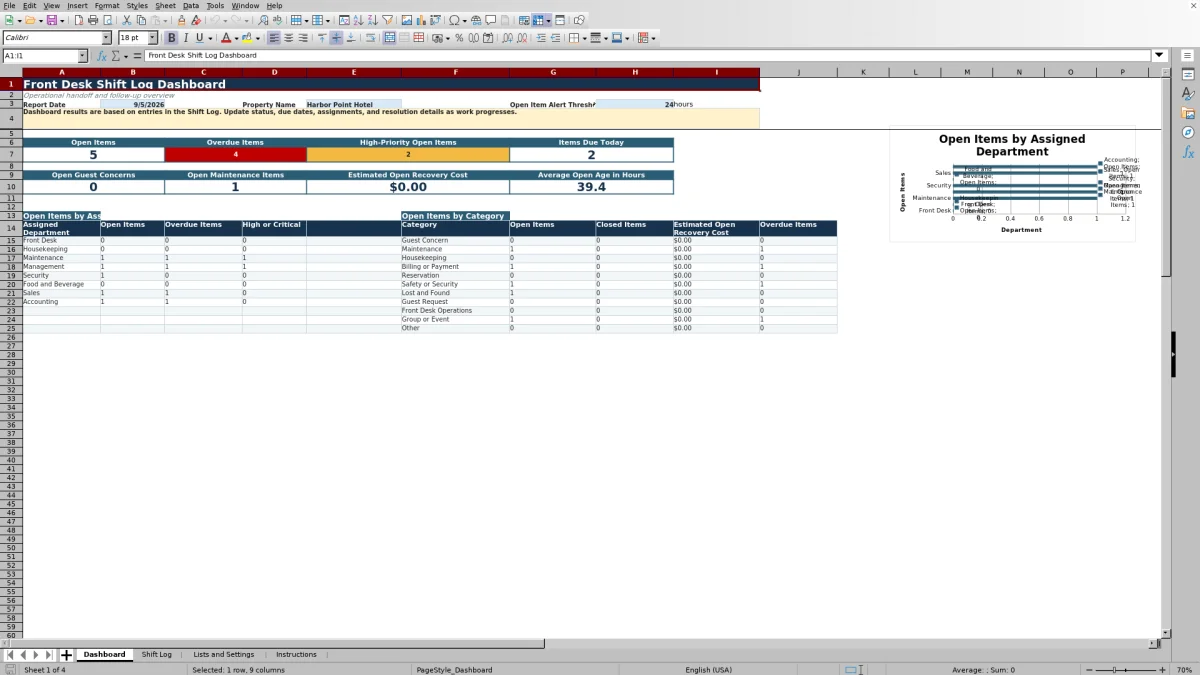
The Dashboard gives supervisors and front desk teams an operational overview based on entries in the Shift Log. Its summary measures include Open Items, Overdue Items, High-Priority Open Items, Items Due Today, Open Guest Concerns, Open Maintenance Items, Estimated Open Recovery Cost, and Average Open Age in Hours.
Department summaries show open, overdue, and High or Critical items for Front Desk, Housekeeping, Maintenance, Management, Security, Food and Beverage, Sales, and Accounting. Category summaries compare open and closed items, estimated open recovery cost, and overdue items across the listed categories.
A chart displays open items by assigned department. Dashboard results depend on staff keeping assignments, due dates, statuses, and resolution information current in the Shift Log.
Questions about this workbook
What sheets are included in the workbook?
The workbook has four sheets: Dashboard, Shift Log, Lists and Settings, and Instructions. The Shift Log stores operational entries, the Dashboard summarizes those entries, Lists and Settings contains property values and dropdown choices, and Instructions explains daily use and handoff practices.
Which front desk issues can be recorded?
The available categories are Guest Concern, Maintenance, Housekeeping, Billing or Payment, Reservation, Safety or Security, Lost and Found, Guest Request, Front Desk Operations, Group or Event, and Other.
What status options are available?
The workbook includes Open, In Progress, Waiting on Guest, Waiting on Vendor, Monitoring, and Closed. The Instructions sheet defines each status so employees can apply the terms consistently.
Can the spreadsheet track estimated guest recovery costs?
Yes. Each row has an Estimated Guest Recovery Cost field formatted in U.S. dollars, and the Dashboard totals estimated recovery cost for open items. The workbook identifies this amount as an operational estimate, not an accounting posting.
Does this shift log connect to a hotel PMS or another system?
No. The workbook is a stand-alone log and does not connect to hotel operating systems. It includes a PMS or System Reference field for entering a non-sensitive manual reference associated with an item.
Transparent credits
Editorial and workbook QA bylines
The named editorial signatures and their responsibilities stay consistent across the library.

Workbook guide and editorial context
Audrey Whitmore
Audrey Whitmore is the consistent editorial byline for practical setup guidance written from each workbook’s final manifest and published features.
Meet the editorial byline →
Workbook structure and formula QA byline
Ethan Cole
Ethan Cole is the consistent QA byline shown only when recorded checks pass for worksheet structure, formulas, validations, recalculation, and the published XLSX bytes.
See the QA byline and checks →