Housekeeping · XLSX
Free Hotel Fire Safety Inspection Log Excel Template for 2026
Hotel fire safety inspection log with linked corrective actions, status checks, cost tracking, due dates, and a dashboard for hotel teams.
Formula and workbook structure checked before publication
This free Excel template gives hotel engineering, security, and management teams a structured way to document fire safety inspections and follow-up work in 2026. The workbook separates inspection records from corrective actions while connecting both to a summary dashboard.
Use the Inspection Log to record what was checked, where the inspection occurred, who completed it, the result, any deficiency, and the next inspection date. When follow-up is required, the Corrective Actions sheet tracks ownership, priority, due dates, completion, verification, and costs.
The file supports internal operational tracking. Inspection scope, frequency, priorities, and closure requirements should be confirmed with property policy, qualified vendors, insurers, manufacturers, and the authority having jurisdiction.
At a glance
What this workbook helps you manage
- Keeps inspection details, deficiencies, supporting references, and next due dates in one structured log.
- Separates observed conditions from assigned corrective actions and documented closure.
- Highlights overdue work, incomplete records, upcoming inspections, and high-priority open actions.
- Summarizes pass rates, action costs, days open, priorities, and findings by system or area.
See the actual file
Inside the workbook
Included in the file
- Four worksheets: Dashboard, Inspection Log, Corrective Actions, and Instructions.
- Validated lists for inspection types, systems, roles, methods, results, priorities, departments, and statuses.
- Calculated record status, days open, follow-up status, and corrective-action cost variance.
- Dashboard metrics plus charts for open actions by priority and findings by system or area.
How to use the template
1. Review the instructions and property settings
Start on the Instructions sheet to review the workbook workflow, field guidance, data-entry conventions, and limitations. On the Dashboard, enter the property name and select the property type. Review the internal assumptions for default corrective-action due days, the due-soon window, target pass rate, stale-action threshold, and dashboard lookback period.
These settings are operating assumptions rather than legal inspection intervals or compliance thresholds. Set them according to the hotel's own procedures and qualified guidance.
2. Record each inspection event
Use one row in the Inspection Log for each inspection event or inspected asset. Assign an Inspection ID, enter the date, and identify the inspection type, building or zone, floor or area, specific asset, system or category, and asset ID or location tag when available.
Complete the inspector, organization, role, and inspection method fields. The available result choices include Pass, Pass With Follow-Up, Fail, Not Tested, and Not Applicable. Record the observed condition for the documented scope rather than making assumptions about items that were not checked.
3. Document deficiencies and immediate safeguards
If a deficiency was found, select Yes and describe it clearly. Record any immediate safeguard taken, the responsible department, and a photo or document reference when applicable. The log also includes fields for the next inspection due date, whether an action is required, a related Action ID, and notes.
The Record Status formula can identify a missing inspection date, an incomplete finding, an action that has not been linked, an inspection that is due, or a complete record. Do not overwrite this formula-driven status column.
4. Assign and update corrective actions
Create one row in Corrective Actions for each item requiring ownership, cost tracking, or documented closure. Link it to the relevant Inspection ID, then enter the issue, priority, assigned department, assigned person, vendor or service provider, target completion date, and action status.
- Use Open, In Progress, On Hold, Closed, or Canceled for status.
- Enter estimated and actual costs in U.S. dollars.
- Record the action taken, completion date, verifier, verification date, and verification method.
- Add a work order or invoice reference and management notes when applicable.
5. Review follow-up status and dashboard results
The Corrective Actions sheet calculates days open, follow-up status, and cost variance. Closed items require completion, verifier, and verification-date entries to display Closed and Verified. Review overdue, due-soon, missing-date, and closure-incomplete records during engineering, security, or management meetings.
Use the Dashboard to monitor inspection activity in the selected lookback period, pass rate, open and overdue actions, high-priority work, upcoming inspections, average days open, and estimated open-action cost.
What should a hotel fire safety inspection log record?
A useful log should identify the inspection and the exact location or asset reviewed. This workbook provides fields for Inspection ID, date, inspection type, building or zone, floor or area, area or asset, system or category, and asset ID or location tag.
It also records the inspector's name, organization, role, inspection method, overall result, and whether a deficiency was found. When there is a concern, staff can document the deficiency description, immediate safeguard, photo or document reference, responsible department, next inspection due date, and notes. This creates a consistent inspection history without combining every follow-up task into the same record.
How are inspection findings linked to corrective actions?
The Inspection Log includes an Action Required selection and a Related Action ID field. The Corrective Actions sheet includes both an Action ID and Inspection ID, allowing staff to connect a follow-up item to the inspection where it was identified.
Each action can include its location, system or category, issue summary, priority, ownership, vendor, target date, status, action taken, and verification details. This structure helps teams distinguish between the condition observed during an inspection and the work later performed to address it.
How does the workbook identify overdue or incomplete work?
Formula columns check records against entered dates and statuses. In the Inspection Log, the Record Status field can flag Missing Date, Incomplete Finding, Action Not Linked, or Inspection Due. Otherwise, a populated record can display Complete.
In Corrective Actions, the Follow-Up Status can show Missing Due Date, Overdue, Due Soon, On Schedule, Closure Incomplete, Closed and Verified, or Canceled. The due-soon period comes from the Dashboard setting. Conditional formatting provides additional visual emphasis within the workbook, while filters on both data sheets help hotel teams narrow records by location, system, result, department, or status.
What does the hotel fire safety dashboard show?
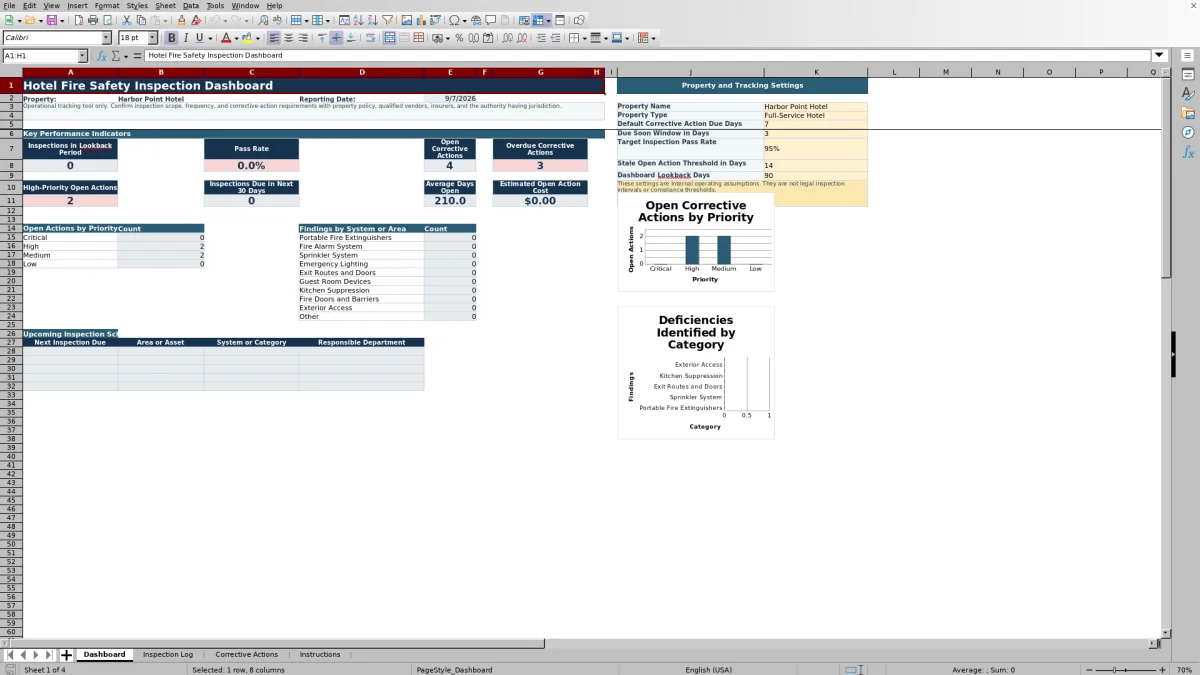
The Dashboard summarizes inspections within a configurable lookback period and calculates the inspection pass rate. It also reports open corrective actions, overdue actions, high-priority open actions, inspections due in the next 30 days, average days open, and estimated open-action cost.
Additional summaries count open actions by priority and findings across categories such as portable fire extinguishers, fire alarm systems, sprinkler systems, emergency lighting, exit routes and doors, guest room devices, kitchen suppression, fire doors and barriers, exterior access, and other items. Two charts visualize the priority and system-or-area summaries.
Questions about this workbook
Is this workbook designed only for full-service hotels?
No. The Dashboard property-type list includes Full-Service Hotel, Select-Service Hotel, Resort, Inn, Vacation Rental, Campground, Event Venue, and Other. The property should still adapt its inspection process to its buildings, equipment, operations, and applicable requirements.
Can the log track vendor inspections and service visits?
Yes. Vendor Service Visit is available as an inspection type, Qualified Vendor is available as an inspector role, and Vendor Service is available as an inspection method. Corrective actions also include fields for the vendor or service provider and the work order or invoice reference.
Can hotel teams track repair costs?
Yes. Corrective Actions includes Estimated Cost and Actual Cost fields formatted for U.S. dollars. A calculated Cost Variance field subtracts estimated cost from actual cost. The Dashboard also totals estimated costs for actions that are not closed or canceled.
What is required for an action to show as closed and verified?
When Action Status is Closed, the workbook checks for a completion date, the name of the person who verified the work, and a verification date. If one of those entries is absent, Follow-Up Status displays Closure Incomplete. When all are entered, it displays Closed and Verified. This status reflects completed workbook fields, not approval by an authority unless that approval is documented separately.
What supporting information can be referenced in the workbook?
The Inspection Log includes a Photo or Document Reference field. Corrective Actions includes a Work Order or Invoice Reference field. The Instructions sheet recommends retaining vendor reports, photographs, invoices, and work orders according to property policy and using reference fields for file names, report references, work order numbers, or invoice references rather than sensitive guest information.
Transparent credits
Editorial and workbook QA bylines
The named editorial signatures and their responsibilities stay consistent across the library.

Workbook guide and editorial context
Audrey Whitmore
Audrey Whitmore is the consistent editorial byline for practical setup guidance written from each workbook’s final manifest and published features.
Meet the editorial byline →
Workbook structure and formula QA byline
Ethan Cole
Ethan Cole is the consistent QA byline shown only when recorded checks pass for worksheet structure, formulas, validations, recalculation, and the published XLSX bytes.
See the QA byline and checks →