Hotels · XLSX
Free Campground Site Reservation Tracker Excel Template for 2026
Track campground reservations, site inventory, guest balances, arrivals, departures, and short-term occupancy in one Excel workbook.
Formula and workbook structure checked before publication
This campground site reservation tracker is a free Excel template for maintaining campsite and cabin inventory, recording guest stays, calculating reservation charges, and reviewing daily operating metrics.
The workbook contains four worksheets: Dashboard, Reservations, Site Inventory, and Instructions. Together, they organize site availability and reservation details without separating daily operating information across multiple files.
Prepared formulas calculate stay length, nightly charges, estimated tax, total charges, deposit targets, and balances due. Operational checks also identify records that may need review before a stay is confirmed or changed.
At a glance
What this workbook helps you manage
- Keeps guest, stay, site, charge, payment, and booking-source details in one reservation record.
- Uses the site inventory to populate site type and base nightly rate automatically.
- Summarizes arrivals, departures, occupied sites, balances, reservation statuses, and planning-window occupancy.
- Flags overlap, capacity, inactive-site, deposit, balance, and other reservation exceptions for review.
See the actual file
Inside the workbook
Included in the file
- Four worksheets: Dashboard, Reservations, Site Inventory, and Instructions.
- Prepared Excel tables with 150 reservation rows and 100 site inventory rows.
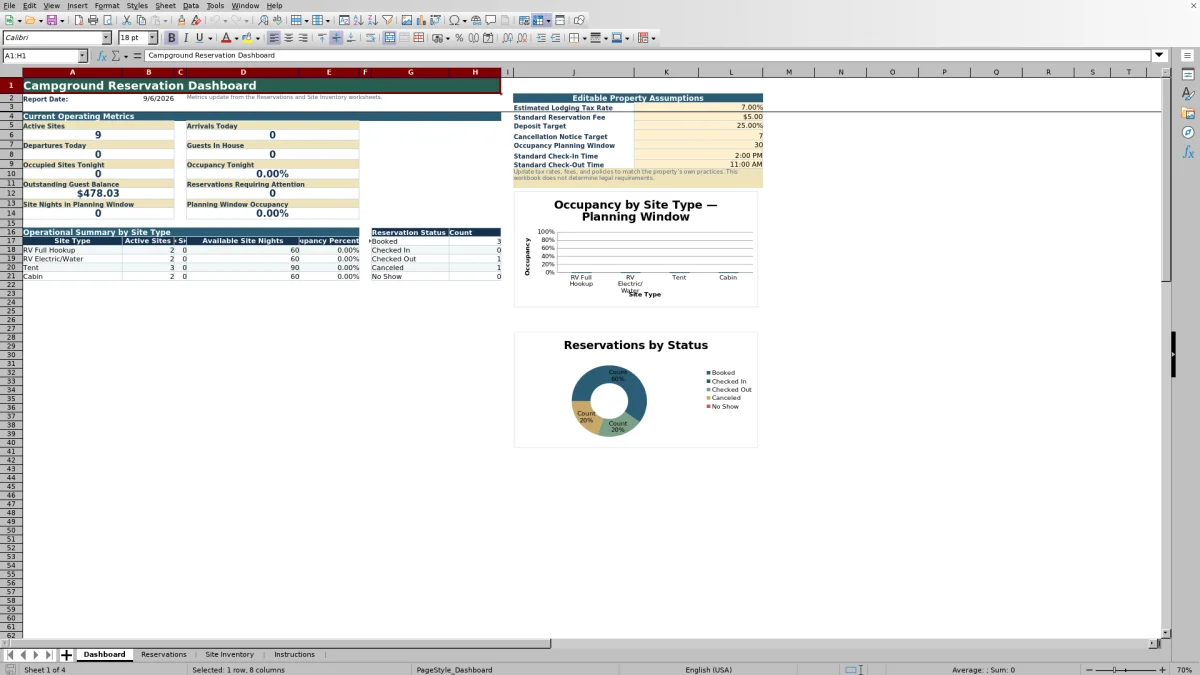
- Two dashboard charts covering occupancy by site type and reservation-status counts.
- Validated entries, conditional formatting, frozen headers, filters, and U.S. dollar formats.
How to use the template
1. Review property assumptions
Start on Dashboard and update the editable property assumptions. These include the estimated lodging tax rate, standard reservation fee, deposit target, cancellation notice target, occupancy planning window, and standard check-in and check-out times.
Use values that match the property’s own practices. The workbook does not determine tax, legal, or compliance requirements.
2. Build the site inventory
Enter each reservable campsite or cabin on Site Inventory before assigning it to a guest. Give every site a unique Site ID, then record its name, type, loop or area, active status, guest limit, maximum RV length, utility details, base nightly rate, and notes.
The prepared site types are RV Full Hookup, RV Electric/Water, Tent, and Cabin. Electric-service choices include None, 20 Amp, 30 Amp, 50 Amp, and 30/50 Amp.
3. Enter each reservation
Add a unique Reservation ID and select a status: Booked, Checked In, Checked Out, Canceled, or No Show. Record the guest’s contact information, Site ID, arrival and departure dates, party details, vehicles, extras, payments, booking source, external confirmation, booked date, and guest notes.
The selected Site ID supplies the site type and inventory rate. Enter a rate override only when that reservation should use a different nightly amount.
4. Review calculations and exceptions
The Reservations sheet calculates nights, stay timing, applied nightly rate, site charge, reservation fee, estimated tax, total charges, deposit target, and balance due. Check the Operational Check result before confirming or changing a stay.
- Departure is treated as the end boundary and is not counted as an occupied night.
- Payments Received should contain the cumulative amount paid.
- Canceled and No Show records are excluded from the active overlap check.
5. Use the dashboard for daily review
Consult Dashboard for active sites, today’s arrivals and departures, guests in house, occupied sites tonight, occupancy tonight, outstanding guest balance, and reservations requiring attention. The sheet also reports site nights and occupancy within the selected planning window.
For consistent formulas, validation, and formatting, add records inside the prepared Excel tables and avoid overwriting formula columns unless intentionally modifying the workbook.
What reservation information can campground staff track?
The Reservations sheet provides fields for Reservation ID, status, guest name, phone, email, Site ID, arrival and departure dates, adults, children, pets, RV length, vehicles, booking source, external confirmation, booked date, and guest notes.
It also separates base nightly rate, rate override, applied nightly rate, extras, reservation fee, estimated tax, total charges, payments received, deposit target, and balance due. This structure gives front-desk and campground staff a consistent reservation-level record for both stay details and financial follow-up.
Booking sources can be categorized as Direct Phone, Property Website, Walk-In, Online Travel Agency, Group Coordinator, Returning Guest, or Other. The booking-source and external-confirmation fields are manual tracking fields and are not integrations.
How does the tracker identify campground reservation conflicts?
Two active reservations conflict when they use the same Site ID and their stay dates overlap. Canceled and No Show records are excluded from that active overlap check.
The Operational Check column also supports review of missing Site IDs, missing or invalid stay dates, reservations without at least one adult, sites not found in inventory, and inactive sites. The Instructions sheet additionally directs operators to review overlap, capacity, deposit, and balance alerts each day.
These warnings help staff locate records that need attention. Operators should still verify the underlying reservation, guest requirements, site assignment, and property practices before making changes.
How are campground charges and balances calculated?
The workbook calculates the number of nights from the arrival and departure dates. Site Charge equals nights multiplied by the applied nightly rate. The applied rate uses the Site Inventory base nightly rate unless a manual Rate Override is entered.
Extras are entered manually. Estimated Tax is calculated from Site Charge plus Extras, while the standard Reservation Fee is added separately. Total Charges combine those amounts, and Balance Due subtracts Payments Received from total charges without allowing a negative balance.
The Dashboard assumptions provide a standard fee, estimated tax rate, and deposit target. Because taxability, rates, fees, deposits, and cancellation practices vary, staff should review property assumptions and update them to match current practices.
What does the campground reservation dashboard show?
The Dashboard uses the reservation and site inventory worksheets to present current operating metrics. These include active sites, arrivals today, departures today, guests in house, occupied sites tonight, occupancy tonight, outstanding guest balance, and the number of reservations requiring attention.
A site-type summary reports active sites, reserved site nights, available site nights, and occupancy percentage for RV Full Hookup, RV Electric/Water, Tent, and Cabin categories. A separate status summary counts Booked, Checked In, Checked Out, Canceled, and No Show reservations.
The editable occupancy planning window can be set from 1 to 365 days. Dashboard formulas then report site nights and occupancy for that short-term planning period.
Questions about this workbook
How many reservation records are prepared in the workbook?
The Reservations table contains 150 prepared data rows, from row 2 through row 151. Each row includes formulas, validation, and formatting for one reservation record.
How many campground sites can be entered?
The Site Inventory table contains 100 prepared data rows, from row 2 through row 101. Each row can hold one campsite or cabin with its operating details and base nightly rate.
Can the nightly rate be changed for one reservation?
Yes. Enter a Rate Override on the reservation. When that field is blank, the Applied Nightly Rate uses the Base Nightly Rate retrieved from Site Inventory.
What reservation statuses are available?
The status list includes Booked, Checked In, Checked Out, Canceled, and No Show. Staff should update the status as guests arrive, depart, cancel, or fail to arrive.
What sensitive information should be kept out of the file?
The Instructions sheet says not to store payment card numbers, government identification numbers, health information, or other unnecessary sensitive data in the workbook.
Why might formulas or formatting stop extending consistently?
Records should be added inside the prepared Excel tables. Staff should not overwrite formula columns unless intentionally customizing the workbook, and formulas should be reviewed after columns are inserted, deleted, or renamed.
Transparent credits
Editorial and workbook QA bylines
The named editorial signatures and their responsibilities stay consistent across the library.

Workbook guide and editorial context
Audrey Whitmore
Audrey Whitmore is the consistent editorial byline for practical setup guidance written from each workbook’s final manifest and published features.
Meet the editorial byline →
Workbook structure and formula QA byline
Ethan Cole
Ethan Cole is the consistent QA byline shown only when recorded checks pass for worksheet structure, formulas, validations, recalculation, and the published XLSX bytes.
See the QA byline and checks →