Housekeeping · XLSX
Free Hotel Incident Report Tracker Excel Template for 2026
Hotel incident report tracker with an organized log, follow-up dates, ownership, costs, review status, dashboard metrics, and alerts.
Formula and workbook structure checked before publication
This hotel incident report tracker is a free Excel template for documenting operational incidents, assigning follow-up responsibility, and monitoring closure across a property. It provides one structured record for the facts, actions, references, costs, manager review, and final resolution associated with each incident.
The workbook contains four sheets: Dashboard, Incident Log, Lists & Settings, and Instructions. The Incident Log includes prepared rows for 200 records, dropdown fields, date and cost validation, calculated days open, follow-up status, and data-quality prompts.
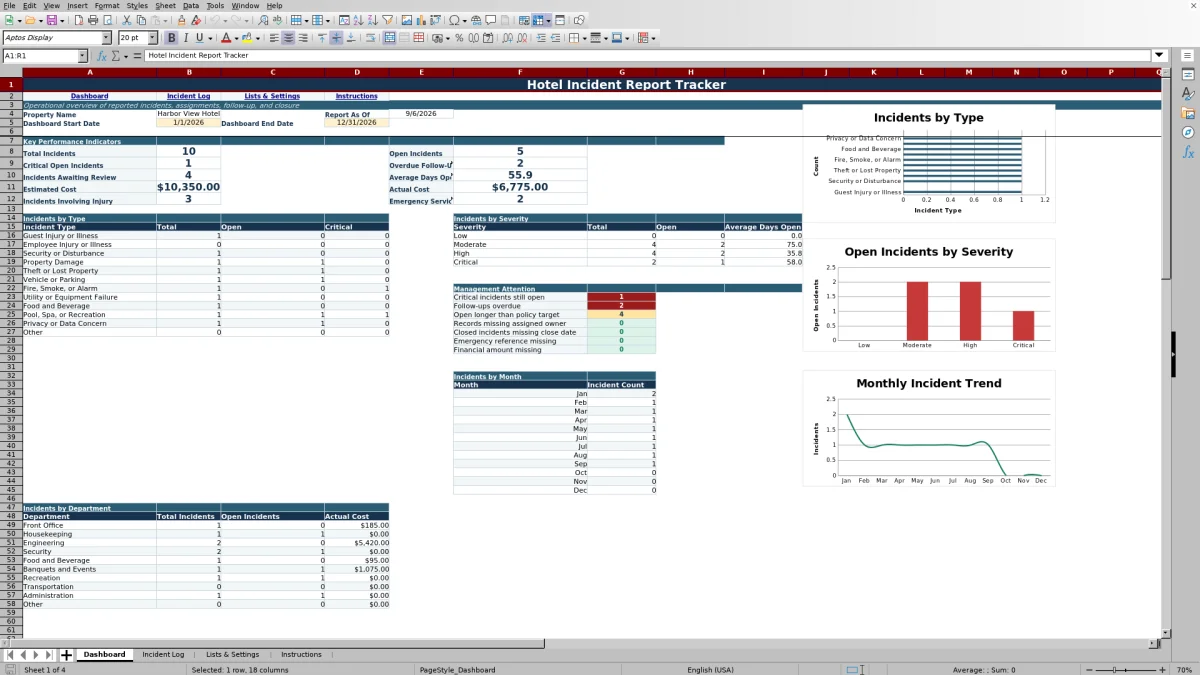
A date-controlled Dashboard summarizes total and open incidents, critical open cases, overdue follow-ups, incidents awaiting review, average days open, estimated and actual costs, injuries or illnesses, and emergency-services involvement.
At a glance
What this workbook helps you manage
- Keeps incident facts, assignments, follow-up dates, reviews, costs, and closure details in one structured log.
- Highlights open, critical, overdue, and pending-review incidents for routine management follow-up.
- Uses editable lists and dropdowns to support consistent incident categories, severity levels, statuses, departments, and locations.
- Summarizes selected-date activity through dashboard indicators, category breakdowns, and three charts.
See the actual file
Inside the workbook
Included in the file
- Four worksheets: Dashboard, Incident Log, Lists & Settings, and Instructions.
- A 200-row Incident Log table with filters, frozen headers, dropdown lists, date validation, and U.S. dollar cost formatting.
- Calculated days open, follow-up timing status, and data-quality checks for each prepared incident row.
- A date-range Dashboard with operational indicators, incident-type and severity summaries, and three charts.
How to use the template
1. Review the workbook instructions
Start on the Instructions sheet to review the suggested incident workflow and data-entry guidance. The workbook calls for factual, neutral language and advises users not to enter Social Security numbers, payment card numbers, driver’s license numbers, detailed medical records, or other unnecessary sensitive information.
2. Configure property settings
Open Lists & Settings and replace the sample property information with the applicable property name, property code, default manager on duty, and operational targets. Review the editable lists for departments, reporter roles, incident types, severity levels, status options, yes-or-no responses, manager review statuses, and location types. These lists supply the Incident Log dropdowns, so changes should be made carefully.
3. Record one incident per row
Use the Incident Log for one incident per row. Enter an incident ID, property and department, incident and report dates and times, reporter information, location, incident type, severity, and status. The log also provides fields for involved parties, injury or illness, emergency services, security contact, area security, immediate action, and an incident summary.
Additional fields cover witnesses, supporting-file references, police and insurance or claim references, assigned ownership, corrective action, manager review, closure, financial impact, and estimated or actual cost. Use internal file references rather than embedding confidential documents.
4. Assign and monitor follow-up
For each open record, enter an assigned owner, owner department, and next follow-up date. Calculated columns determine days open and classify follow-up timing as Complete, No Date Set, Overdue, Due Today, or Scheduled. A data-quality formula can identify issues such as a missing assigned owner, missing incident summary, missing closure date on a closed record, an invalid closure sequence, or a missing emergency reference when emergency services were contacted.
5. Review the Dashboard and close completed cases
Set the Dashboard start and end dates for the reporting period. Review headline indicators, incident-type and severity summaries, and the workbook’s three charts during management meetings. Once operational follow-up is complete, enter the closure date and a concise closure summary. Do not delete formula columns, and add records within the prepared table rows so existing formulas, validation, and formatting remain available.
What information can a hotel incident log capture?
The Incident Log supports a detailed operational record from initial report through closure. Core fields include incident ID, property, department, incident date and time, date and time reported, reporter, reporter role, incident location, room or area, incident type, severity, and status.
Managers can also document whether a guest, visitor, or employee was involved; whether an injury or illness was reported; and whether emergency services or security were contacted. Related fields capture an emergency-services reference, whether the area was secured, immediate action taken, and the incident summary.
Follow-up fields include witnesses, photo or video availability, evidence or file references, police report number, insurance or claim reference, assigned owner, owner department, next follow-up date, corrective action, and manager review details. Closure and financial fields cover the closure date, closure summary, financial impact, estimated cost, and actual cost.
How does the hotel incident dashboard support management review?
The Dashboard uses a start date and end date to define the reporting period. Within that range, it calculates total incidents, open incidents, critical open incidents, overdue follow-ups, incidents awaiting review, and average days open. It also totals estimated and actual costs and counts incidents involving injury or illness and those requiring emergency services.
Incident-type summaries show total, open, and critical counts. Severity summaries show total and open records plus average days open. The displayed property name comes from Lists & Settings, while the report-as-of date uses the current date. This layout gives managers a consistent view of workload and unresolved items without requiring them to count records manually.
How are overdue hotel incident follow-ups identified?
Each prepared Incident Log row compares the next follow-up date with the current date. Open records can be classified as Overdue, Due Today, Scheduled, or No Date Set. Closed and canceled records are classified as Complete.
The Dashboard counts overdue follow-ups within its selected incident-date range while excluding incidents marked Closed or Canceled. This makes the result dependent on accurate incident dates, statuses, and next follow-up dates. Assigning an owner and entering a realistic follow-up date for every open case helps keep the review useful.
How does the workbook improve consistency without limiting useful detail?
Dropdown validation standardizes commonly repeated values, including departments, reporter roles, incident types, severity levels, statuses, manager review statuses, locations, and yes-or-no answers. Date validation is applied to incident, report, follow-up, manager review, closure, and another prepared date field. Estimated and actual costs accept decimal values and display as U.S. dollars.
Free-text fields remain available for facts that require context, such as immediate action, incident summary, corrective action, and closure summary. This combination supports consistent reporting while preserving space for a concise narrative and internal references.
Questions about this workbook
How many incidents can the prepared log hold?
The Incident Log table runs from row 6 through row 205, providing 200 prepared incident rows. The instructions direct users to add records within these rows so the existing validation, formulas, and formatting remain available.
Does the template calculate how long an incident has been open?
Yes. The Days Open formula calculates elapsed days from the incident date to the closure date when one is entered. Otherwise, it calculates from the incident date to the current date. Negative results are prevented.
Can the tracker show missing or inconsistent information?
Yes. A calculated data-quality field can flag a missing assigned owner, missing incident summary, a closed incident without a closure date, a closure date before the incident date, or a missing emergency reference when emergency services were marked Yes.
Can hotel managers track incident-related costs?
Yes. The log includes Financial Impact, Estimated Cost, and Actual Cost fields. Estimated and actual costs use decimal validation and U.S. dollar formatting, and both totals appear on the Dashboard for the selected period.
What should staff avoid entering in the workbook?
The Instructions sheet says not to enter Social Security numbers, payment card numbers, driver’s license numbers, detailed medical records, or other unnecessary sensitive information. It also recommends using internal file references instead of embedding confidential documents.
What is the intended scope of this incident tracker?
The workbook is an internal operational tracking aid for incident documentation, assignment, follow-up, review, cost recording, and closure. Its instructions state that it does not replace emergency procedures, required reporting, insurance instructions, legal advice, or the property’s incident procedures.
Transparent credits
Editorial and workbook QA bylines
The named editorial signatures and their responsibilities stay consistent across the library.

Workbook guide and editorial context
Audrey Whitmore
Audrey Whitmore is the consistent editorial byline for practical setup guidance written from each workbook’s final manifest and published features.
Meet the editorial byline →
Workbook structure and formula QA byline
Ethan Cole
Ethan Cole is the consistent QA byline shown only when recorded checks pass for worksheet structure, formulas, validations, recalculation, and the published XLSX bytes.
See the QA byline and checks →