Housekeeping · XLSX
Free 2026 Hotel Operating Supplies Inventory Spreadsheet Excel Template
Track hotel operating supplies, stock levels, reorder needs, inventory value, transactions, and physical count status in one Excel workbook.
Formula and workbook structure checked before publication
This hotel operating supplies inventory spreadsheet is a free Excel template for tracking amenities, housekeeping products, linens, disposables, engineering materials, and other operating supplies. It combines opening balances with receipts, issues, adjustments, and vendor returns to calculate current stock.
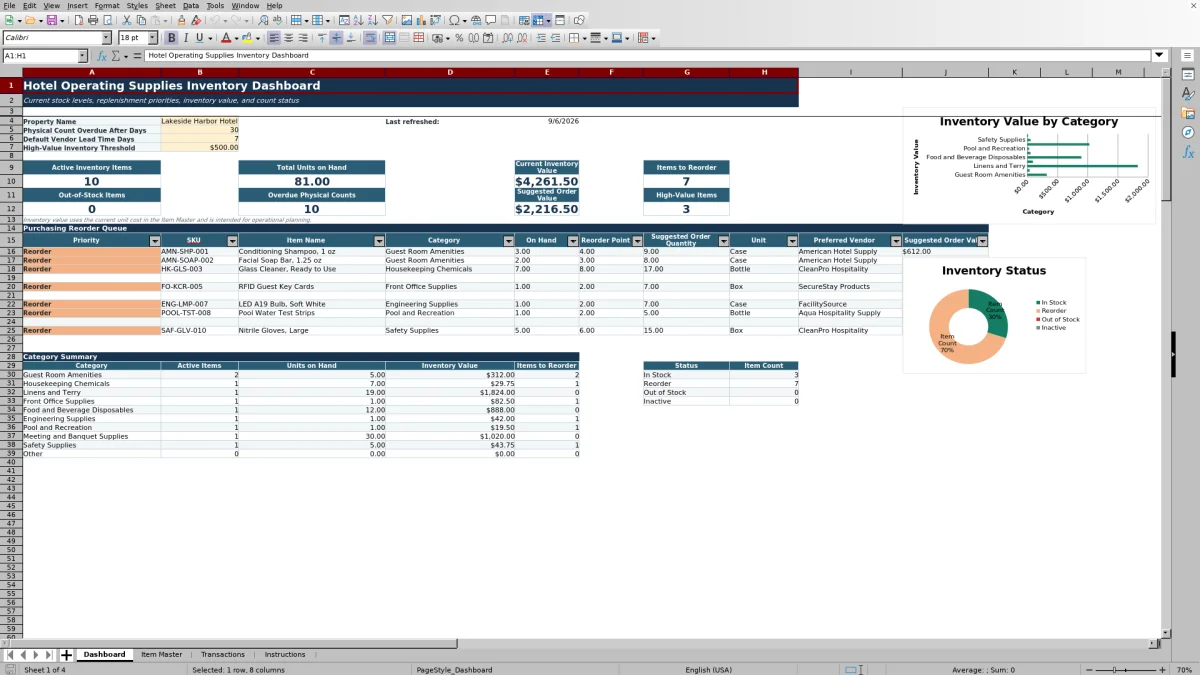
The four-sheet workbook provides an item record, a transaction log, an operating dashboard, and written instructions. Formulas calculate on-hand quantity, inventory value, reorder status, and suggested order quantity from the information entered by the hotel team.
Operators can use the dashboard to review replenishment priorities, out-of-stock items, overdue physical counts, high-value inventory, category totals, and suggested purchasing values.
At a glance
What this workbook helps you manage
- Maintains item details, vendor references, storage locations, costs, par levels, and reorder points in one structured list.
- Calculates on-hand balances from each opening quantity and the signed effect of recorded inventory transactions.
- Identifies active items that are in stock, at reorder level, out of stock, or overdue for a physical count.
- Creates a purchasing reorder queue with priority, vendor, suggested quantity, and estimated order value.
See the actual file
Inside the workbook
Included in the file
- Four worksheets: Dashboard, Item Master, Transactions, and Instructions.
- Formula-populated Item Master rows for up to 150 inventory records and Transaction rows for up to 300 movements.
- Two dashboard charts covering inventory value by category and item count by inventory status.
- Dropdown lists, duplicate-entry checks, conditional formatting, frozen panes, filters, and operational warning fields.
How to use the template
1. Set the property thresholds
Start on the Dashboard. Replace the sample property name, then enter the number of days after which a physical count becomes overdue, the default vendor lead time, and the dollar threshold used to classify high-value inventory. The workbook validates the permitted number ranges for these settings.
2. Build the Item Master
Review and replace the sample records in the Item Master. Enter a unique SKU, item name, category, storage location, unit, pack size, preferred vendor, and vendor item number. Then complete the operating fields:
- Opening quantity and opening balance date
- Reorder point and par level
- Lead time in days
- Current unit cost
- Last physical count date
- Active status
Use consistent units such as Each, Box, Case, Pack, Roll, Gallon, Bottle, Bag, Dozen, or Set. The opening quantity and all later transactions should use the recorded unit for that item.
3. Record every stock movement
Use the Transactions sheet for receipts, issues, adjustment increases, adjustment decreases, and returns to vendors. Enter a unique transaction ID, date, type, SKU, and positive quantity. Add the transaction unit cost when applicable, along with a reference, department or issued-to location, employee name, and notes.
The workbook applies the correct positive or negative inventory effect based on transaction type. Item name, category, storage location, unit, extended value, signed quantity, and the transaction check are formula-driven.
4. Review checks and replenishment needs
Check the Transaction Check and Operational Check fields for missing dates, invalid SKUs, invalid quantities, missing departments, negative balances, or inconsistent par settings. On the Dashboard, review the Purchasing Reorder Queue for urgent and reorder items, suggested quantities, preferred vendors, and estimated order values.
5. Complete and document physical counts
Count each supply in its recorded unit and compare the verified result with On Hand Quantity. Record any difference as an Adjustment Increase or Adjustment Decrease in Transactions. After the count is verified, update Last Physical Count Date in the Item Master so the count status remains current.
What hotel supplies can the spreadsheet organize?
The Item Master includes category selections for common hotel operating areas, including Guest Room Amenities, Housekeeping Chemicals, Linens and Terry, Front Office Supplies, Food and Beverage Disposables, Engineering Supplies, Pool and Recreation, and Meeting and Banquet supplies.
Each record can also identify a storage location, such as the main storeroom, housekeeping closet, laundry, front desk, kitchen dry storage, banquet storage, engineering shop, pool storage, receiving, or another area. These fields help operators separate supplies by both operating category and physical location.
How does the workbook calculate hotel inventory on hand?
Each item begins with an opening quantity in the Item Master. The workbook then totals that SKU’s signed quantities from the Transactions sheet. Receipts and adjustment increases add stock, while issues, adjustment decreases, and returns to vendors reduce it.
On Hand Quantity equals the opening quantity plus net transaction quantity. Inventory Value multiplies that result by Current Unit Cost. The dashboard states that this value is intended for operational planning.
How are reorder quantities determined?
An active item enters Reorder status when its on-hand quantity is at or below its reorder point. If on hand is zero or negative, the status changes to Out of Stock. The suggested order quantity is the amount needed to bring the item up to its par level, provided the item has reached the reorder threshold.
The suggested order value multiplies that quantity by current unit cost. The Dashboard consolidates qualifying records into a queue showing priority, SKU, item, category, on hand, reorder point, suggested quantity, unit, preferred vendor, and suggested order value.
How does the spreadsheet support physical inventory counts?
The Item Master compares Last Physical Count Date with the overdue-days setting on the Dashboard. Active items are labeled Current, Overdue, or No Count Date as applicable. The Dashboard totals overdue counts so managers can identify follow-up work.
The Instructions sheet recommends documenting stock movement during the count, counting each item in its recorded unit, comparing the result with calculated on hand, entering a verified adjustment, and updating the count date. Red warnings require review, while amber warnings indicate replenishment or count attention.
Questions about this workbook
What sheets are included in the hotel operating supplies inventory workbook?
The workbook contains four sheets: Dashboard, Item Master, Transactions, and Instructions. The Dashboard summarizes operating results, the Item Master stores item settings, Transactions records stock movement, and Instructions explains setup, transaction types, physical counts, and the color key.
How many inventory items and transactions are set up in the template?
The Item Master has 150 formula-populated item rows, from rows 2 through 151. The Transactions sheet has 300 formula-populated transaction rows, from rows 2 through 301.
Which transaction types can be recorded?
The Transactions sheet supports Receipt, Issue, Adjustment Increase, Adjustment Decrease, and Return to Vendor. Quantities are entered as positive numbers, and formulas assign the appropriate positive or negative effect.
Can the workbook track supplies issued to hotel departments?
Yes. Transactions include a Department or Issued To field with selections for Housekeeping, Front Office, Laundry, Food and Beverage, Banquets, Engineering, Pool and Recreation, Administration, Receiving, and Other. An Issue transaction is flagged when this field is missing.
What data-entry problems does the spreadsheet flag?
Transaction checks identify missing dates, transaction types, or SKUs; invalid SKUs or quantities; and missing departments on issues. Item checks identify par levels below reorder points, negative unit costs, negative on-hand quantities, and missing physical count dates for active items.
How are high-value supplies identified?
The Dashboard includes a user-entered High-Value Inventory Threshold. An item is classified as High Value when its calculated inventory value is equal to or greater than that threshold; otherwise, it is classified as Standard.
Transparent credits
Editorial and workbook QA bylines
The named editorial signatures and their responsibilities stay consistent across the library.

Workbook guide and editorial context
Audrey Whitmore
Audrey Whitmore is the consistent editorial byline for practical setup guidance written from each workbook’s final manifest and published features.
Meet the editorial byline →
Workbook structure and formula QA byline
Ethan Cole
Ethan Cole is the consistent QA byline shown only when recorded checks pass for worksheet structure, formulas, validations, recalculation, and the published XLSX bytes.
See the QA byline and checks →