Housekeeping · XLSX
Free Hotel Lost and Found Log Excel Template for 2026
Hotel lost and found log with item custody, claimant, return, shipping, aging, and follow-up tracking in one Excel workbook.
Formula and workbook structure checked before publication
This hotel lost and found log is a free Excel template for documenting items found in guest rooms, public areas, restaurants, event spaces, and other property locations. It keeps custody, storage, claimant, contact, return, shipping, and disposition details together in one structured record.
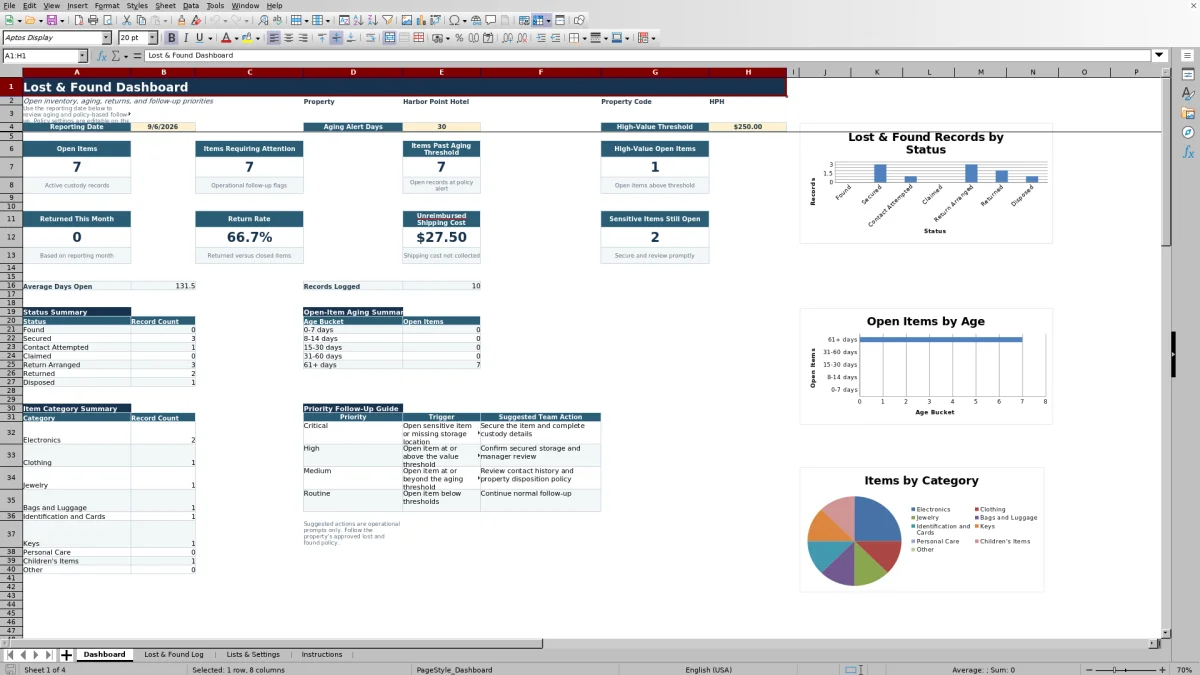
The workbook includes four worksheets: Dashboard, Lost & Found Log, Lists & Settings, and Instructions. Calculated fields identify days open, unreimbursed shipping costs, data quality issues, and operational action flags. The Dashboard summarizes open inventory, aging, returns, high-value items, sensitive items, and follow-up priorities.
Editable settings let each hotel record its property details and working assumptions. These settings should be reviewed against the property’s approved policies before the log is put into regular use.
At a glance
What this workbook helps you manage
- Maintains one detailed record for each found item from receipt through return or disposition.
- Highlights incomplete, aging, sensitive, and high-value open records for operational review.
- Tracks shipping costs and amounts collected to calculate unreimbursed shipping.
- Summarizes current status, item categories, aging, returns, and follow-up activity on the Dashboard.
See the actual file
Inside the workbook
Included in the file
- Four worksheets covering dashboard reporting, item records, editable settings, and operating instructions.
- A 37-column Excel table with filters, frozen headers, entry formatting, and calculated review fields.
- Data validation for dates, time, dollar amounts, contact attempts, and selected operational lists.
- Dashboard metrics and three charts for status, open-item aging, and item category counts.
How to use the template
1. Review the property settings
Start on Lists & Settings. Enter the property name, property code, workbook owner, default retention review days, aging alert days, high-value threshold, sensitive item review days, and shipping collection target. The workbook contains example assumptions, including a $250 high-value threshold and a 30-day aging alert. Replace them where needed based on your property’s approved procedures.
The same worksheet contains editable lists for found areas, item categories, yes-or-no choices, claim verification methods, statuses, return methods, and disposition methods. These lists supply the controlled entry choices used in the main log.
2. Create one record per item
Use the Lost & Found Log to enter a unique record ID, date and time found, found area, specific location, category, description, identifying details, estimated value, and whether the item is sensitive. Record who found the item, who received it, the date received, and its storage location.
Input cells are white or pale gold. Gray or light-blue cells contain calculations and should not be overwritten. The log is an Excel table with filters on all 37 columns, and the header remains visible while staff move through records.
3. Update claimant and custody activity
Add claimant information only when needed to identify, match, or return an item. Available fields cover the guest or claimant name, contact information, room, event, or site, match date, claim verification, number of contact attempts, and last contact date.
As work progresses, update the current status. Available statuses include Found, Secured, Contact Attempted, Claimed, Return Arranged, Returned, and Disposed. Returned records should include a return date; disposed records should include the disposition method, date, and authorization details.
4. Document returns, shipping, and final handling
For a return, record the method, carrier or courier, tracking or receipt number, shipping cost, amount collected, and date returned where applicable. The calculated Unreimbursed Shipping field shows the difference between shipping cost and the amount collected, with a minimum result of $0.00.
For final disposition, complete the disposition method, disposition date, authorized-by entry, external reference, and notes as appropriate. The External Reference field stores manual reference values only.
5. Review the Dashboard
Use the reporting date and dashboard settings to monitor open-item aging and follow-up. Review open items, records requiring attention, items past the aging threshold, high-value open items, returns this month, return rate, unreimbursed shipping, sensitive items still open, average days open, and total records logged.
The Dashboard also presents status, age-bucket, and category summaries with three charts. A reporting date defaults to the current date but can be replaced with a fixed date for a historical review.
What information should a hotel lost and found log capture?
A useful record should identify what was found, where and when it was found, and who transferred it into property custody. This template includes fields for record ID, date, time, area, specific location, category, description, brand, color or identifiers, estimated value, finder, receiver, receipt date, and storage location.
It also supports the later stages of handling. Staff can document claimant details, claim verification, contact attempts, return arrangements, shipping information, final disposition, authorization, external references, and notes. Keeping these entries in one row creates a complete item history that can be filtered by status, location, category, date, or other recorded values.
How does the workbook identify records needing attention?
Four calculated columns appear at the right side of the Lost & Found Log. Days Open measures elapsed days from the date found to the Dashboard reporting date, return date, or disposition date, depending on the record’s status. Unreimbursed Shipping compares shipping cost with the amount collected.
Data Quality Check identifies missing operational details, including a missing found date, found area, description, receiving employee, or storage location. It also checks whether Returned and Disposed statuses have their corresponding dates. Action Flag uses record conditions and Dashboard thresholds to indicate priorities such as a sensitive item, incomplete information, high estimated value, or aging review.
What does the hotel lost and found Dashboard show?
The Dashboard provides a consolidated view of the Lost & Found Log. Its primary measures include open items, items requiring attention, items past the aging threshold, and high-value open items. Additional measures cover returned items for the reporting month, return rate, unreimbursed shipping cost, sensitive items still open, average days open, and total records logged.
Status counts cover Found through Disposed. Open inventory is also grouped into 0–7, 8–14, 15–30, 31–60, and 61-plus day buckets. Item category counts provide another way to understand the types of property being recorded. These summaries support a regular management review without requiring staff to count rows manually.
How should hotels handle privacy and policy settings?
The workbook instructs users to enter only information needed to identify, store, match, return, or dispose of an item. It specifically advises against entering full payment card numbers, full government identification numbers, device passwords, medical details, or unnecessary personal information. Workbook access and physical-item storage should follow the property’s own privacy, records, and security practices.
Retention periods, value thresholds, contact procedures, release practices, and disposition methods vary by property and situation. The entries on Lists & Settings are editable operating assumptions, not legal requirements. Review them before use and maintain the workbook in line with approved hotel procedures.
Questions about this workbook
How many item records are included in the hotel lost and found log?
The Lost & Found Log contains 250 prepared data rows, from row 6 through row 255. It is formatted as an Excel table. The Instructions worksheet notes that adding rows inside the table should carry the table formatting and formulas when the file is opened in Excel.
Which fields are calculated automatically?
The calculated columns are Days Open, Unreimbursed Shipping, Data Quality Check, and Action Flag. Dashboard metrics and summary counts also use formulas based on entries in the Lost & Found Log and settings in Lists & Settings.
Can staff filter the log by status or item category?
Yes. The Lost & Found Log is an Excel table with filters across its column headers. Staff can filter or sort records using fields such as date found, area, category, sensitive-item designation, estimated value, storage location, status, return method, and disposition method.
Does the template track shipping costs for returned items?
Yes. It includes fields for return method, carrier or courier, tracking or receipt number, shipping cost, amount collected, and return date. Unreimbursed Shipping calculates any shipping cost above the amount collected, and the Dashboard totals that amount across logged records.
Does the workbook connect to hotel or shipping systems?
No. The workbook does not connect automatically to a PMS, shipping carrier, accounting system, or another outside platform. Information is entered and maintained manually, and the External Reference field is for manual reference values.
Transparent credits
Editorial and workbook QA bylines
The named editorial signatures and their responsibilities stay consistent across the library.

Workbook guide and editorial context
Audrey Whitmore
Audrey Whitmore is the consistent editorial byline for practical setup guidance written from each workbook’s final manifest and published features.
Meet the editorial byline →
Workbook structure and formula QA byline
Ethan Cole
Ethan Cole is the consistent QA byline shown only when recorded checks pass for worksheet structure, formulas, validations, recalculation, and the published XLSX bytes.
See the QA byline and checks →