Hotels · XLSX
Free 2026 Hotel Reservation Tracker Spreadsheet Excel Template
Track hotel reservations, arrivals, balances, occupancy, and estimated room revenue with a practical Excel workbook for 2026.
Formula and workbook structure checked before publication
This hotel reservation tracker spreadsheet is a free Excel template for recording guest stays, monitoring front desk activity, and reviewing reservation value in 2026. It organizes booking details, room assignments, rates, deposits, balances, and follow-up information in one workbook.
Four worksheets—Dashboard, Reservations, Setup & Lists, and Instructions—support daily reservation entry and reporting. Built-in formulas calculate nights, room revenue, service charges, estimated tax, total reservation value, deposit requirements, and outstanding balances from the information entered.
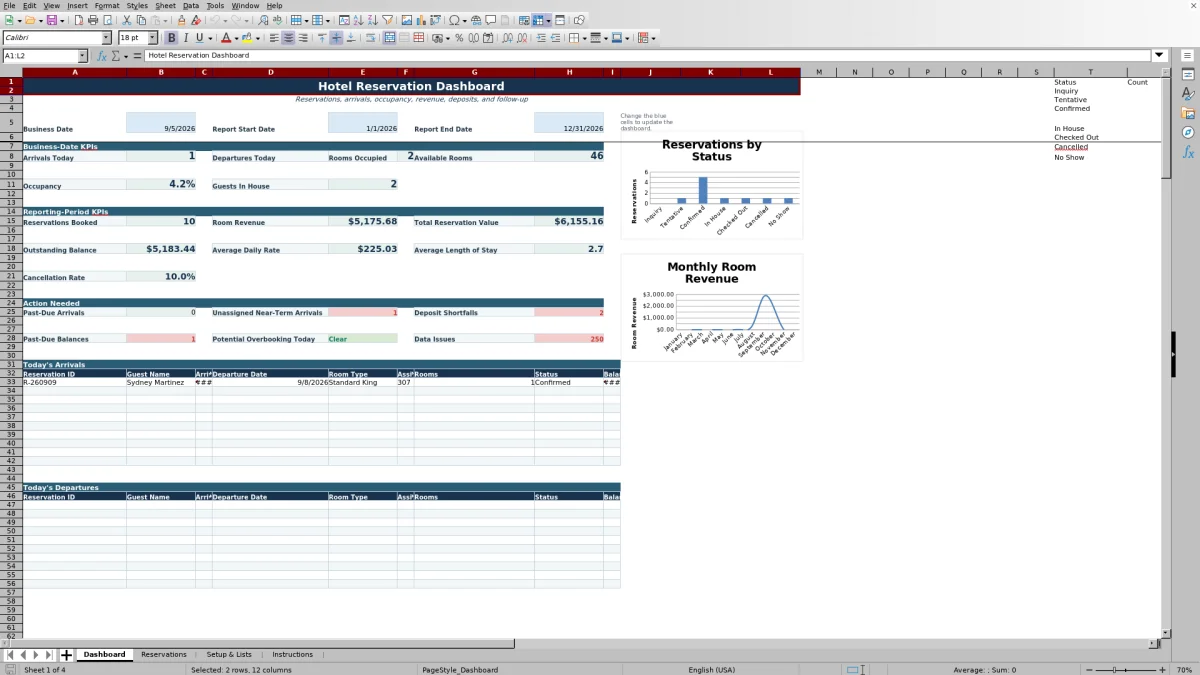
The dashboard summarizes business-date activity and reporting-period results, including arrivals, departures, occupied rooms, available rooms, occupancy, guests in house, room revenue, average daily rate, average length of stay, and cancellation rate.
At a glance
What this workbook helps you manage
- Keeps guest, stay, rate, payment, assignment, and follow-up details together by reservation.
- Calculates reservation value, required deposits, payment status, and remaining balances.
- Summarizes daily front desk activity and reporting-period performance on a formula-driven dashboard.
- Flags selected entry problems and operational items that may require staff attention.
See the actual file
Inside the workbook
Included in the file
- Four worksheets: Dashboard, Reservations, Setup & Lists, and Instructions.
- Reservation table with 36 fields and 250 prepared data rows.
- Two dashboard charts covering reservation status counts and monthly room revenue.
- Dropdown validation, date and number controls, conditional formatting, filters, and frozen panes.
How to use the template
1. Review the property assumptions
Begin on Setup & Lists. Confirm the property name, total sellable rooms, default room tax rate, default service charge rate, deposit percentage, cancellation cutoff hours, room-assignment warning days, and target occupancy. Review whether extras and service charges are taxable under the property’s internal assumptions.
Check the room-type inventory and confirm that its total matches the property’s sellable-room count. The sheet also contains the lists used for room types, rate plans, booking sources, reservation statuses, reservation owners, and Yes or No selections.
2. Set the dashboard dates
On the Dashboard, enter the business date and report period in the blue cells. The default report dates shown are January 1 through December 31, 2026, while the business date uses Excel’s current-date function.
The business date drives the daily operating view. The start and end dates control reporting-period counts, values, and status totals.
3. Add each reservation
Use one row in Reservations for each booking. Enter a unique reservation ID, optional external reference, booking date, guest name, phone, email, arrival and departure dates, room count, adults, children, room type, rate plan, source, status, assigned room, nightly rate, discount, and extras.
Select standardized values from the available dropdown lists where provided. The reservation table spans rows 2 through 251 and includes filters for finding records by fields such as arrival date, departure date, source, status, or balance.
4. Record financial and follow-up details
Enter tax or service-charge overrides only when a reservation differs from the defaults. You can also enter a deposit override, deposit paid, special requests, reservation owner, and last guest contact date. Calculated fields produce estimated charges and balances, including room revenue, service charge, estimated tax, total reservation value, deposit required, balance due, and payment status.
5. Review daily exceptions
Use the Dashboard and the Operational Check column during front desk review. Update a reservation to In House at check-in and Checked Out after departure. Enter room assignments when available and review past-due arrivals, deposit shortfalls, unpaid balances, and other highlighted exceptions. Avoid pasting over calculated columns, and save backup copies regularly.
What information can a hotel reservation spreadsheet track?
The Reservations sheet covers the booking lifecycle from initial entry through departure and payment follow-up. Core fields include reservation ID, external reference, booking date, guest contact information, arrival and departure dates, nights, rooms, adults, children, room type, rate plan, booking source, reservation status, and assigned room.
Rate and payment fields include nightly rate, discount percentage, extras, tax and service-charge overrides, room revenue, service charge, estimated tax, total reservation value, deposit override, deposit required, deposit paid, balance due, and payment status. Staff can also record special requests, the reservation owner, and the most recent guest contact date.
How does the hotel reservation dashboard support daily operations?
The Dashboard separates business-date metrics from reporting-period metrics. Its daily KPIs show arrivals today, departures today, rooms occupied, available rooms, occupancy, and guests in house. Active reservations covering the selected business date supply the occupancy view.
The Action Needed area is designed to surface operational follow-up, including past-due arrivals. Dashboard formulas also reference reservation status and stay dates to support arrival and departure review. Cancelled and No Show records are excluded from occupied-room and revenue KPIs, as explained in the Instructions sheet.
How are room revenue and reservation balances calculated?
The workbook calculates nights from arrival and departure dates. Room revenue is based on nights, number of rooms, nightly rate, and the entered discount. Service charges use either the reservation-level override or the property default. Estimated tax uses the entered override or default tax rate and considers the Setup & Lists choices for taxable extras and service charges.
Total reservation value combines room revenue, extras, service charge, and estimated tax. Deposit required uses an entered override when present; otherwise, it applies the default deposit percentage. Balance due subtracts the deposit paid from the total value, while payment status returns Paid, Deposit Met, Partial Payment, or Unpaid according to the entered amount. These figures are operational estimates based on workbook inputs.
What reservation entry issues does the workbook identify?
The Operational Check formula reviews several common entry and follow-up conditions. It can identify a departure that is not after arrival, a room quantity below one, a missing guest name, or a duplicate reservation ID. It also checks whether a near-term confirmed arrival needs a room assignment, based on the warning-day assumption in Setup & Lists.
Conditional formatting provides additional visual cues across the workbook. Staff should still review source information, property assumptions, reservation changes, payment entries, and local tax treatment before relying on the results.
Questions about this workbook
How many reservations can the spreadsheet hold?
The Reservations table includes 250 prepared data rows, covering rows 2 through 251. Each row contains fields and formulas for one reservation record.
Which reservation statuses are included?
The Setup & Lists sheet includes Inquiry, Tentative, Confirmed, In House, Checked Out, Cancelled, and No Show. These statuses feed the reservation dropdown and dashboard status counts.
Can staff track deposits and unpaid balances?
Yes. Each reservation includes fields for deposit override, calculated deposit required, deposit paid, balance due, and payment status. The formula-generated status distinguishes Paid, Deposit Met, Partial Payment, and Unpaid records.
Can the workbook track booking sources and reservation owners?
Yes. Booking Source and Reservation Owner are separate dropdown fields. The supplied lists include sources such as Direct Website, Phone, and Walk-In, while the owner list includes operational teams such as Front Desk and Reservations.
What reports and charts are included?
The Dashboard provides daily and reporting-period KPIs, reservation status counts, action-needed information, and monthly room revenue values for January through December 2026. It contains two charts: one based on status counts and another based on monthly room revenue.
Can tax, service charge, and deposit assumptions be adjusted?
Yes. Setup & Lists contains default rates and policy assumptions, while individual reservation rows allow tax-rate, service-charge, and deposit overrides. Review these property-specific assumptions before using calculated amounts.
Transparent credits
Editorial and workbook QA bylines
The named editorial signatures and their responsibilities stay consistent across the library.

Workbook guide and editorial context
Audrey Whitmore
Audrey Whitmore is the consistent editorial byline for practical setup guidance written from each workbook’s final manifest and published features.
Meet the editorial byline →
Workbook structure and formula QA byline
Ethan Cole
Ethan Cole is the consistent QA byline shown only when recorded checks pass for worksheet structure, formulas, validations, recalculation, and the published XLSX bytes.
See the QA byline and checks →