Hotels · XLSX
Free Hotel Room Inventory Excel Template for 2026
Hotel room inventory Excel template for tracking room readiness, occupancy, blocks, inspections, and estimated revenue impact.
Formula and workbook structure checked before publication
This hotel room inventory workbook is a free Excel template for organizing daily room readiness, sellable inventory, occupancy status, inspections, and room blocks. It gives front office, housekeeping, and engineering teams a shared operational view based on room-level entries.
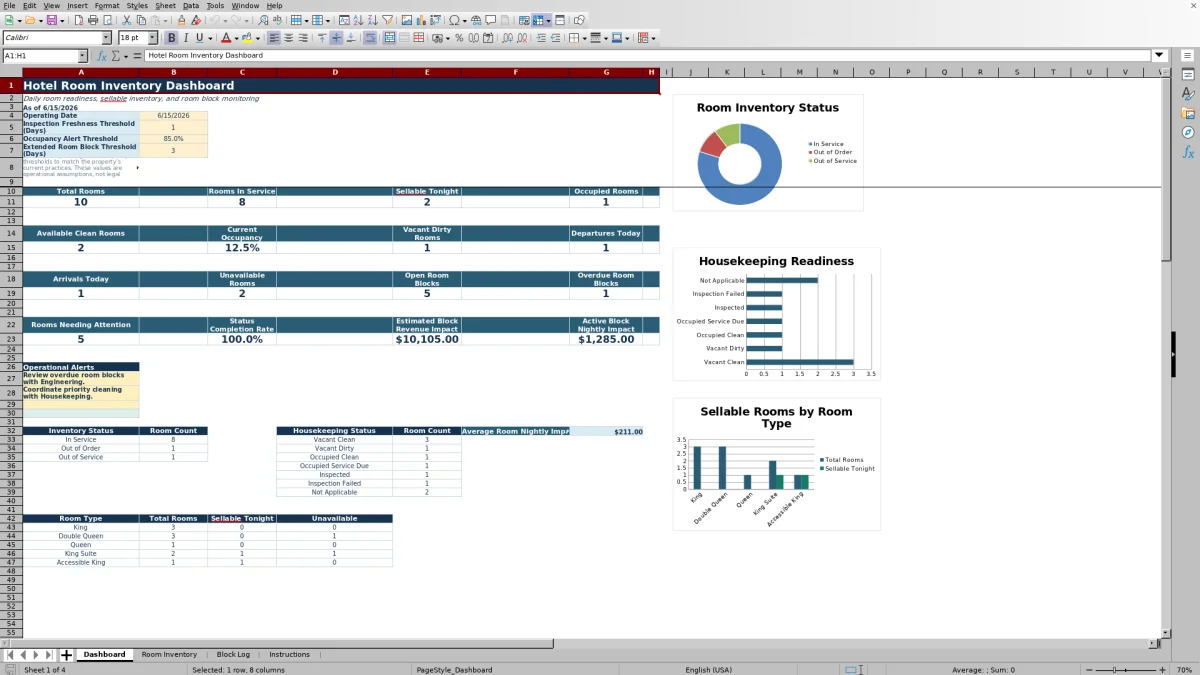
The file contains four worksheets: Dashboard, Room Inventory, Block Log, and Instructions. Formulas summarize current conditions, identify rooms needing attention, compare active blocks with inventory status, and estimate the revenue impact associated with blocked rooms.
Operators can set an operating date and adjust the inspection freshness, occupancy alert, and extended-block thresholds to reflect the property’s current practices. These settings are operational assumptions rather than legal requirements.
At a glance
What this workbook helps you manage
- Keeps room attributes, operating statuses, inspection details, and notes in one structured inventory.
- Calculates sellable rooms from in-service, available, and vacant-clean status entries.
- Highlights overdue blocks, extended blocks, status mismatches, and other rooms needing attention.
- Summarizes estimated blocked-room revenue impact using entered nightly impact amounts and dates.
See the actual file
Inside the workbook
Included in the file
- Four worksheets: Dashboard, Room Inventory, Block Log, and Instructions.
- Room Inventory and Block Log tables each include 150 preformatted entry rows with filters and frozen headers.
- Dashboard includes room, housekeeping, and room-type summaries plus three charts.
- Validated lists, date and number controls, conditional formatting, and protected calculation columns support consistent entry.
How to use the template
1. Review the Instructions worksheet
Start with the Instructions sheet to understand the workbook sequence and the standardized lists used by the entry fields. The supporting lists cover room types, bed types, accessible features, housekeeping statuses, occupancy statuses, inventory statuses, inspection results, block types, reason categories, departments, and block statuses.
2. Set the Dashboard controls
Enter the operating date used for daily reporting. Then review the inspection freshness threshold in days, occupancy alert threshold, and extended room block threshold in days. The supplied values are editable, with validation applied to keep entries within the workbook’s accepted ranges.
3. Maintain the Room Inventory
Use one row per room in the Room Inventory table. Enter stable room details first, followed by current operating information:
- Room ID, room number, floor, room type, bed type, and maximum occupancy
- Accessible features and connecting-room designation
- Housekeeping, occupancy, and inventory status
- Reservation or guest reference and arrival or departure dates, when applicable
- Last-cleaned and last-inspected dates, inspection result, and issue summary
- Current block ID, revenue impact per night, and notes
The calculated columns determine whether a room is sellable tonight, whether its active block status is aligned, and whether it needs attention. Preserve these formulas when replacing the sample entries.
4. Record unavailable rooms in the Block Log
Create a Block ID and select the related Room ID. Record the block type, reason, issue description, dates, assigned department, responsible person, reference, status, nightly revenue impact, and follow-up notes. The sheet calculates room number, days open, estimated lost room revenue, overdue status, and extended-block status.
5. Review exceptions on the Dashboard
Use the Dashboard for the daily rooms meeting. Check sellable tonight, available clean rooms, vacant dirty rooms, unavailable rooms, open blocks, overdue blocks, and rooms needing attention. Review the operational alerts before reconciling exceptions with the detailed worksheets.
What does the hotel room inventory Excel template track?
The Room Inventory worksheet combines room attributes with current operating conditions. Static details include room number, floor, room type, bed type, maximum occupancy, accessible features, and connecting-room designation. Daily fields cover housekeeping status, occupancy status, inventory status, reservation or guest reference, arrival and departure dates, cleaning and inspection activity, issues, blocks, and nightly revenue impact.
This structure helps operators distinguish physical room inventory from current readiness. A room can remain in the inventory while being occupied, dirty, out of order, or out of service. The workbook evaluates those entries rather than treating every listed room as available.
How does the workbook determine whether a room is sellable tonight?
A room receives a Yes in the Sellable Tonight column only when all three required conditions are present: Inventory Status is In Service, Occupancy Status is Available, and Housekeeping Status is Vacant Clean. Any other combination returns No for a populated room row.
The Dashboard counts these results and separately reports available clean rooms. Because the calculation depends on consistent status entry, staff should update all three status fields during room reconciliation instead of relying on notes alone.
How can hotel teams monitor out-of-order and out-of-service rooms?
The Block Log records each interruption with a block type of Out of Order or Out of Service. Staff can document the reason category, description, start date, expected return date, actual return date, assigned department, responsible person, vendor or work order reference, and current status.
For each populated block, formulas calculate days open and estimated lost room revenue. Open, In Progress, and On Hold records become overdue when the expected return date is earlier than the Dashboard operating date. A separate result identifies blocks open longer than the chosen extended-block threshold.
What should managers review during a daily room inventory meeting?
Begin with the Dashboard totals for rooms in service, occupied rooms, arrivals, departures, sellable rooms, vacant dirty rooms, and unavailable rooms. Then review open and overdue blocks, rooms needing attention, status completion rate, and estimated block revenue impact.
The operational alerts point to overdue blocks, priority cleaning needs, and mismatches between room inventory statuses and active Block Log records. The three charts summarize inventory status, housekeeping status, and room-type totals alongside sellable inventory. Teams can use the detailed sheets to investigate the room IDs behind each count.
Questions about this workbook
Which worksheets are included in the hotel room inventory template?
The workbook includes exactly four worksheets: Dashboard, Room Inventory, Block Log, and Instructions. The Dashboard provides summaries and charts; the two tables hold room and block records; the Instructions sheet contains use guidance and the source lists for validated entries.
How many room and block records are preformatted?
The Room Inventory table runs from row 2 through row 151, providing 150 preformatted room rows. The Block Log also provides 150 preformatted entry rows. Both sheets include filters and frozen header rows.
What causes a room to be marked as needing attention?
A populated room is marked Yes when its inventory status is not In Service, its housekeeping status is Vacant Dirty or Inspection Failed, its last inspection exceeds the selected freshness threshold, or its active block check reports a mismatch.
How is estimated lost room revenue calculated?
The Block Log multiplies the entered revenue impact per night by the calculated block period, using at least one day. The calculation uses the actual return date when entered; otherwise, it uses the expected return date. Dashboard totals summarize overall estimated impact and the nightly impact associated with active blocks.
Can the alert thresholds be adjusted?
Yes. The Dashboard provides editable settings for inspection freshness, occupancy alerts, and extended room blocks. Inspection freshness accepts 0 to 14 days, occupancy accepts a decimal from 0 to 1, and the extended-block threshold accepts 1 to 30 days.
Transparent credits
Editorial and workbook QA bylines
The named editorial signatures and their responsibilities stay consistent across the library.

Workbook guide and editorial context
Audrey Whitmore
Audrey Whitmore is the consistent editorial byline for practical setup guidance written from each workbook’s final manifest and published features.
Meet the editorial byline →
Workbook structure and formula QA byline
Ethan Cole
Ethan Cole is the consistent QA byline shown only when recorded checks pass for worksheet structure, formulas, validations, recalculation, and the published XLSX bytes.
See the QA byline and checks →