Housekeeping · XLSX
Hotel Maintenance Request Log Spreadsheet — Free Excel Template for 2026
Hotel maintenance request log spreadsheet with dashboard metrics, priority targets, technician assignments, room impact, and cost tracking.
Formula and workbook structure checked before publication
This hotel maintenance request log spreadsheet is a free Excel template for documenting repair requests, technician assignments, room impact, completion performance, and maintenance costs in 2026. It gives engineering and hotel operations teams a consistent record for guestroom, public-area, equipment, and facility issues.
The workbook contains four sheets: Dashboard, Maintenance Requests, Lists & Settings, and Instructions. Enter requests in the central log, maintain property-specific options and priority targets, and use the Dashboard to review open work and operational impact by date, department, and priority.
At a glance
What this workbook helps you manage
- Keeps request details, assignments, work dates, completion notes, guest follow-up, and costs in one structured log.
- Surfaces open, overdue, high-priority, and out-of-order room requests for daily engineering review.
- Applies editable target hours by priority and calculates due times, open age, completion hours, and on-time results.
- Compares estimated and actual maintenance costs while calculating the variance for each request.
See the actual file
Inside the workbook
Included in the file
- A 35-column Maintenance Requests table with filters and 200 prepared request rows.
- Dashboard date, department, and priority filters with a date-range check.
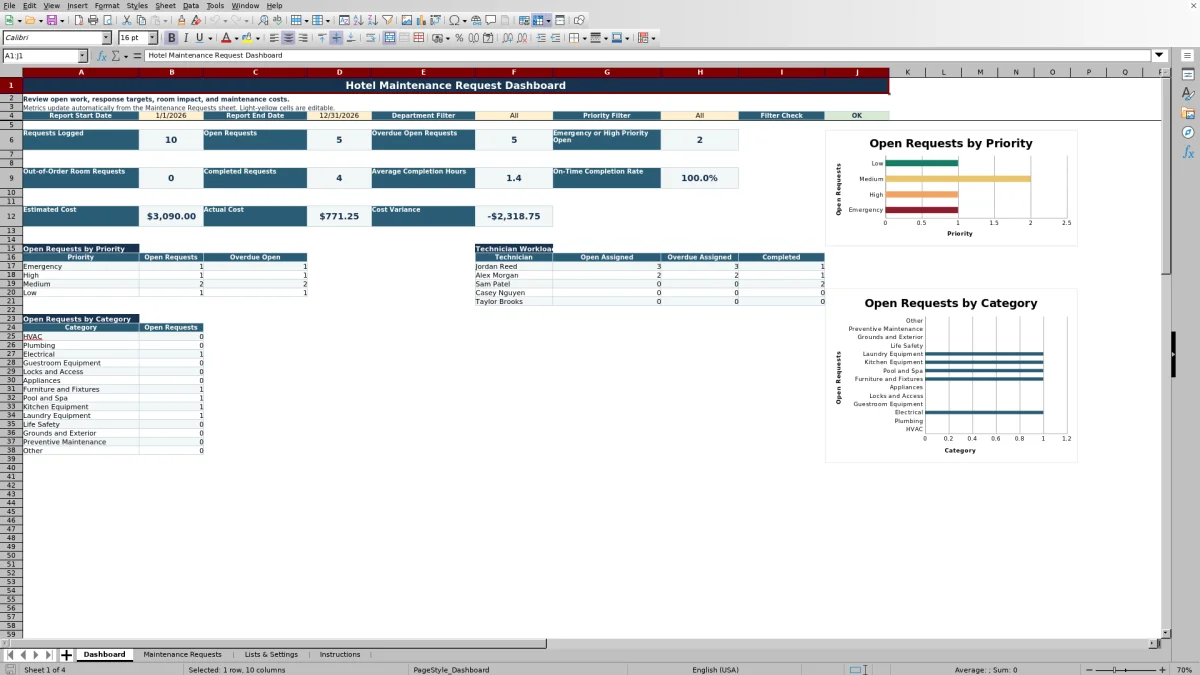
- Two charts showing open requests by priority and by maintenance category.
- Editable lists for departments, area types, categories, priorities, statuses, room impacts, and technicians.
How to use the template
1. Review property lists and target hours
Open Lists & Settings before entering live requests. Maintain the department, area type, category, priority, status, room impact, yes/no, and technician lists used by the workbook’s drop-down fields. Review the target hours for Emergency, High, Medium, and Low priorities. These values should reflect the property’s own operating practices.
2. Log each maintenance request
Add each issue to the next available row on Maintenance Requests and assign a unique Request ID. Record the request date and time, reporter, reporter department, guest-related indicator, area type, location, room number when applicable, asset or equipment, category, priority, and description. The description field accepts up to 500 characters.
3. Assign and update the work
Select an assigned technician and maintain the status as the request moves through the workflow. Available status options include New, Assigned, In Progress, Waiting on Parts, Waiting on Vendor, On Hold, Completed, and Canceled. Record whether a vendor is required and use the room-impact field to distinguish no impact, guest inconvenience, a room hold, or an out-of-order room.
4. Complete the closure record
Enter work start and completion dates and times when known. Add resolution notes, estimated and actual costs, guest follow-up requirements, follow-up completion, an external reference if one exists, the person entering the record, and the last updated date. Leave unknown values blank rather than entering “N/A.” Enter $0 only when the cost is known to be zero.
5. Review the Dashboard
Set the report start and end dates, then choose a department and priority or leave either filter at All. The Dashboard metrics update from the request log. Check requests logged, open and overdue work, emergency or high-priority open items, completed requests, completion performance, room impact, technician workload, and costs.
What information does the hotel maintenance request log capture?
The Maintenance Requests sheet records the operational history of each issue from initial report through closure. Core fields cover the request timestamp, person reporting the issue, department, location, room number, affected asset or equipment, category, priority, description, assigned technician, vendor requirement, and current status.
The log also includes room impact, work start and completion timestamps, resolution notes, guest follow-up fields, external reference, entered-by details, and the last updated date. Cost fields capture estimated and actual amounts in U.S. dollars. Together, these fields support a clear maintenance record without requiring teams to reconstruct events from separate notes.
How does the spreadsheet identify overdue maintenance requests?
Each priority has an editable target-hours value on Lists & Settings. The workbook looks up that target from the selected priority and adds it to the request date and time to calculate the SLA Due Date/Time field.
For active work, Open Age Hours uses the current date and time. The Dashboard treats open requests as records that are not Completed or Canceled and compares their due time with the current time to identify overdue items. Because the calculation uses Excel’s NOW() function, aging and overdue results refresh when Excel recalculates the workbook.
The supplied target values are internal operating guidelines. Management can adjust them for the property’s facilities, staffing, service standards, and operating conditions.
What can hotel managers review on the Dashboard?
The Dashboard summarizes requests logged, open requests, overdue open requests, and emergency or high-priority open work. It also reports out-of-order room requests, completed requests, average completion hours, and the on-time completion rate.
Additional sections group open and overdue work by priority, show open requests by category, and summarize technician workload through open assigned, overdue assigned, and completed counts. Cost measures display estimated cost, actual cost, and cost variance. Two charts visualize open requests by priority and category.
Results are based on the selected request-date range. Department and priority filters can narrow the review, while the All option retains requests with a populated value in the corresponding field.
How can the log support guestroom and service recovery follow-up?
Hotel teams can flag whether a request is guest-related and classify the room impact as None, Guest Inconvenience, Room Hold, or Out of Order. Location, room number, asset, and request-description fields provide context for engineering, front office, and housekeeping coordination.
When work is completed, the log provides separate fields for resolution notes, whether guest follow-up is needed, and whether that follow-up has been completed. The Dashboard’s out-of-order room request metric helps operators keep room-impacting work visible during operational reviews. These fields document maintenance activity and follow-up status; they do not communicate automatically with other hotel systems.
Questions about this workbook
How many sheets are included in the workbook?
The workbook has four sheets: Dashboard, Maintenance Requests, Lists & Settings, and Instructions. The request sheet is the main operating log, while the other sheets provide reporting, editable list values, target settings, and usage guidance.
How many maintenance requests can be entered?
The Maintenance Requests table runs from row 1 through row 201, providing 200 prepared data rows below the header. Calculated columns and data-validation rules are applied through those rows.
Which fields are calculated automatically?
The request log calculates Target Hours, SLA Due Date/Time, Completion Hours, Open Age Hours, On Time, and Cost Variance. These formulas use entered values such as priority, request timestamp, completion timestamp, and estimated and actual costs. Calculated columns should not be overwritten.
Can the department, technician, and category options be changed?
Yes. Lists & Settings contains editable lists for departments, area types, categories, priorities, dashboard filters, statuses, room impacts, yes/no selections, and technicians. Priority target hours are also editable within the worksheet’s accepted range.
Does the spreadsheet connect to hotel or vendor systems?
No. This is a standalone operational log. It does not automatically import from or export to a PMS, POS, channel manager, payroll system, accounting system, or vendor platform. The External Reference field is available for a manually entered reference from another process or document.
Transparent credits
Editorial and workbook QA bylines
The named editorial signatures and their responsibilities stay consistent across the library.

Workbook guide and editorial context
Audrey Whitmore
Audrey Whitmore is the consistent editorial byline for practical setup guidance written from each workbook’s final manifest and published features.
Meet the editorial byline →
Workbook structure and formula QA byline
Ethan Cole
Ethan Cole is the consistent QA byline shown only when recorded checks pass for worksheet structure, formulas, validations, recalculation, and the published XLSX bytes.
See the QA byline and checks →