Revenue · XLSX
Vacation Rental Profitability Spreadsheet Free Excel Template for 2026
Track booking revenue, operating expenses, occupancy, and profit by property with this vacation rental profitability spreadsheet.
Formula and workbook structure checked before publication
This vacation rental profitability spreadsheet is a free Excel template for organizing reservation revenue, property expenses, occupancy, and operating profit in one workbook. It is designed for U.S. vacation rental owners and operators who want a consistent financial view across individual properties or a small portfolio.
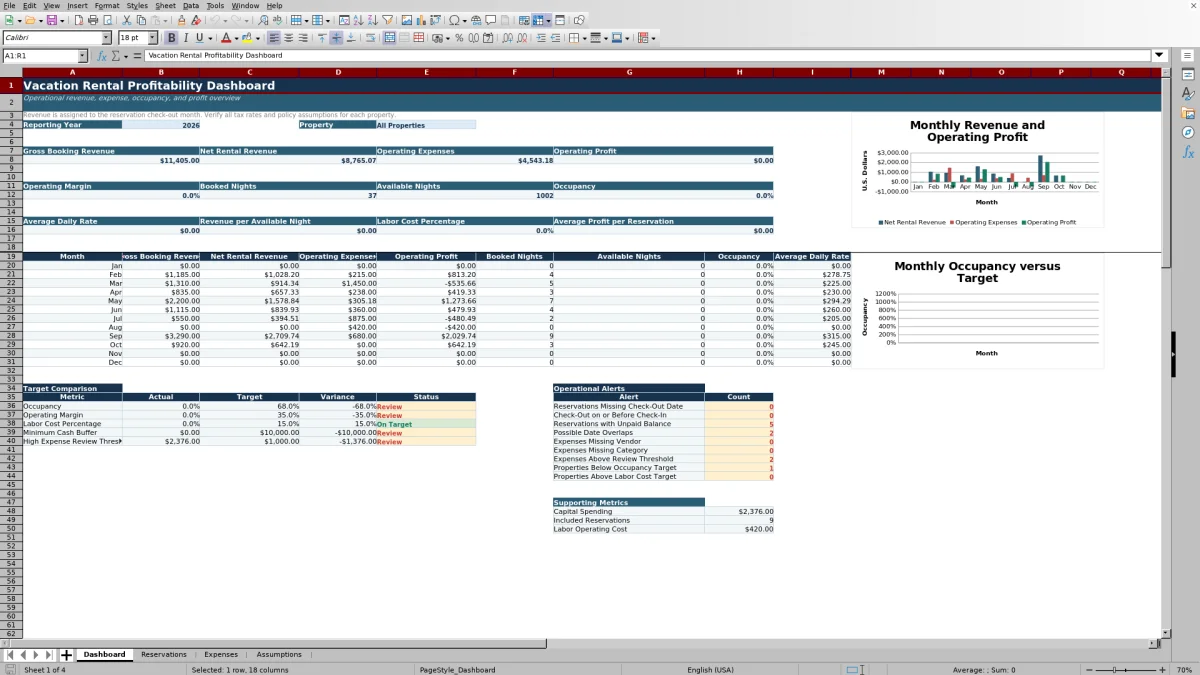
The file includes Dashboard, Reservations, Expenses, and Assumptions sheets. Reservation and expense details feed formula-driven performance metrics, monthly reporting, target comparisons, operational alerts, and two dashboard charts.
Revenue is assigned to the reservation check-out month. Tax rates, taxable fee treatment, channel commissions, processing fees, management fees, and operating targets are editable planning assumptions that should be verified for each property.
At a glance
What this workbook helps you manage
- Compare gross booking revenue, net rental revenue, operating expenses, and operating profit in one dashboard.
- Review annual and monthly occupancy, average daily rate, and revenue per available night.
- Separate operating and capital expense amounts while recording labor cost and receipt status.
- Identify unpaid balances, reservation date issues, possible overlaps, and expense records requiring review.
See the actual file
Inside the workbook
Included in the file
- Four worksheets: Dashboard, Reservations, Expenses, and Assumptions.
- Dashboard filters for reporting year and property, including an All Properties view.
- Monthly financial and occupancy summaries with two dashboard charts.
- Structured reservation, expense, property, and booking-channel tables with validated inputs.
How to use the template
1. Update property and channel assumptions
Begin on the Assumptions sheet. Replace the sample property records with your property IDs, names, markets, states, active status, bedroom counts, maximum guests, and annual blocked nights. Enter the applicable lodging tax, taxable fee share, processing fee, management fee, occupancy target, operating margin target, labor cost target, and minimum nightly rate.
Review the booking channel list and commission rates as well. These values support calculations on the Reservations sheet. Treat all tax and fee settings as planning assumptions and verify them against current agreements and local requirements.
2. Record each reservation
Use one row per booking on the Reservations sheet. Enter the reservation ID, property, guest, booking channel, booking date, stay dates, guest counts, status, room revenue, guest fees, discounts, refunds, amount paid, confirmation number, and notes.
Formula cells calculate nights, taxable guest charges, lodging tax collected, gross booking revenue, channel commission, payment processing fee, management fee, net rental revenue, balance due, and payment status. Built-in checks flag missing or invalid dates, possible booking overlaps, missing reservation details, balances requiring review, and inquiry or tentative statuses.
3. Enter property expenses
Add one row per cost on the Expenses sheet. Record the date, property, vendor, category, expense type, payment method, reference number, description, quantity, unit cost, sales tax, tip, labor hours, labor cost, status, receipt availability, and notes.
The sheet calculates subtotal and total expense, then assigns the amount to either operating or capital expense based on the selected type. Use the Shared Portfolio property value for costs that are not assigned to one rental. Review flags identify a missing vendor, missing category, high expense, or missing receipt under the workbook's configured assumptions.
4. Review the dashboard
Select a reporting year from 2024 through 2028 and choose All Properties or one of the listed properties. The Dashboard summarizes revenue, expenses, and operating profit for the selection.
- Check annual performance metrics and operating margin.
- Review monthly revenue, expense, profit, booked-night, occupancy, and average daily rate results.
- Compare occupancy, operating margin, labor cost percentage, and minimum cash buffer with their targets.
- Investigate the displayed reservation alerts before relying on the report.
What does the vacation rental profitability spreadsheet calculate?
The Dashboard reports gross booking revenue, net rental revenue, operating expenses, operating profit, operating margin, booked nights, available nights, occupancy, average daily rate, revenue per available night, labor cost percentage, and average profit per reservation.
Monthly rows show gross and net rental revenue, operating expenses, operating profit, booked nights, available nights, occupancy, and average daily rate. The workbook also provides a target comparison area and monthly occupancy-versus-target data. One chart compares monthly net rental revenue, operating expenses, and operating profit; the other compares actual occupancy with the occupancy target.
How are booking revenue and net rental revenue calculated?
The Reservations sheet starts with nightly room revenue, cleaning fees, pet fees, other guest fees, discounts, and refunds. Formulas use the selected property's assumptions to calculate taxable guest charges and lodging tax collected.
Gross booking revenue includes room revenue and guest fees after discounts. Net rental revenue then accounts for refunds, channel commission, payment processing fees, and management fees. The dashboard includes qualifying reservation statuses in its reporting formulas and assigns revenue to the check-out month, not the booking or check-in month.
How does the workbook measure occupancy?
Booked nights are calculated from reservation check-in and check-out dates. Available nights are based on the reporting period, active property status, annual owner-blocked nights, and annual maintenance-blocked nights entered on the Assumptions sheet.
Occupancy compares booked nights with available nights. The Dashboard provides annual and monthly views, while the target section compares actual occupancy with the property assumptions. Accurate dates, active-property settings, and blocked-night entries are important for a useful occupancy comparison.
Which vacation rental expenses can be recorded?
The Expenses sheet supports vendor, category, expense type, payment method, reference number, description, quantity, unit cost, sales tax, tip, labor hours, and labor cost. It also records payment status, whether a receipt is available, and internal notes.
Calculated fields provide subtotal, total expense, operating expense amount, and capital expense amount. Dashboard operating expense reporting uses expenses classified as Operating and marked Paid. Capital expenses remain visible on the expense register but are kept separate from the operating expense amount used in profitability reporting.
Questions about this workbook
How many reservation and expense rows are included?
The Reservations sheet provides rows 4 through 153 for 150 reservation records. The Expenses sheet provides the same number of rows for expense records. Both ranges are formatted as Excel tables with filters.
Can the dashboard show one property instead of the full portfolio?
Yes. The Dashboard property selector includes All Properties, Harbor View Cottage, Blue Ridge Cabin, and Desert Bloom Casita as supplied. The Assumptions sheet contains the corresponding sample property records.
Which booking channels are available in the reservation list?
The Reservations sheet provides Direct, Airbnb, Vrbo, Booking.com, Corporate, and Other as booking-channel choices. Channel commission rates are maintained in the Assumptions sheet.
Does the spreadsheet track outstanding guest balances?
Yes. The Reservations sheet calculates balance due from booking charges, lodging tax, refunds, and amount paid. It assigns a payment status and can flag balances that meet the workbook's review threshold.
What reservation issues does the workbook flag?
The workbook checks for missing check-out dates, check-out dates on or before check-in, unpaid balances, and possible date overlaps. Reservation rows also include date, overlap, and record checks for reviewing individual entries.
Are the included tax and fee rates final values?
No. The property tax rates, taxable fee shares, processing rates, management fees, channel commissions, and targets are editable sample planning assumptions. Verify each value for the property, market, booking agreement, and reporting period before using the results.
Transparent credits
Editorial and workbook QA bylines
The named editorial signatures and their responsibilities stay consistent across the library.

Workbook guide and editorial context
Audrey Whitmore
Audrey Whitmore is the consistent editorial byline for practical setup guidance written from each workbook’s final manifest and published features.
Meet the editorial byline →
Workbook structure and formula QA byline
Ethan Cole
Ethan Cole is the consistent QA byline shown only when recorded checks pass for worksheet structure, formulas, validations, recalculation, and the published XLSX bytes.
See the QA byline and checks →