Revenue · XLSX
Free Hotel Invoice Tracker Spreadsheet Excel Template for 2026
Use this hotel invoice tracker spreadsheet to monitor vendor bills, approvals, payments, balances, aging, and review flags.
Formula and workbook structure checked before publication
This hotel invoice tracker spreadsheet is a free Excel template for recording vendor invoices as they move from receipt through approval and payment. It organizes invoice dates, due dates, departments, expense categories, purchase orders, charges, credits, approvers, and payment details in one structured register.
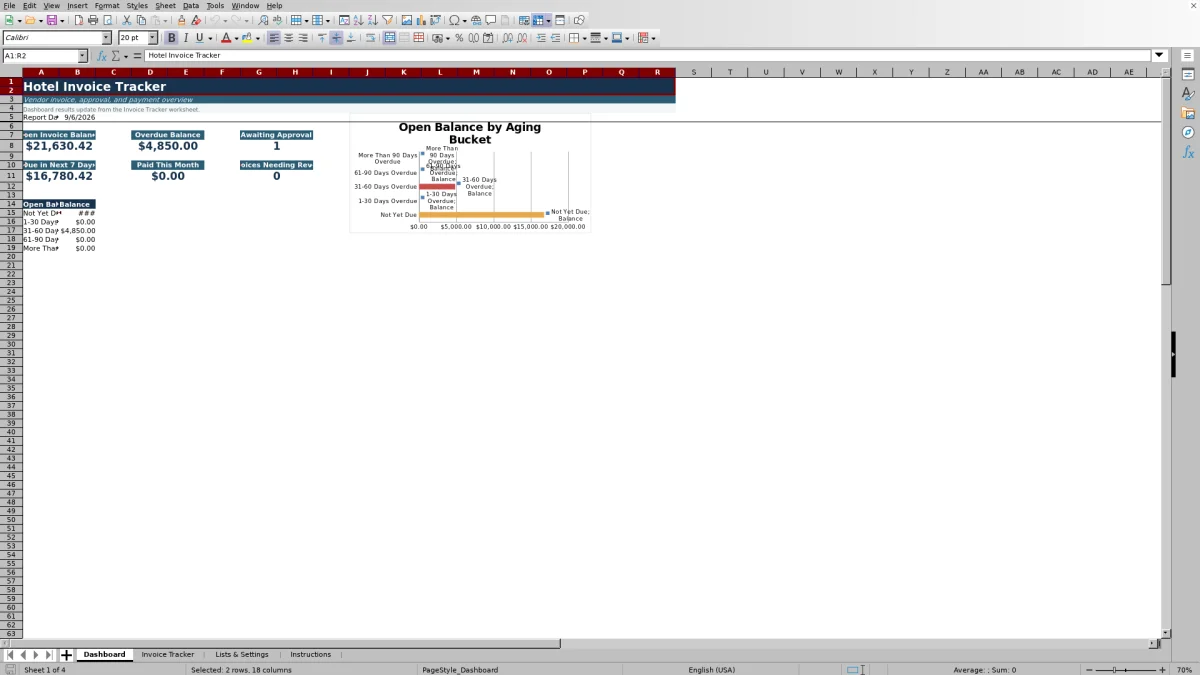
Built for hotel operations in 2026, the workbook calculates totals, variances, balances due, payment status, days past due, and aging buckets. A formula-driven dashboard summarizes open and overdue balances, invoices due soon, payments made during the current month, items awaiting approval, and invoices requiring review.
The file contains four worksheets: Dashboard, Invoice Tracker, Lists & Settings, and Instructions. It is designed as an internal tracking tool and does not replace the property’s accounting records.
At a glance
What this workbook helps you manage
- Keeps vendor invoice, approval, and payment details together in a single row-based register.
- Calculates invoice totals, variances, unpaid balances, payment status, and aging automatically.
- Surfaces possible duplicates, total mismatches, approval requirements, and incomplete payment details.
- Summarizes open payables, overdue amounts, upcoming due dates, and monthly payments on a dashboard.
See the actual file
Inside the workbook
Included in the file
- Four worksheets covering the dashboard, invoice register, editable lists and settings, and file instructions.
- Dropdown lists for property, department, expense category, approval status, and payment method.
- Automatic formulas for calculated total, variance, balance due, status, days past due, aging, and review flags.
- Dashboard metrics plus one chart showing open invoice balance by aging bucket.
How to use the template
1. Review the operating assumptions
Start on Lists & Settings. Review the due-soon window, total variance tolerance, high-value approval threshold, and standard payment review target. These values are internal assumptions and should match the property’s approved procedures.
Update the available lists for properties, departments, expense categories, approval statuses, and payment methods as needed. These lists support the dropdown fields on the Invoice Tracker worksheet.
2. Enter one vendor invoice per row
Use the Invoice Tracker for daily entry. Record the invoice ID, property, vendor name, vendor account number, invoice number, invoice date, date received, and due date. Add the responsible department, expense category, description, and purchase order number when applicable.
Enter the financial detail in U.S. dollars: invoice subtotal, sales tax, service, freight, or other charges, credits or adjustments, and the vendor invoice total. Enter credits as negative amounts, as directed on the Instructions worksheet.
3. Check the calculated amounts
The workbook calculates a total from the subtotal, tax, other charges, and credit or adjustment. It then compares that result with the vendor invoice total and reports the variance. Review any total mismatch before moving the invoice forward.
Gold cells are intended for user entry, while gray cells contain formulas. Avoid overwriting formula cells for calculated total, total variance, balance due, payment status, days past due, aging bucket, and review flag.
4. Record approval and payment activity
As the invoice moves through the hotel’s process, update the approval status, approver, and approval date. When payment is made, enter the payment method, payment reference, payment date, and amount paid. The balance due is calculated from the vendor invoice total and amount paid.
Use the Notes field for relevant internal context. Review flags can identify possible duplicate vendor invoice numbers, approval requirements, mismatched totals, and incomplete payment details.
5. Review the dashboard
Use the Dashboard to monitor open and overdue exposure. The report date updates to the current date, and the summary draws its results from the Invoice Tracker. Review the open balance by aging bucket to separate invoices that are not yet due from those 1–30, 31–60, 61–90, or more than 90 days overdue.
What does the hotel invoice tracker record?
The Invoice Tracker contains fields for the complete internal invoice trail. Vendor and document fields include invoice ID, property, vendor name, vendor account number, invoice number, invoice date, date received, due date, description, and purchase order number.
Operational coding fields cover department and expense category. Financial fields separate subtotal, sales tax, service, freight, or other charges, credits or adjustments, vendor invoice total, calculated total, and total variance. Approval and payment fields include status, approver, approval date, payment method, payment reference, payment date, amount paid, and notes.
This structure helps a hotel maintain consistent invoice records across departments such as Housekeeping, Engineering, Food & Beverage, Front Office, Events, and Administration when those options are retained in the settings list.
How does the spreadsheet identify overdue hotel invoices?
Payment status is based on the remaining balance, due date, approval status where relevant, and the workbook’s current date. An invoice with no remaining balance is shown as paid. An unpaid invoice with a due date before today is classified as overdue, while an invoice falling within the configured due-soon window is identified as due soon.
The tracker also calculates days past due and assigns each open invoice to an aging bucket. The available aging groups are Not Yet Due, 1–30 Days Overdue, 31–60 Days Overdue, 61–90 Days Overdue, and More Than 90 Days Overdue. The Dashboard summarizes these balances and displays them in an aging chart.
What invoice issues does the review flag identify?
The Review Flag field is designed to direct attention to records that may require follow-up. It can identify a total mismatch when the vendor invoice total differs from the calculated components by more than the configured tolerance. It can also flag a possible duplicate when the same vendor name and invoice number appear more than once.
Invoices meeting the configurable high-value threshold can be marked as requiring approval when their status is not Approved or Void. The workbook also checks for incomplete payment details. The Dashboard counts tracker rows containing a review flag, providing a concise exception-review queue for the hotel team.
How can a hotel use the dashboard during invoice review?
The Dashboard provides a current-date overview of vendor invoice activity. It reports open invoice balance, overdue balance, amounts due in the next seven days under the default setting, and payments recorded during the current month. It also counts invoices with a Submitted approval status and invoices containing review flags.
These measures support a routine accounts-payable review by showing which balances are approaching their due dates, which are already overdue, and which records need additional attention. Because the results pull from the Invoice Tracker, accurate dates, statuses, totals, and payment entries are important.
Questions about this workbook
How many invoice rows are included in the workbook?
The Invoice Tracker provides 150 preformatted data rows, from row 5 through row 154. Formulas for calculated totals, variances, balances, payment status, days past due, aging buckets, and review flags are present across those rows.
Can the spreadsheet track invoices for more than one hotel property?
Yes. The Property field uses a dropdown sourced from Lists & Settings. The supplied property list includes Harbor View Hotel, Downtown Conference Hotel, Lakeside Resort, and Airport Suites, and the list can be edited to reflect the operator’s properties.
Does the tracker support partial payments?
The workbook includes separate Vendor Invoice Total, Amount Paid, and Balance Due fields. Balance Due is calculated as the invoice total less the amount paid, with the result not falling below zero. Payment details can also include method, reference, and date.
Which approval statuses and payment methods are included?
The supplied approval statuses are Draft, Submitted, Approved, On Hold, Disputed, and Void. Payment methods are ACH, Check, Credit Card, Wire Transfer, Other, and Not Scheduled. Both lists are maintained on Lists & Settings.
What should users do before relying on the dashboard totals?
Review the settings, replace or revise the supplied lists as appropriate, and confirm that every invoice row has accurate dates, amounts, approval information, and payment details. Users should also investigate review flags and avoid changing gray formula cells. The workbook is an internal tracking tool and does not replace the property’s accounting records.
Transparent credits
Editorial and workbook QA bylines
The named editorial signatures and their responsibilities stay consistent across the library.

Workbook guide and editorial context
Audrey Whitmore
Audrey Whitmore is the consistent editorial byline for practical setup guidance written from each workbook’s final manifest and published features.
Meet the editorial byline →
Workbook structure and formula QA byline
Ethan Cole
Ethan Cole is the consistent QA byline shown only when recorded checks pass for worksheet structure, formulas, validations, recalculation, and the published XLSX bytes.
See the QA byline and checks →