Revenue · XLSX
Free Resort Revenue Dashboard Excel Template for 2026
Track resort revenue, budget variance, occupancy, ADR, RevPAR, and department mix with this resort revenue dashboard Excel template.
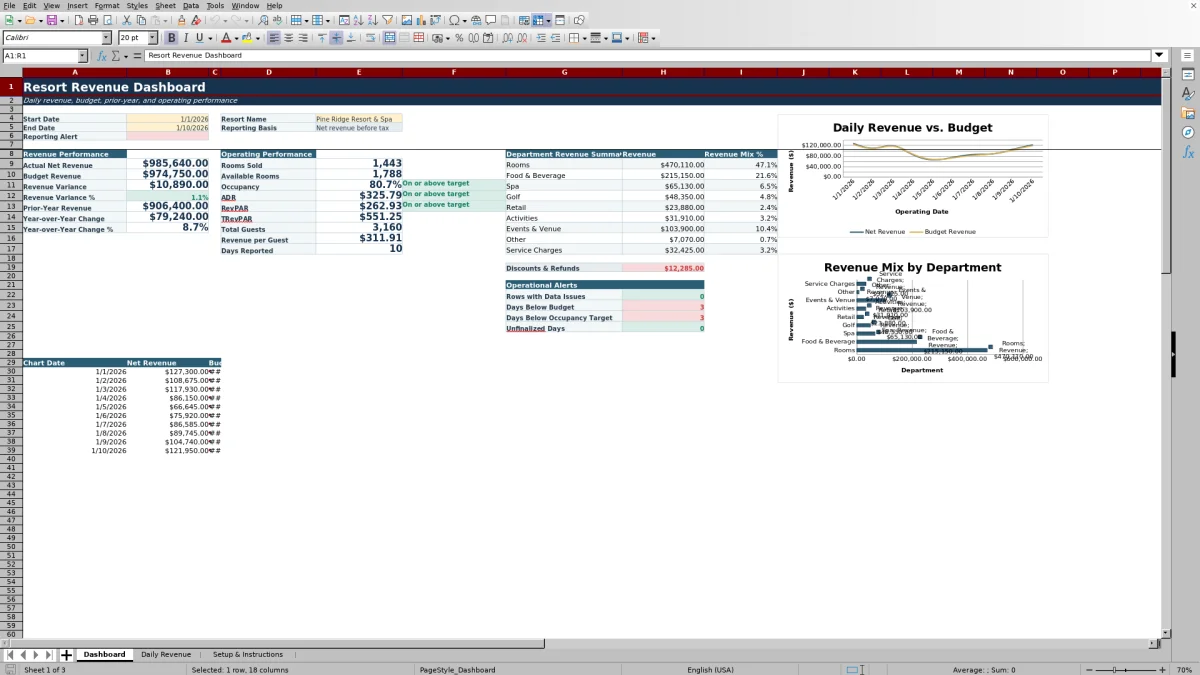
This free Excel template gives resort operators a structured way to review daily revenue and operating performance during 2026. It combines rooms, food and beverage, spa, golf, retail, activities, events, service charges, and other revenue in one reporting workbook.
Enter one row for each operating date, then choose the reporting period on the Dashboard. Formulas calculate gross and net revenue, budget variance, year-over-year change, occupancy, ADR, RevPAR, TRevPAR, and revenue per guest.
The workbook also provides department revenue mix, target status, operating alerts, and space for demand drivers and manager notes. Its three sheets are Dashboard, Daily Revenue, and Setup & Instructions.
At a glance
What this workbook helps you manage
- Consolidates daily rooms and ancillary revenue into a resort-level reporting view.
- Compares net revenue with budget and prior-year revenue for selected dates.
- Calculates occupancy, ADR, RevPAR, TRevPAR, and revenue per guest.
- Flags data issues, below-target performance, and unfinalized operating days.
See the actual file
Inside the workbook
Included in the file
- Three worksheets: Dashboard, Daily Revenue, and Setup & Instructions.
- Daily revenue table with date, status, operating data, nine revenue categories, and notes.
- Dashboard summaries for actual, budget, prior-year, operating, and department results.
- Two dashboard charts plus validation rules and conditional formatting.
How to use the template
1. Review the resort assumptions
Open Setup & Instructions and update the editable assumptions for maximum room inventory, occupancy target, ADR target, RevPAR target, unfavorable revenue variance alert, and open-day follow-up threshold. These values support the workbook's target and exception checks.
2. Enter one row per operating date
Use Daily Revenue for the daily record. Enter the date, reporting status, available rooms, rooms sold, total guests, department revenue, service charges, discounts and refunds, budget revenue, and prior-year revenue.
Record revenue before sales and lodging taxes. Enter discounts and refunds as positive dollar amounts because the workbook subtracts them from gross revenue. The sheet contains rows 4 through 253 for daily entries.
3. Add operating context
Select a primary demand driver such as Leisure, Group, Conference, Wedding, Holiday, Promotion, Local Event, Weather, Maintenance Impact, or Other. Use Group or Event Note and Manager Notes to document circumstances that help explain the day's results.
4. Check calculated fields and exceptions
The Daily Revenue formulas calculate net revenue and performance metrics after data is entered. Review Revenue Variance, Revenue Variance %, Year-over-Year Change, Occupancy, ADR, RevPAR, TRevPAR, Occupancy Status, and Operational Check.
- Confirm that available rooms do not exceed the maximum inventory.
- Resolve duplicate dates or rooms sold above available rooms.
- Review negative net revenue and missing budget or prior-year amounts.
- Set completed records to Final when appropriate.
5. Set the Dashboard reporting period
Enter the Start Date and End Date on the Dashboard. The summary uses those dates to calculate results from Daily Revenue. If the end date is earlier than the start date, the reporting alert displays a date warning. Review the selected-period dashboard, department mix, charts, and operational alerts.
What resort revenue does the dashboard track?
The Daily Revenue sheet separates income into Rooms Revenue, Food & Beverage Revenue, Spa Revenue, Golf Revenue, Retail Revenue, Activities Revenue, Events & Venue Revenue, Other Revenue, and Service Charges. These amounts are added to calculate gross revenue.
Discounts & Refunds are entered separately and deducted from gross revenue to calculate net revenue before tax. The Dashboard summarizes the selected period and shows both revenue dollars and revenue mix percentages for the listed departments and service charges. Discounts and refunds also appear as a separate dashboard measure.
How does the workbook compare actual revenue with plan and prior year?
Each daily row includes Budget Revenue and Prior-Year Revenue. Formulas compare net revenue with both amounts, producing dollar and percentage variances for the operating date.
For the dates selected on the Dashboard, the workbook reports Actual Net Revenue, Budget Revenue, Revenue Variance, Revenue Variance %, Prior-Year Revenue, Year-over-Year Change, and Year-over-Year Change %. This supports a consistent budget and year-over-year review without manually totaling individual dates.
The operational alerts also count days below budget. An editable unfavorable revenue variance alert is available on Setup & Instructions for the workbook's exception reporting.
Which resort operating metrics are calculated?
The workbook uses available rooms, rooms sold, total guests, rooms revenue, and net revenue to calculate several core operating measures. Occupancy divides rooms sold by available rooms. ADR divides rooms revenue by rooms sold, while RevPAR divides rooms revenue by available rooms. TRevPAR divides net revenue by available rooms.
The Dashboard also reports total guests, revenue per guest, and days reported for the selected period. Occupancy, ADR, and RevPAR are compared with the targets entered on Setup & Instructions, producing an on-target or below-target status.
How can managers identify reporting problems?
The Operational Check column evaluates daily entries for issues represented in the workbook, including duplicate dates, rooms sold above available rooms, available inventory above the property maximum, negative net revenue, and missing budget or prior-year revenue.
Dashboard alerts summarize Rows with Data Issues, Days Below Budget, Days Below Occupancy Target, and Unfinalized Days. Reporting Status is selected as Open or Final, allowing managers to distinguish working entries from completed daily records. The open-day follow-up threshold on Setup & Instructions can be adjusted for the resort's reporting routine.
Conditional formatting provides additional visual cues, while the Daily Revenue sheet keeps its headers visible and includes filtering for reviewing specific records.
Questions about this workbook
What sheets are included in the resort revenue dashboard workbook?
The workbook contains exactly three sheets: Dashboard, Daily Revenue, and Setup & Instructions. Dashboard presents selected-period results, Daily Revenue holds the operating records, and Setup & Instructions contains editable assumptions and reference lists.
How many daily records can the Daily Revenue sheet hold?
The Daily Revenue entry area runs from row 4 through row 253, providing 250 daily rows. Each row represents one operating date.
How should discounts and refunds be entered?
Enter discounts and refunds as positive U.S. dollar amounts in the Discounts & Refunds column. The workbook subtracts that value from gross revenue when calculating net revenue.
Can the dashboard report a custom date range?
Yes. Enter a Start Date and End Date in the Dashboard date cells. Dashboard formulas summarize Daily Revenue records that fall within the selected period. A reporting alert appears if the end date is earlier than the start date.
What resort targets can be adjusted?
Setup & Instructions includes editable values for maximum room inventory, occupancy target, ADR target, RevPAR target, unfavorable revenue variance alert, and open-day follow-up threshold.
Does the workbook include sample resort data?
Yes. The workbook manifest shows sample 2026 daily records and a sample resort name. Operators can replace those entries with their own resort assumptions, operating dates, room activity, revenue, budget, prior-year values, and notes.
Transparent credits
Editorial and workbook QA bylines
The named editorial signatures and their responsibilities stay consistent across the library.

Workbook guide and editorial context
Audrey Whitmore
Audrey Whitmore is the consistent editorial byline for practical setup guidance written from each workbook’s final manifest and published features.
Meet the editorial byline →