
Guests · XLSX
Free Resort Activity Booking Tracker Excel Template for 2026
Track resort activity reservations, participants, capacity, charges, balances, waivers, and operational follow-up in one Excel workbook.
Formula and workbook structure checked before publication
This resort activity booking tracker is a free Excel template for organizing guest reservations, activity schedules, participant counts, charges, payments, and required follow-up. It gives recreation desks, concierge teams, and resort managers one structured place to maintain booking details.
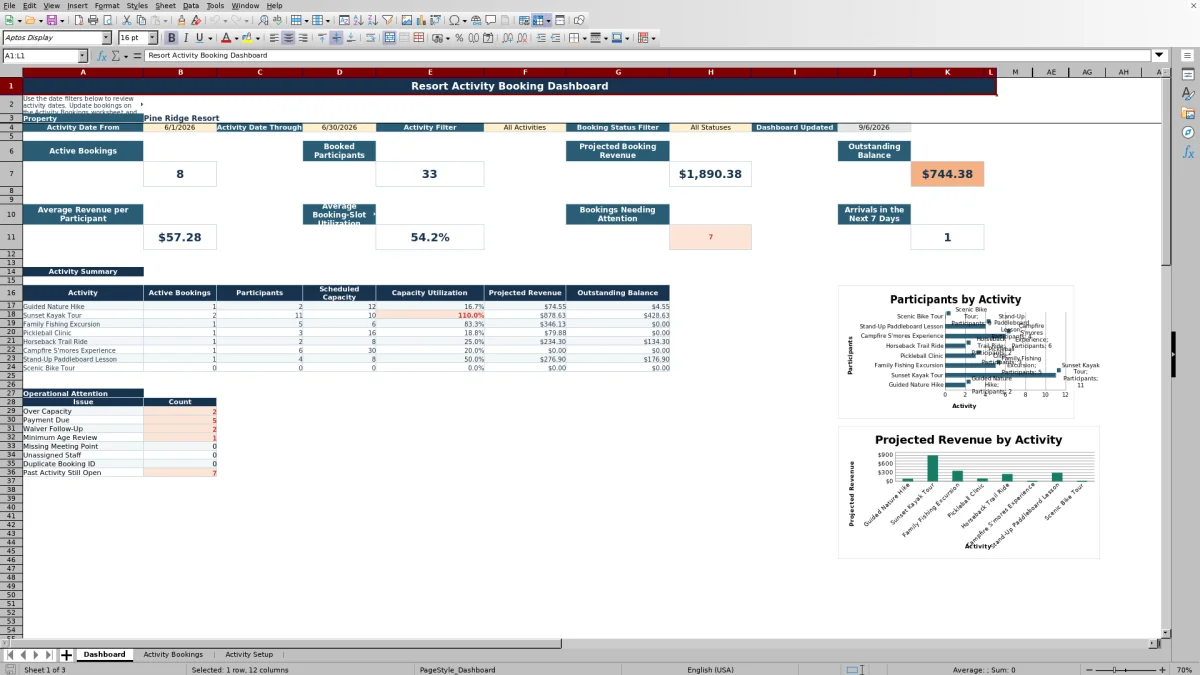
The workbook contains three worksheets: Dashboard, Activity Bookings, and Activity Setup. Enter reservations in the booking table, maintain rates and operating assumptions in the setup sheet, and use the filterable dashboard to review activity volume, projected revenue, outstanding balances, utilization, and attention items.
At a glance
What this workbook helps you manage
- Keeps guest, schedule, payment, waiver, staffing, and meeting-point details together for each booking.
- Calculates total charges, balances due, slot utilization, capacity remaining, and cancellation deadlines.
- Surfaces operational issues such as over-capacity slots, missing assignments, and duplicate booking IDs.
- Summarizes filtered activity performance with key metrics, activity-level results, and two dashboard charts.
See the actual file
Inside the workbook
Included in the file
- Three worksheets: Dashboard, Activity Bookings, and Activity Setup.
- Booking table with 45 fields covering guest, schedule, pricing, payment, capacity, waiver, and operating details.
- Setup table with space for 100 activities and configurable property assumptions.
- Dashboard date, activity, and status filters with summaries, attention checks, conditional formatting, and two charts.
How to use the template
1. Configure property and activity settings
Begin on Activity Setup. Replace the sample property name and review the default tax rate, service charge rate, cancellation notice hours, capacity warning threshold, and dashboard currency setting. These are editable property assumptions, so confirm financial and policy inputs with the appropriate property team.
Build the activity catalog using the available fields for activity code, name, category, active status, pricing basis, unit price, tax rate, service charge rate, slot capacity, duration, meeting point, waiver requirement, minimum age, and cancellation notice hours.
2. Enter one row for each reservation
Use Activity Bookings for daily reservation entry. Record the booking ID, booking date, activity date, start time, activity, guest contact information, participant count, status, source, assigned staff member, payment details, waiver status, and any internal notes.
Choose the activity from the provided list so the sheet can retrieve its configured duration, price, pricing basis, meeting point, waiver requirement, minimum age, capacity, and cancellation terms. The booking table provides 150 booking rows.
3. Review calculated booking details
Formula columns calculate the end time, final meeting point, base charge, taxable amount, tax, service charge, total charge, balance due, and payment status. The workbook also calculates participants booked in the same activity slot, remaining capacity, capacity utilization, and the cancellation deadline.
Check the Operational Check field before each activity. It can identify records needing review, including duplicate IDs, over-capacity slots, minimum-age concerns, waiver follow-up, payment due, missing meeting points, and unassigned staff.
4. Filter and review the dashboard
On Dashboard, set the activity date range and select an activity and booking status. The All Statuses selection includes records other than canceled bookings. Review active bookings, booked participants, projected booking revenue, outstanding balance, average revenue per participant, average booking-slot utilization, bookings needing attention, and arrivals in the next seven days.
Use the activity summary and operational attention area to move from broad performance results to specific follow-up needs. Two charts show participants and projected revenue by activity for the displayed summary.
What information can a resort activity booking tracker organize?
The Activity Bookings sheet covers the reservation lifecycle from initial booking through completion, cancellation, or no-show. Core fields include booking ID, booking and activity dates, start and end times, activity name, guest name, guest type, lodging or group reference, phone, email, participant count, and youngest participant age.
Operators can also record booking source, assigned staff, meeting-point overrides, discounts, amounts paid, payment methods, waiver status, external references, and internal notes. Dropdown lists standardize common entries such as guest type, booking status, source, payment method, and waiver status. The sheet includes an Excel table and filters across its headers for practical record review.
How does the workbook calculate activity charges and balances?
Activity Setup stores the pricing basis and unit price for each activity. Pricing can be configured as per person or per booking. When an activity is selected on a reservation, formulas use those settings to calculate the base charge.
The tracker then applies the entered discount, tax rate, and service charge rate to calculate taxable amount, tax amount, service charge, and total charge in U.S. dollars. After staff enter the amount paid, the sheet calculates the remaining balance and classifies the payment as unpaid, partially paid, paid, or canceled according to the booking data.
How can resort teams monitor activity capacity?
Each activity can have a slot capacity in Activity Setup. Reservations sharing the same activity name, activity date, and start time are combined to calculate participants booked in that slot. Canceled and no-show reservations are excluded from that participant total.
The booking sheet calculates remaining capacity and utilization for each slot. An over-capacity result becomes an operational issue, while the editable capacity warning threshold supports amber capacity alerts. The Dashboard summarizes scheduled capacity and capacity utilization by activity within the selected filters.
Which booking issues does the dashboard help identify?
The operational attention fields help staff focus on records that may interrupt the guest experience or activity departure. Dashboard categories include over capacity, payment due, waiver follow-up, minimum-age review, missing meeting point, unassigned staff, duplicate booking ID, and past bookings that remain open.
A separate next-seven-days calculation identifies upcoming confirmed or pending activity dates. These checks depend on complete and current booking entries, making consistent status updates important when a reservation is confirmed, completed, canceled, or marked as a no-show.
Questions about this workbook
What worksheets are included in the resort activity booking tracker?
The workbook includes Dashboard, Activity Bookings, and Activity Setup. Dashboard summarizes filtered results, Activity Bookings holds reservation records, and Activity Setup stores property assumptions and the activity catalog.
How many bookings and activities can the workbook hold?
The Activity Bookings table provides 150 booking rows, from rows 5 through 154. The Activity Setup table provides 100 activity rows, from rows 12 through 111.
Which booking statuses are available?
The available statuses are Inquiry, Pending, Confirmed, Completed, Canceled, and No-Show. The Dashboard status filter includes those choices plus All Statuses. Under All Statuses, canceled records are excluded from the dashboard match results.
Can the tracker handle both per-person and per-booking prices?
Yes. Each activity has a Pricing Basis field with Per Person and Per Booking options. Per-person pricing multiplies the participant count by the unit price, while per-booking pricing uses the unit price once.
Does the workbook track waivers and age requirements?
Yes. Activity Setup includes waiver-required and minimum-age fields. Each booking includes the youngest participant age and waiver status, with available waiver statuses for not required, not sent, sent, received, declined, and verify on arrival. Related dashboard checks highlight records needing review.
What date range does the workbook accept?
Date validation on the booking and dashboard date fields accepts dates from January 1, 2026, through December 31, 2030. The supplied dashboard sample range covers June 1 through June 30, 2026.
Transparent credits
Editorial and workbook QA bylines
The named editorial signatures and their responsibilities stay consistent across the library.

Workbook guide and editorial context
Audrey Whitmore
Audrey Whitmore is the consistent editorial byline for practical setup guidance written from each workbook’s final manifest and published features.
Meet the editorial byline →
Workbook structure and formula QA byline
Ethan Cole
Ethan Cole is the consistent QA byline shown only when recorded checks pass for worksheet structure, formulas, validations, recalculation, and the published XLSX bytes.
See the QA byline and checks →