Revenue · XLSX
Free Hotel Room Revenue Forecast Excel Template for 2026
Hotel room revenue forecast Excel template with daily occupancy, ADR, RevPAR, room revenue, targets, alerts, actuals, and dashboard reporting.
Formula and workbook structure checked before publication
This free Excel template gives hotel operators a structured 2026 hotel room revenue forecast based on daily inventory, current bookings, expected pickup, and rate assumptions. It calculates forecast occupancy, ADR, RevPAR, and room revenue for each stay date.
The workbook contains four sheets: Dashboard, Daily Forecast, Assumptions, and Instructions. The Dashboard summarizes a selected reporting period, while the Daily Forecast provides 120 rows for entering stay-date information, approved overrides, and actual results.
Use the workbook to compare forecast performance with property targets, identify dates below occupancy or ADR thresholds, and monitor actual room revenue against forecast. Room revenue excludes taxes and ancillary revenue; an optional estimated room tax amount is shown separately.
At a glance
What this workbook helps you manage
- Builds a daily room revenue outlook from sellable inventory, on-the-books business, and expected pickup.
- Summarizes occupancy, ADR, RevPAR, room revenue, and actual performance for a selected date range.
- Flags dates below occupancy or ADR thresholds and past dates missing actual results.
- Supports management-approved rooms-sold and ADR overrides without changing the base forecast inputs.
See the actual file
Inside the workbook
Included in the file
- Four worksheets: Dashboard, Daily Forecast, Assumptions, and Instructions.
- Daily forecast table with 120 stay-date rows and calculated occupancy, ADR, RevPAR, and room revenue.
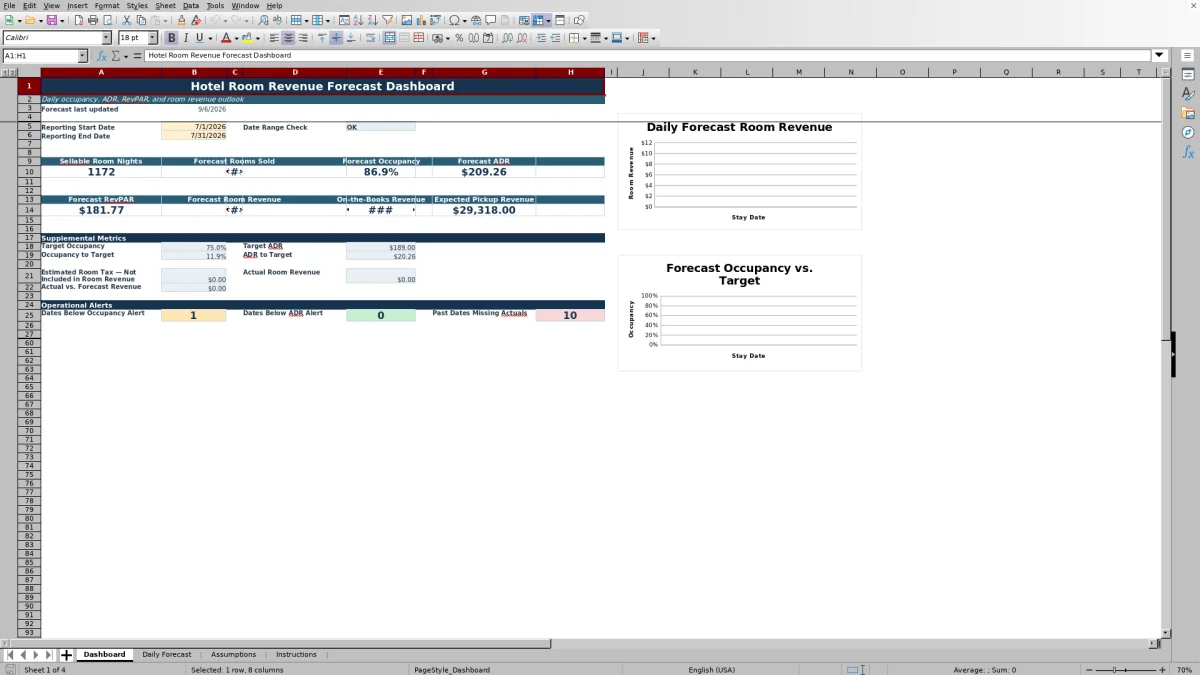
- Dashboard date controls, summary metrics, operational alerts, and two forecast charts.
- Validated input ranges, conditional formatting, filters, frozen headers, and an assumptions check.
How to use the template
1. Review assumptions and operating targets
Start on the Assumptions sheet. Confirm the default physical room count, maximum occupancy, target occupancy, target ADR, low occupancy alert threshold, and low ADR alert threshold. The assumption check identifies inconsistent settings, such as an alert threshold above its related target.
The estimated room tax rate is optional and accepts a value from 0% to 30%. It is used to estimate room tax from forecast room revenue, but tax is not included in room revenue.
2. Enter one row for each stay date
Use the Daily Forecast sheet for dates in 2026. Complete the yellow input cells for each applicable date:
- Forecast Date and Demand Driver / Notes
- Physical Rooms and Out of Order Rooms
- On-the-Books Rooms and On-the-Books Revenue
- Expected Pickup Rooms and Expected Pickup ADR
Sellable rooms are calculated as physical rooms less out-of-order rooms. The workbook limits forecast rooms sold to available sellable inventory and calculates the day of week automatically.
3. Review the calculated forecast
The base rooms forecast combines on-the-books rooms with expected pickup rooms. Forecast ADR reflects on-the-books revenue and expected pickup ADR. The resulting daily forecast metrics include rooms sold, occupancy, ADR, room revenue, and RevPAR.
Enter values in Override Forecast Rooms or Override Forecast ADR only when management has approved a result different from the calculated base forecast. An entered override replaces the corresponding calculated value for that date.
4. Record actual results after the stay date
Enter Actual Rooms Sold and Actual Room Revenue when final results are available. The Revenue Variance column calculates actual room revenue less forecast room revenue. The Status column labels rows as Forecast, Past Due, or Actual based on the stay date and completion of the actual fields.
5. Set the dashboard reporting period
Enter a Reporting Start Date and Reporting End Date on the Dashboard. Both fields accept 2026 dates, and the date-range check warns if the start date is later than the end date. Review the selected-period totals and ratios, target comparisons, alerts, and two charts for forecast room revenue and forecast occupancy against target occupancy.
How does the hotel room revenue forecast calculate daily results?
The Daily Forecast begins with physical rooms and subtracts out-of-order rooms to determine sellable rooms. The base rooms forecast adds expected pickup rooms to on-the-books rooms, while preventing the result from exceeding sellable inventory.
Unless an override is entered, forecast ADR is calculated from on-the-books room revenue plus expected pickup revenue, divided by the combined on-the-books and pickup rooms. Forecast room revenue equals forecast rooms sold multiplied by forecast ADR. Occupancy is forecast rooms sold divided by sellable rooms, and RevPAR is room revenue divided by sellable rooms.
Blank dates return blank calculated cells, and formula error handling prevents common incomplete-input errors from disrupting the forecast display.
What does the hotel revenue forecast dashboard show?
The Dashboard aggregates Daily Forecast values that fall between the selected reporting start and end dates. It displays sellable room nights, forecast rooms sold, forecast occupancy, forecast ADR, forecast RevPAR, and forecast room revenue.
Additional dashboard measures include on-the-books revenue, expected pickup revenue, target occupancy, target ADR, occupancy-to-target and ADR-to-target differences, estimated room tax, actual room revenue, and actual-versus-forecast revenue. The actual revenue total only includes entered actual room revenue within the reporting period.
Operational alerts count dates below the occupancy threshold, dates below the ADR threshold, and past dates without completed actual results. These counts help direct attention to stay dates requiring review.
How should a hotel use forecast overrides?
The workbook provides separate override fields for forecast rooms sold and forecast ADR. These fields are intended for management-approved changes when the calculated base forecast does not reflect the property’s current outlook.
For example, an operator may enter an override after reviewing a local event, group movement, or another demand driver recorded in the notes field. If the rooms override is left blank, the workbook uses the base rooms forecast. If the ADR override is blank, it uses the calculated ADR.
Keeping the on-the-books and pickup inputs current preserves the underlying forecast logic, while the override columns make an approved adjustment visible in the same daily row.
How can actual hotel room revenue be compared with forecast?
After a stay date passes, enter final paid rooms sold and actual room revenue in the Daily Forecast. The workbook calculates revenue variance as actual room revenue minus forecast room revenue. A positive value indicates actual revenue above forecast, while a negative value indicates revenue below forecast.
Once both actual fields are entered for a date on or before today, the row status changes to Actual. A past date without completed actual fields is labeled Past Due and contributes to the Dashboard’s missing-actuals alert.
The Dashboard totals entered actual room revenue for the chosen reporting period and compares it with forecast room revenue, providing a period-level revenue variance alongside the daily detail.
Questions about this workbook
What worksheets are included in the hotel room revenue forecast template?
The workbook includes Dashboard, Daily Forecast, Assumptions, and Instructions sheets. The Daily Forecast holds stay-date inputs and calculations, while the Dashboard summarizes the reporting period selected by the user.
Which dates can be entered in the workbook?
The date validation on the Daily Forecast and Dashboard accepts dates from January 1 through December 31, 2026. The daily table provides 120 forecast rows, and its date validation also checks for duplicate stay dates.
Does forecast room revenue include room tax or ancillary revenue?
No. Forecast room revenue excludes taxes and ancillary revenue. The Assumptions sheet includes an optional estimated room tax rate, and the Dashboard shows the resulting estimate separately from room revenue.
What inputs are needed for the base forecast?
For each stay date, enter physical rooms, out-of-order rooms, on-the-books rooms, on-the-books revenue, expected pickup rooms, and expected pickup ADR. The notes field can record demand drivers. Override fields are optional.
How are low-performance dates identified?
Enter low occupancy and low ADR alert thresholds on the Assumptions sheet. The Dashboard counts dates in the selected reporting period where forecast occupancy or forecast ADR falls below those thresholds. Conditional formatting also supports visual review within the workbook.
Transparent credits
Editorial and workbook QA bylines
The named editorial signatures and their responsibilities stay consistent across the library.

Workbook guide and editorial context
Audrey Whitmore
Audrey Whitmore is the consistent editorial byline for practical setup guidance written from each workbook’s final manifest and published features.
Meet the editorial byline →
Workbook structure and formula QA byline
Ethan Cole
Ethan Cole is the consistent QA byline shown only when recorded checks pass for worksheet structure, formulas, validations, recalculation, and the published XLSX bytes.
See the QA byline and checks →