Revenue · XLSX
Free Hotel Revenue Management Spreadsheet Excel Template for 2026
Hotel revenue management spreadsheet with daily forecasts, pickup, ADR, RevPAR, budget comparisons, rate guidance, and data checks for 2026.
Formula and workbook structure checked before publication
This hotel revenue management spreadsheet is a free Excel template for organizing daily rooms data across the 2026 calendar year. It combines on-the-books performance, pickup, forecasts, budget, prior-year results, competitor-set ADR, pricing guidance, and operational checks in one workbook.
The four worksheets—Dashboard, Daily Revenue, Assumptions, and Instructions—support a practical revenue meeting workflow. Enter property settings and daily operating figures, then use the calculated metrics to review occupancy, ADR, RevPAR, and rooms revenue for a selected reporting period.
At a glance
What this workbook helps you manage
- Reviews daily rooms performance and pickup for every stay date in 2026.
- Compares forecast rooms revenue with budget and prior-year rooms revenue.
- Summarizes rate actions, occupancy exceptions, and data issues by reporting period.
- Keeps property assumptions, daily inputs, calculations, and instructions organized.
See the actual file
Inside the workbook
Included in the file
- Four worksheets: Dashboard, Daily Revenue, Assumptions, and Instructions.
- A 366-row daily revenue table covering January 1 through December 31, 2026.
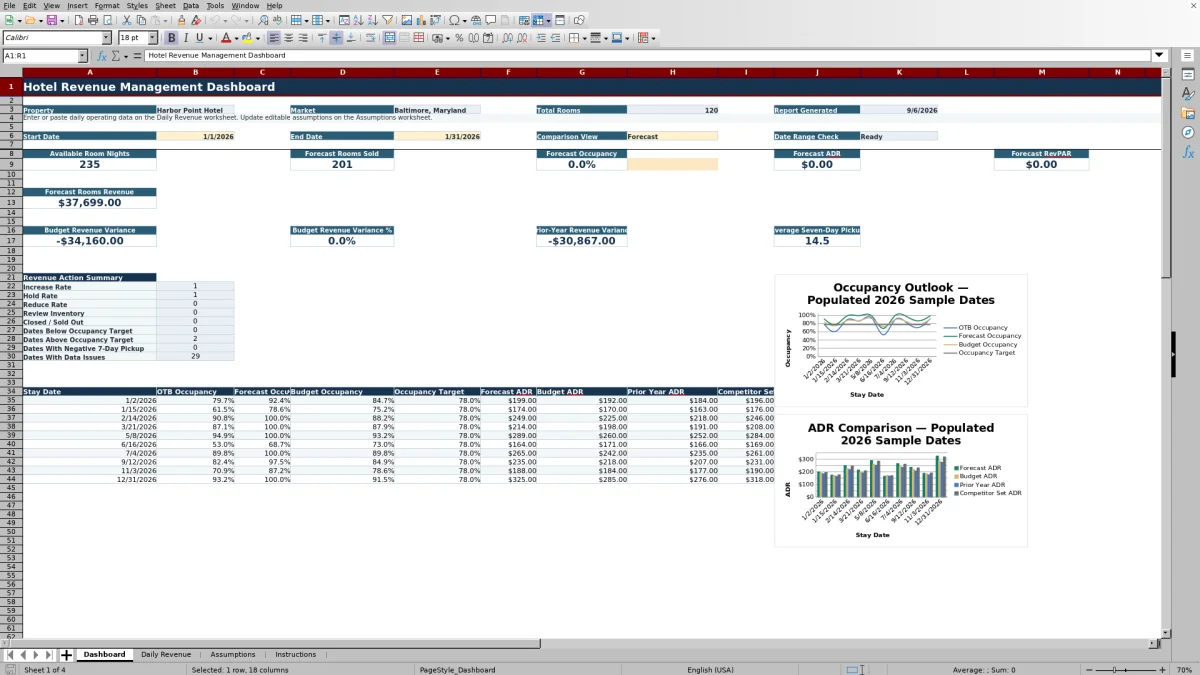
- Two Dashboard charts comparing occupancy measures and ADR measures by stay date.
- Validated inputs, conditional formatting, calculated recommendations, and operational checks.
How to use the template
1. Review the Instructions worksheet
Start with the workbook guidance, metric definitions, operating routine, and limitations. The instructions identify editable Daily Revenue columns and explain that pale gold cells are intended for input while neutral blue-gray cells contain calculations. Avoid pasting over formula columns.
2. Update property assumptions
On the Assumptions worksheet, replace the sample property name, market, room count, and default out-of-order room setting. Review the occupancy thresholds and target, along with the rate adjustment percentages used by the recommendation logic. Built-in checks indicate whether the high-demand threshold exceeds the low-demand threshold and whether the occupancy target falls between them.
3. Enter daily revenue data
Use one row per stay date on the Daily Revenue worksheet. Enter or paste the appropriate operating inputs, including:
- Day type, demand driver, and out-of-order rooms
- On-the-books rooms and ADR
- 1-day, 7-day, and 30-day pickup
- Forecast adjustment rooms and forecast ADR
- Budget rooms sold and budget ADR
- Prior-year rooms sold and ADR
- Competitor-set ADR and current public rate
- Minimum stay, inventory status, and revenue manager notes
The worksheet calculates sellable rooms, rooms revenue, occupancy, forecast performance, budget and prior-year variances, ADR index, recommended public rate, recommended action, stay-date status, and operational checks.
4. Set the Dashboard reporting view
Select a start date and end date within 2026, then choose either Forecast or Actual / On the Books as the comparison view. Confirm that the date range check displays Ready. The Dashboard summarizes available room nights and revenue KPIs for the selected period and lists the number of dates assigned to each recommended action.
5. Review exceptions before making decisions
Investigate negative seven-day pickup, missing ADR values, inventory conflicts, and other flagged records. Consider demand drivers, group block changes, cancellations, event calendars, and room-type availability before applying a recommendation. Record relevant context in Revenue Manager Notes.
What does the hotel revenue management spreadsheet calculate?
The Daily Revenue worksheet calculates the core rooms metrics used in routine hotel revenue reviews. Sellable rooms equal total rooms less out-of-order rooms. On-the-books revenue is calculated from on-the-books rooms and ADR, while on-the-books occupancy compares booked rooms with sellable inventory.
Forecast rooms sold combines on-the-books rooms with the entered forecast adjustment, subject to available sellable rooms. Forecast rooms revenue, occupancy, and RevPAR are then calculated from forecast rooms sold and forecast ADR. The sheet also calculates budget and prior-year rooms revenue, dollar and percentage variances, and an ADR index based on forecast ADR divided by competitor-set ADR and multiplied by 100.
How does the workbook support daily pricing reviews?
Each populated daily row can return Increase Rate, Hold Rate, Reduce Rate, Review Inventory, or Closed / Sold Out. The recommendation uses sellable inventory and the occupancy thresholds entered on the Assumptions worksheet. A recommended public rate is also calculated from the current public rate and the user-entered rate adjustment percentages.
These outputs provide decision support rather than automatic pricing. The workbook instructions direct operators to confirm event calendars, group block activity, cancellation patterns, and room-type availability before changing rates or restrictions.
What can hotel teams review on the Dashboard?
The Dashboard displays the property, market, total rooms, report date, selected reporting dates, and comparison view. Summary measures include available room nights, forecast rooms sold, forecast occupancy, forecast ADR, forecast RevPAR, forecast rooms revenue, variance to budget, variance to prior year, and average seven-day pickup.
A revenue action summary counts dates by recommended action. Additional counts identify dates below or above the occupancy target, dates with negative seven-day pickup, and dates with data issues. The two included charts present stay-date comparisons for occupancy and ADR measures.
How does the spreadsheet help identify input problems?
The Operational Check field reviews populated rows for several inconsistencies. It can flag out-of-order rooms above total inventory, on-the-books rooms above sellable rooms, a forecast above sellable rooms, missing forecast ADR when forecast rooms are present, and missing on-the-books ADR when booked rooms are present.
Input validation also limits certain entries. Dates are restricted to 2026, room counts and pickup fields use defined numeric ranges, minimum stays accept 1 through 14 nights, and inventory status uses a list of Open, Limited, Closed to Arrival, or Closed. These controls help teams locate inventory and rate-data exceptions before a revenue meeting.
Questions about this workbook
Which dates are included in the hotel revenue management spreadsheet?
The Daily Revenue worksheet contains 366 daily rows covering January 1 through December 31, 2026. Dashboard start and end date inputs are also validated for that calendar year.
Can I paste data exported from hotel systems into the workbook?
The Instructions worksheet states that users may manually export information from a PMS, CRS, channel manager, or reporting tool and paste it into the appropriate input columns. The workbook does not implement a direct system connection, and formula columns should not be overwritten.
What comparison data can be entered?
For each stay date, users can enter budget rooms sold and ADR, prior-year rooms sold and ADR, and competitor-set ADR. The workbook calculates budget and prior-year rooms revenue, associated revenue variances, and the forecast ADR index.
How are recommended public rates calculated?
The calculation compares forecast occupancy with the low- and high-demand occupancy thresholds on the Assumptions worksheet. It applies the entered increase or decrease percentage to the current public rate when the corresponding threshold condition is met; otherwise, it holds the current rate.
Does rooms revenue include taxes, fees, or service charges?
The Instructions worksheet states that taxes, fees, and service charges are excluded from rooms revenue unless the user deliberately includes them in the source data.
Transparent credits
Editorial and workbook QA bylines
The named editorial signatures and their responsibilities stay consistent across the library.

Workbook guide and editorial context
Audrey Whitmore
Audrey Whitmore is the consistent editorial byline for practical setup guidance written from each workbook’s final manifest and published features.
Meet the editorial byline →
Workbook structure and formula QA byline
Ethan Cole
Ethan Cole is the consistent QA byline shown only when recorded checks pass for worksheet structure, formulas, validations, recalculation, and the published XLSX bytes.
See the QA byline and checks →