Revenue · XLSX
Free Hotel Daily Revenue Report Excel Template for 2026
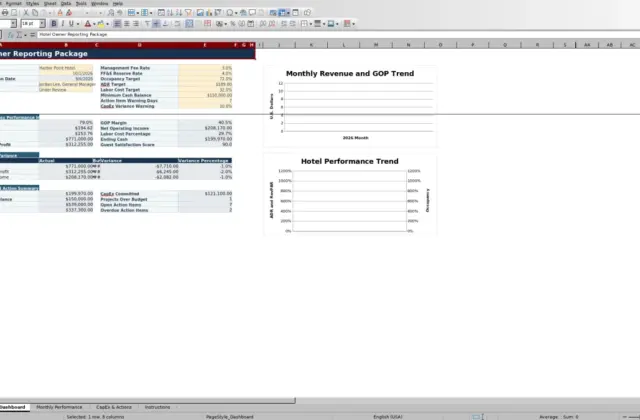
Hotel daily revenue report Excel template for tracking revenue, occupancy, ADR, RevPAR, taxes, service charges, and payment reconciliation.
Formula and workbook structure checked before publication
This hotel daily revenue report is a free Excel template for recording business-date activity and reviewing property performance. It organizes room statistics, departmental revenue, taxes, service charges, payment tenders, reconciliation results, and review details in one workbook.
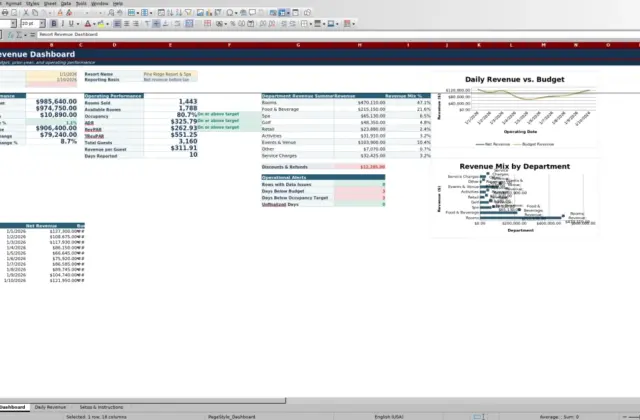
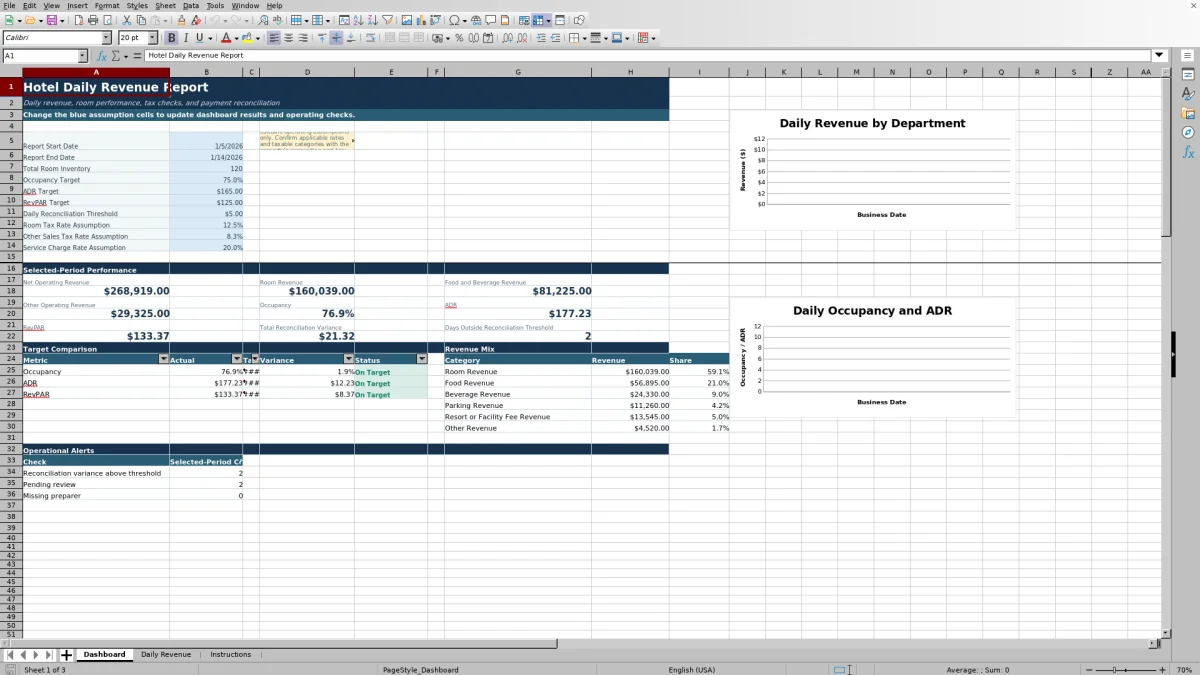
The file contains three worksheets: Dashboard, Daily Revenue, and Instructions. Enter operating figures by date on the Daily Revenue sheet, then use the selected-period dashboard to review revenue, occupancy, ADR, RevPAR, target comparisons, revenue mix, and reconciliation exceptions.
Editable assumptions support operating checks for inventory, performance targets, reconciliation tolerance, taxes, and service charges. Expected tax and service-charge amounts are checks based on those assumptions, not filings or legal determinations.
At a glance
What this workbook helps you manage
- Keeps daily room statistics, revenue, taxes, service charges, and payment totals in one structured record.
- Calculates occupancy, ADR, RevPAR, net operating revenue, guest charges, and reconciliation variance.
- Compares selected-period performance with editable occupancy, ADR, and RevPAR targets.
- Flags missing preparers, room-count issues, and reconciliation exceptions for follow-up.
See the actual file
Inside the workbook
Included in the file
- Three worksheets: Dashboard, Daily Revenue, and Instructions.
- A structured DailyRevenueTable with filters and frozen headers.
- Editable date, inventory, target, threshold, tax, and service-charge assumptions.
- Two Dashboard charts for revenue and room-performance data.
How to use the template
1. Review the workbook instructions
Start with the Instructions sheet. It outlines the daily workflow, defines core hotel metrics, and explains how discounts, adjustments, taxes, service charges, and reconciliation values are treated.
2. Set the Dashboard assumptions
Update the blue assumption cells for the report start and end dates, total room inventory, occupancy target, ADR target, RevPAR target, and daily reconciliation threshold. Also review the room tax, other sales tax, and service-charge rate assumptions. These editable operating assumptions drive dashboard results and expected-charge checks.
3. Enter one row per business date
Use the Daily Revenue sheet to enter the date and source figures for each operating day. Record:
- Room inventory, out-of-order rooms, rooms sold, and complimentary rooms
- Room, food, beverage, parking, resort or facility fee, and other revenue
- Discounts and allowances as positive reduction amounts
- Revenue adjustments as positive or negative amounts
- Taxable revenue, actual taxes, eligible revenue, and actual service charges
- Cash, credit cards, direct bill, guest deposits applied, and other tender
4. Check calculated results and exceptions
The workbook calculates sellable rooms, occupancy, gross departmental revenue, net operating revenue, food and beverage revenue, other operating revenue, ADR, RevPAR, expected taxes, expected service charges, total guest charges, and total tender. Review the reconciliation status and operating check for each date. Investigate rows that exceed the threshold, show rooms sold above sellable rooms, or lack a preparer.
5. Complete the review record
Enter the preparer, choose Pending Review, Reviewed, or Follow-Up Required, and add reviewer information and the review date as appropriate. Return to the Dashboard to review period performance and unresolved exceptions.
What does the hotel daily revenue report track?
The Daily Revenue sheet combines operating statistics with financial activity for each hotel business date. Room fields cover inventory, out-of-order rooms, sellable rooms, rooms sold, complimentary rooms, and occupancy. Revenue fields separate room, food, beverage, parking, resort or facility fee, and other revenue.
The workbook also records discounts and allowances, revenue adjustments, taxable room revenue, taxable other sales, actual taxes, service-charge eligible revenue, and actual service charges. Payment activity is divided among cash, credit cards, direct bill, guest deposits applied, and other tender. Prepared-by and review fields provide a clear place to document who completed and reviewed each row.
How are hotel occupancy, ADR, and RevPAR calculated?
The template calculates sellable rooms as room inventory less out-of-order rooms. Occupancy is rooms sold divided by sellable rooms. ADR is room revenue divided by rooms sold, while RevPAR is room revenue divided by total room inventory.
On the Dashboard, the selected-period performance area summarizes occupancy, ADR, and RevPAR alongside revenue measures. A target comparison presents actual results, targets, variances, and status for the performance metrics supported by the editable assumptions. This gives operators a consistent view of room performance without manually rebuilding the calculations each day.
How does daily hotel revenue reconciliation work?
Gross departmental revenue is the sum of room, food, beverage, parking, resort or facility fee, and other revenue. Net operating revenue subtracts discounts and allowances and then adds revenue adjustments. Total guest charges combine net operating revenue with actual taxes and service charges.
Total tender adds cash, credit cards, direct bill, guest deposits applied, and other tender. The workbook calculates reconciliation variance as total tender less total guest charges. A row is marked Balanced when the variance stays within the threshold entered on the Dashboard; otherwise, it is marked Investigate. The Dashboard also reports total reconciliation variance and the number of days outside the threshold.
How should tax and service-charge checks be used?
Expected room tax is calculated from taxable room revenue and the room tax rate assumption. Expected other sales tax uses taxable other sales and the other sales tax rate assumption. Expected service charges use eligible revenue and the service-charge rate assumption. Each expected amount is compared with the actual amount entered for that date.
These results help identify differences that may need operational review. The rates and taxable categories should be confirmed with the property’s accounting and tax advisors. The workbook expressly treats these calculations as operating checks, not tax filings or legal determinations.
Questions about this workbook
What sheets are included in the hotel daily revenue report Excel template?
The workbook contains Dashboard, Daily Revenue, and Instructions sheets. The Dashboard summarizes selected-period results, Daily Revenue holds the business-date records, and Instructions provides workflow guidance and field definitions.
Can the reporting period be changed?
Yes. The Dashboard includes editable report start and end dates. The date cells accept dates from January 1, 2026, through December 31, 2030, and the dashboard uses the selected range when presenting results.
Which revenue categories are separated in the report?
The input sheet separates room, food, beverage, parking, resort or facility fee, and other revenue. It also calculates combined food and beverage revenue, other operating revenue, gross departmental revenue, and net operating revenue.
Does the template track payment methods?
Yes. Daily tender fields include cash, credit cards, direct bill, guest deposits applied, and other tender. These amounts are totaled and compared with total guest charges to calculate the reconciliation variance.
What review statuses are available?
The Review Status field provides three choices: Pending Review, Reviewed, and Follow-Up Required. The sheet also includes fields for Prepared By, Reviewed By, and Review Date.
What types of operating exceptions can the workbook identify?
The daily operating check can identify a missing preparer, rooms sold exceeding sellable rooms, or a reconciliation variance outside the Dashboard threshold. Rows without those conditions can display OK.
Transparent credits
Editorial and workbook QA bylines
The named editorial signatures and their responsibilities stay consistent across the library.

Workbook guide and editorial context
Audrey Whitmore
Audrey Whitmore is the consistent editorial byline for practical setup guidance written from each workbook’s final manifest and published features.
Meet the editorial byline →
Workbook structure and formula QA byline
Ethan Cole
Ethan Cole is the consistent QA byline shown only when recorded checks pass for worksheet structure, formulas, validations, recalculation, and the published XLSX bytes.
See the QA byline and checks →