
Dining · XLSX
Free Hotel Budget Excel Template for 2026
Hotel budget template for Excel with monthly budget-to-actual tracking, operating drivers, variance status, and a 2026 dashboard.
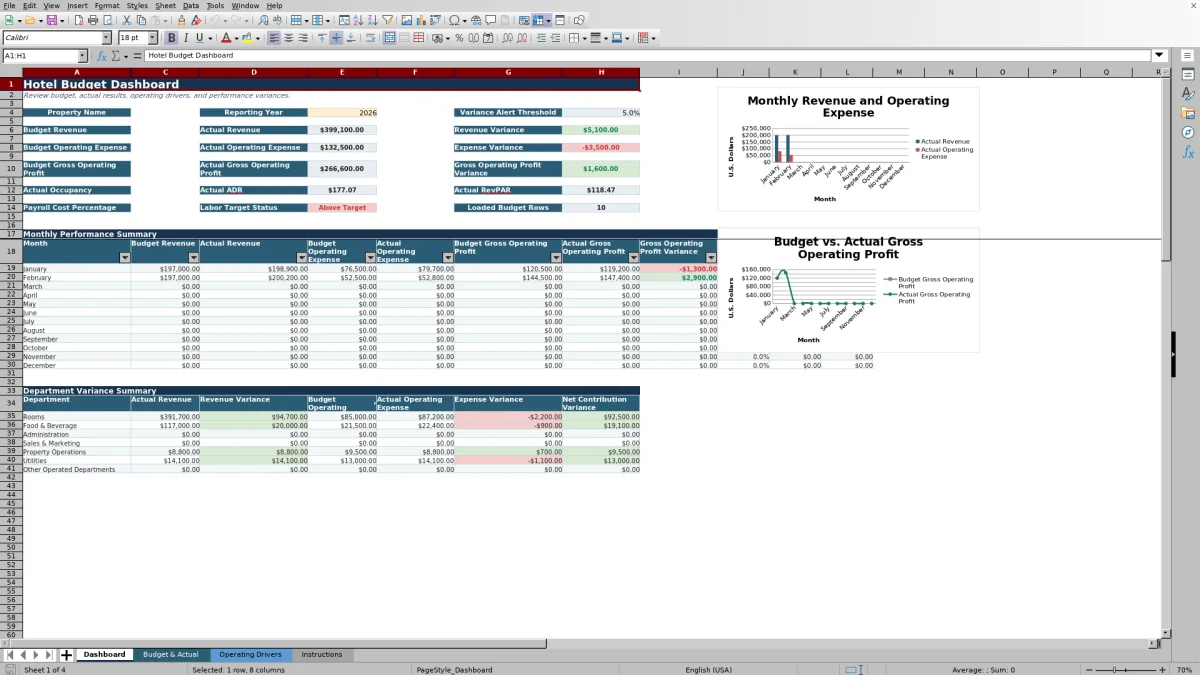
Formula and workbook structure checked before publication
This free Excel template organizes a hotel’s 2026 budget, actual results, operating statistics, and performance variances in one workbook. It is designed for property-level planning and monthly review across rooms, food and beverage, administration, sales and marketing, property operations, utilities, and other operated departments.
The four sheets—Dashboard, Budget & Actual, Operating Drivers, and Instructions—connect financial results with hotel operating metrics. Enter monthly revenue and operating expenses, room activity, labor hours, and payroll cost. Formulas then calculate favorable variance, variance percentage, occupancy, ADR, RevPAR, average hourly payroll cost, and target status.
The Dashboard summarizes budget and actual revenue, operating expense, gross operating profit, payroll cost percentage, and monthly performance. Two charts provide additional comparisons using the monthly Dashboard results.
At a glance
What this workbook helps you manage
- Compares monthly budget and actual revenue, operating expenses, and gross operating profit.
- Connects financial reporting with occupancy, ADR, RevPAR, labor hours, and payroll cost.
- Applies separate favorable-variance logic to revenue and operating expenses.
- Provides source-reference and department-note fields for monthly review context.
See the actual file
Inside the workbook
Included in the file
- Four worksheets: Dashboard, Budget & Actual, Operating Drivers, and Instructions.
- Budget & Actual entry area covering rows 6 through 505 with filters and validation lists.
- Operating Drivers entry area covering rows 11 through 130 with calculated hotel metrics.
- Dashboard with annual KPIs, a January-to-December summary, conditional formatting, and two charts.
How to use the template
1. Set the property and reporting year
Start on the Dashboard by entering the property name and reporting year. The year field accepts values from 2020 through 2100 and controls which records appear in the annual and monthly summaries.
2. Review operating assumptions
On Operating Drivers, update the planning assumptions for guest room count, target occupancy, target payroll cost percentage, variance alert threshold, and target average daily rate. These assumptions support status labels and Dashboard reporting.
3. Enter budget and actual detail
Use one row per month, department, and account on Budget & Actual. Complete the Month, Department, Account Type, Account Code, Account Name, Budget Amount, and Actual Amount fields. Revenue and operating expense amounts should be entered as positive values.
- Use the first day of the applicable month in the Month field.
- Select Revenue or Operating Expense as the account type.
- Add a source reference when applicable.
- Use Department Notes to explain timing, demand, or cost differences.
The sheet derives the reporting year and month number. It also calculates favorable variance, variance percentage, and a variance status of Within Threshold, Favorable, or Unfavorable.
4. Record monthly operating activity
On Operating Drivers, enter the month, available room nights, occupied room nights, rooms revenue, labor hours, and total payroll cost. The workbook calculates occupancy, ADR, and RevPAR, along with average hourly payroll cost. Occupancy and ADR statuses compare results with the assumptions entered above the data area.
5. Review the Dashboard
Use the Dashboard to examine annual totals and the monthly performance summary. Review gross operating profit variance, revenue and expense results, operating metrics, payroll cost percentage, labor target status, and the number of loaded budget rows. Filters are available on the monthly summary, while the header remains visible as you scroll.
What does the hotel budget template track?
The Budget & Actual sheet records monthly financial detail by department and account. Fields include Month, Reporting Year, Month Number, Department, Account Type, Account Code, Account Name, Budget Amount, Actual Amount, Favorable Variance, Variance Percentage, Variance Status, Source Reference, and Department Notes.
Department selections include Rooms, Food & Beverage, Administration, Sales & Marketing, Property Operations, Utilities, and Other Operated Departments. Account Type is limited to Revenue or Operating Expense. Account-name and source-reference lists are maintained on the Instructions sheet and used by the entry fields.
This structure supports both account-level review and monthly consolidation without requiring every department to use the same notes or source reference.
How are hotel budget variances calculated?
The workbook applies favorable logic according to account type. For revenue, favorable variance is actual amount minus budget amount. For operating expenses, it is budget amount minus actual amount. A positive result is therefore favorable under either classification.
Variance percentage divides favorable variance by the budget amount. The result is compared with the variance alert threshold entered on Operating Drivers. Results inside the threshold are labeled Within Threshold; results outside it are labeled Favorable or Unfavorable based on the variance amount.
The Dashboard separately consolidates revenue and operating expenses for the selected reporting year. Gross operating profit is calculated as revenue minus operating expense for budget and actual results, followed by the difference between actual and budget gross operating profit.
Which hotel operating metrics are included?
Operating Drivers combines rooms and labor inputs by month. Occupancy is occupied room nights divided by available room nights. Average daily rate is rooms revenue divided by occupied room nights, and RevPAR is rooms revenue divided by available room nights.
The same sheet records labor hours and total payroll cost, then calculates average hourly payroll cost. Occupancy and ADR receive target statuses based on the assumptions at the top of the sheet. An Operations Notes field can capture factors affecting a month’s performance.
On the Dashboard, annual actual occupancy, actual ADR, and actual RevPAR are calculated from the operating-driver records for the selected year. Payroll cost percentage compares total payroll cost with actual revenue, and labor target status compares that result with the target payroll cost percentage.
How does the Dashboard support a monthly hotel budget review?
The Dashboard presents annual budget, actual, and variance figures for revenue, operating expense, and gross operating profit. It also displays actual occupancy, ADR, RevPAR, payroll cost percentage, labor target status, the variance alert threshold, and the number of populated Budget & Actual rows.
The monthly performance summary covers January through December. For each month, it shows budget and actual revenue, budget and actual operating expense, budget and actual gross operating profit, gross operating profit variance, actual occupancy, actual ADR, and actual RevPAR.
Two charts use the monthly summary data. One compares actual revenue and actual operating expense by month. The other compares budget and actual gross operating profit. Conditional formatting helps distinguish performance and status results within the workbook.
Questions about this workbook
Can this Excel hotel budget template track multiple departments?
Yes. The Budget & Actual sheet includes department selections for Rooms, Food & Beverage, Administration, Sales & Marketing, Property Operations, Utilities, and Other Operated Departments. Each entry row also includes an account code, account name, source reference, and department notes.
How should revenue and expense amounts be entered?
Enter both revenue and operating expense amounts as positive values. Select the correct Account Type so the workbook applies the appropriate favorable-variance calculation.
What dates should be used for monthly entries?
Use the first day of each month, such as 1/1/2026. The workbook derives the reporting year and month number from the date for use in summaries and formulas.
Does the workbook calculate occupancy, ADR, and RevPAR?
Yes. Enter available room nights, occupied room nights, and rooms revenue on Operating Drivers. The workbook calculates occupancy, average daily rate, and revenue per available room for each completed monthly row and summarizes annual results on the Dashboard.
Can the variance threshold and hotel targets be changed?
Yes. Operating Drivers contains editable assumptions for target occupancy, target payroll cost percentage, variance alert threshold, and target average daily rate. The workbook uses these values when assigning variance, occupancy, ADR, and labor statuses.
Transparent credits
Editorial and workbook QA bylines
The named editorial signatures and their responsibilities stay consistent across the library.

Workbook guide and editorial context
Audrey Whitmore
Audrey Whitmore is the consistent editorial byline for practical setup guidance written from each workbook’s final manifest and published features.
Meet the editorial byline →
Workbook structure and formula QA byline
Ethan Cole
Ethan Cole is the consistent QA byline shown only when recorded checks pass for worksheet structure, formulas, validations, recalculation, and the published XLSX bytes.
See the QA byline and checks →