Revenue · XLSX
Free Hotel Competitor Rate Shop Excel Template for 2026
Hotel competitor rate shop template with an Excel dashboard for comparing room rates, estimated nightly totals, availability, and rate position.
Formula and workbook structure checked before publication
This free Excel template helps hotel operators organize manual competitor rate shopping for 2026. Record comparable offers by property, stay date, room category, booking channel, cancellation policy, availability, and displayed room rate.
The workbook contains four sheets: Dashboard, Rate Shop, Setup, and Instructions. It calculates an estimated nightly total, identifies the latest matching observation, and presents the subject hotel’s position against selected competitors.
Use the file to maintain a consistent like-for-like comparison while preserving source references, promotions, minimum stays, observer initials, and notes that explain material differences between offers.
At a glance
What this workbook helps you manage
- Keeps subject-hotel and competitor observations in one structured rate-shop table.
- Compares either displayed room rates or estimated nightly totals.
- Separates available, sold-out, closed, call-property, and not-found results.
- Shows rate position, competitive-set averages, freshness, and record warnings.
See the actual file
Inside the workbook
Included in the file
- Four sheets: Dashboard, Rate Shop, Setup, and Instructions.
- A 150-row Rate Shop table with filters, frozen headings, and validated inputs.
- Automatic estimated nightly totals using property tax and mandatory-fee assumptions.
- Dashboard metrics and two charts for subject-hotel and competitive-set comparisons.
How to use the template
1. Configure the Setup sheet
Select the subject hotel and review the freshness threshold, low-rate and high-rate review thresholds, default number of nights, comparison basis, booking channel, and cancellation policy. The property table stores each property’s role, estimated tax rate, estimated mandatory fee, and whether it should be included.
Review the setup checks for one included subject hotel, duplicate property names, at least three included competitors, and missing tax or mandatory-fee assumptions.
2. Define the competitive set
Add the subject hotel and competitors to the property table. Assign each property a role of Subject Hotel or Competitor, then mark Include as Yes or No. Property selections used on the Rate Shop and Dashboard sheets come from this setup.
3. Enter each shopping observation
Use one Rate Shop row for each property, stay date, room category, booking channel, and cancellation policy combination. Complete the shop ID, shop date, stay date, nights, property, availability, and other applicable details.
- Enter the displayed room rate when availability is Available.
- Record Sold Out, Closed, Call Property, or Not Found rather than omitting the property.
- Document promotions, minimum stays, source references, the person who observed the rate, and explanatory notes.
- Set Include in Analysis to No for mismatched or unusable observations.
4. Review calculated totals and status messages
The sheet looks up the property role, estimated tax rate, and estimated mandatory fee from Setup. It calculates the day of week and an estimated nightly total. When taxes and fees are marked as included, the displayed rate is used as the total; otherwise, the estimate applies the property assumptions.
Check Record Status for missing required fields, a stay date before the shop date, an available room without a positive rate, a rate entered for unavailable inventory, or unknown included charges.
5. Select the Dashboard comparison
Choose a stay date, room category, booking channel, cancellation policy, and comparison basis. The Dashboard uses rows marked Yes in Include in Analysis and selects the latest matching shop for each property.
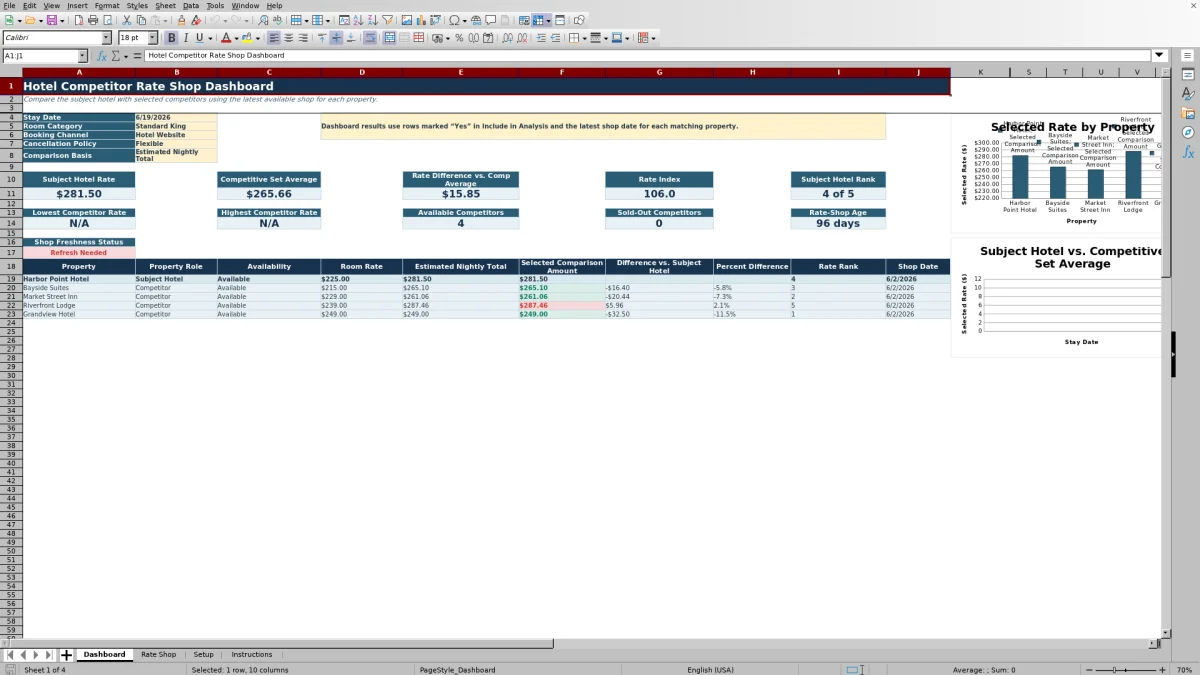
Review the subject rate, competitive-set average, rate difference, rate index, rank, competitor range, availability counts, rate-shop age, freshness status, property-level comparison, and the two included charts.
How does the hotel competitor rate shop compare equivalent offers?
The workbook matches observations using stay date, room category, booking channel, and cancellation policy. That structure helps prevent a public flexible rate from being compared without context to a prepaid, member-only, or otherwise restricted offer.
Operators should also use the Nights, Minimum Stay, Promotion, Source URL or Reference, and Notes fields to document differences that may affect the comparison. The Instructions sheet recommends using the same occupancy, number of nights, and cancellation terms and noting breakfast, parking, mandatory fees, view categories, and package restrictions.
What pricing metrics appear on the Dashboard?
The Dashboard displays the subject hotel rate, competitive-set average, difference from the competitor average, rate index, and subject hotel rank. It also reports the lowest and highest competitor rates, available competitor count, sold-out competitor count, rate-shop age, and freshness status.
A property-level section shows availability, displayed room rate, estimated nightly total, selected comparison amount, difference versus the subject hotel, percent difference, rank, and shop date. Operators can switch the comparison basis between Room Rate and Estimated Nightly Total.
How are taxes and mandatory fees handled?
Each property can have an estimated tax rate and estimated mandatory fee on Setup. In Rate Shop, the Taxes and Fees Included field accepts Yes, No, or Unknown. If charges are included, the displayed rate becomes the estimated nightly total. Otherwise, the workbook uses the displayed rate and the property assumptions to calculate an estimate.
An Unknown selection produces a review message. The Instructions sheet directs users to verify taxes and mandatory fees with the booking source before relying on estimated totals. This makes the included-charge status visible rather than leaving it implicit.
How does the workbook handle changing competitor rates?
Every observation includes both a shop date and stay date. For a matching property and comparison selection, the workbook identifies the latest row that is marked Yes in Include in Analysis. Older observations can remain in the log without becoming the active Dashboard result.
The Dashboard calculates rate-shop age from the most recent matching shop dates. It compares that age with the editable freshness threshold on Setup and displays Current or Refresh Needed. This gives the team a consistent freshness check for manual shopping rounds.
Questions about this workbook
What sheets are included in the hotel competitor rate shop Excel template?
The workbook contains Dashboard, Rate Shop, Setup, and Instructions sheets. Dashboard summarizes selected comparisons, Rate Shop stores observations, Setup holds assumptions and property records, and Instructions explains the workflow and status definitions.
How many rate-shop observations can be entered?
The Rate Shop table runs from row 6 through row 155, providing 150 formatted observation rows. These rows include formulas, input validation, conditional formatting, filters, and calculated status fields.
Can sold-out competitor results be recorded?
Yes. Availability options include Available, Sold Out, Closed, Call Property, and Not Found. The Instructions sheet specifically directs users to record unavailable outcomes instead of leaving a competitor out of the shopping round.
Which observations are used on the Dashboard?
The Dashboard uses observations marked Yes in Include in Analysis that match the selected stay date, room category, booking channel, and cancellation policy. For each matching property, it uses the latest shop date.
Does the workbook collect rates automatically?
No. The workbook supports manual competitor rate shopping and internal pricing analysis. Users enter observations and source references in the Rate Shop sheet; the workbook then calculates totals, checks records, selects the latest matching observations, and updates the Dashboard.
Transparent credits
Editorial and workbook QA bylines
The named editorial signatures and their responsibilities stay consistent across the library.

Workbook guide and editorial context
Audrey Whitmore
Audrey Whitmore is the consistent editorial byline for practical setup guidance written from each workbook’s final manifest and published features.
Meet the editorial byline →
Workbook structure and formula QA byline
Ethan Cole
Ethan Cole is the consistent QA byline shown only when recorded checks pass for worksheet structure, formulas, validations, recalculation, and the published XLSX bytes.
See the QA byline and checks →