Revenue · XLSX
Free Hotel Pickup Report Spreadsheet Excel Template for 2026
Hotel pickup report spreadsheet for comparing rooms on books, revenue pickup, ADR, occupancy, and wash by stay date.
Formula and workbook structure checked before publication
This hotel pickup report spreadsheet compares current and prior rooms-on-books snapshots so revenue teams can monitor booking movement by stay date. The file is a free Excel template with four worksheets: Dashboard, Pickup Data, Stay Date Summary, and Instructions.
Enter property, snapshot, inventory, rooms, and room revenue data in the input sheet. Formulas calculate room pickup, revenue pickup, ADR, occupancy, days to arrival, pickup status, and data checks. The Dashboard and Stay Date Summary then organize those results for daily revenue and operations reviews.
At a glance
What this workbook helps you manage
- Compares prior and current rooms on books and room revenue by stay date.
- Identifies positive pickup, wash, material wash, and no-change dates.
- Summarizes ADR, occupancy, remaining rooms, and days to arrival.
- Supports property-level or all-property Dashboard views using included selectors.
See the actual file
Inside the workbook
Included in the file
- Four worksheets covering data entry, dashboard reporting, stay-date detail, and instructions.
- Calculated room pickup, revenue pickup, ADR, occupancy, days to arrival, and status fields.
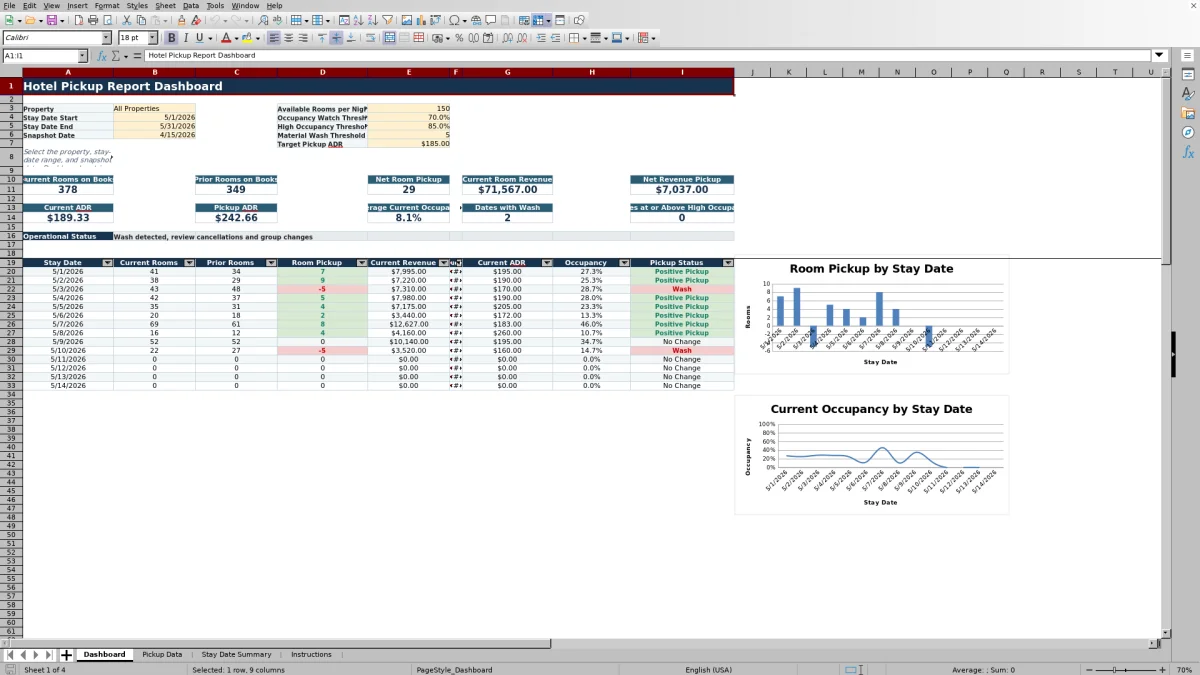
- Dashboard metrics, a daily results table, and two charts for room pickup and occupancy.
- Stay Date Summary with 120 prepared date rows and operational flags tied to Dashboard thresholds.
How to use the template
1. Review the workbook guidance
Start with the Instructions sheet. It explains the workbook purpose, recommended workflow, field definitions, use notes, and color key. Light gold identifies editable inputs, while light gray identifies calculated fields.
2. Enter or paste pickup records
Use one row in Pickup Data for each property, snapshot date, stay date, market segment, booking channel, and room type combination. Complete the required operating inputs:
- Record ID and property
- Current and prior snapshot dates
- Stay date, market segment, booking channel, and room type
- Available rooms and prior and current rooms on books
- Prior and current room revenue in U.S. dollars
- Optional source report or batch ID, owner, and notes
The sheet contains 250 prepared data rows. Several input columns use lists or numeric validation to support consistent entries.
3. Check calculated results
Gray columns calculate day of week, room pickup, revenue pickup, prior ADR, current ADR, pickup ADR, prior occupancy, current occupancy, days to arrival, and pickup status. Review the Data Check column for missing inputs, invalid snapshot timing, rooms above available inventory, or negative revenue pickup.
4. Set the Dashboard controls
Select a property or All Properties, enter the stay-date range, and choose the snapshot date. Then set available rooms per night, occupancy thresholds, the material wash threshold, and target pickup ADR. These settings drive the displayed metrics and operational status, so the inventory and thresholds should match the reporting scope.
5. Review dates that need follow-up
Use the Dashboard for headline measures and the daily table. Continue to Stay Date Summary for a longer stay-date view with pickup status and operational flags. Investigate wash, negative revenue movement, high occupancy, or dates below the watch threshold with the appropriate revenue, sales, reservations, or property team.
What does the hotel pickup report measure?
The workbook measures changes between prior and current rooms-on-books snapshots. Room pickup is current rooms on books minus prior rooms on books. Revenue pickup is current room revenue minus prior room revenue.
Positive room pickup indicates that the current snapshot contains more booked rooms. Negative room pickup is labeled wash and may reflect cancellations, group block reductions, or corrections. The workbook also calculates prior, current, and pickup ADR. Because pickup ADR divides revenue pickup by room pickup, the Instructions sheet notes that it can be misleading when room pickup is zero or negative.
What appears on the Dashboard?
The Dashboard shows current rooms on books, prior rooms on books, net room pickup, current room revenue, and net revenue pickup for the selected property, snapshot date, and stay-date range. It also displays current ADR, pickup ADR, average current occupancy, the number of dates with wash, and the number of dates at or above the high-occupancy threshold.
An operational status summarizes the selected view with messages such as strong pickup and high occupancy, wash detected, below the occupancy watch threshold, positive pickup, or no matching data. A daily table lists stay date, current and prior rooms, room pickup, current revenue, revenue pickup, current ADR, occupancy, and pickup status. Two charts reference 14 daily rows to show room pickup and occupancy.
How does the Stay Date Summary support daily decisions?
The Stay Date Summary follows the property, snapshot date, and summary start date selected on the Dashboard. It provides 120 prepared stay-date rows, beginning with the Dashboard start date.
Each row shows available rooms, prior and current rooms on books, room and revenue pickup, ADR measures, occupancy, remaining rooms, days to arrival, and pickup status. The operational flag marks dates for Review Material Wash, High Occupancy, Below Watch Threshold, or Monitor based on the Dashboard settings. This view helps operators scan future stay dates without relying only on period totals.
How should hotels keep pickup data consistent?
Use the same revenue definition in the prior and current snapshots. Record dates consistently, keep the prior snapshot earlier than the current snapshot, and do not use a snapshot date after the stay date. Available rooms should reflect the inventory basis used for the corresponding rooms-on-books figures.
Use the provided market segment, booking channel, room type, and owner lists where appropriate. The Source Report or Batch ID field can identify the source used for a record, while Owner and Notes can document responsibility and relevant context. Before reviewing performance, resolve Data Check messages so missing or conflicting entries do not distort the summary.
Questions about this workbook
What sheets are included in the hotel pickup report spreadsheet?
The workbook contains Dashboard, Pickup Data, Stay Date Summary, and Instructions worksheets.
How many pickup records can be entered?
The Pickup Data sheet provides 250 prepared rows, from row 4 through row 253, within the tblPickup table.
Can the Dashboard show one hotel or multiple hotels?
Yes. The property selector includes All Properties and three listed properties: Harbor View Hotel, Lakeside Conference Resort, and Downtown Garden Inn. Dashboard formulas summarize records according to that selection.
What is considered wash in this workbook?
Wash occurs when current rooms on books are lower than prior rooms on books, producing negative room pickup. The Dashboard also lets the user set a whole-number material wash threshold for highlighting larger declines.
What data problems does the workbook flag?
The Data Check formula can identify missing required input, a prior snapshot that is not earlier than the current snapshot, a snapshot after the stay date, rooms exceeding available inventory, and negative revenue pickup. Otherwise, it returns OK.
Transparent credits
Editorial and workbook QA bylines
The named editorial signatures and their responsibilities stay consistent across the library.

Workbook guide and editorial context
Audrey Whitmore
Audrey Whitmore is the consistent editorial byline for practical setup guidance written from each workbook’s final manifest and published features.
Meet the editorial byline →
Workbook structure and formula QA byline
Ethan Cole
Ethan Cole is the consistent QA byline shown only when recorded checks pass for worksheet structure, formulas, validations, recalculation, and the published XLSX bytes.
See the QA byline and checks →