Revenue · XLSX
Free Hotel Revenue Pacing Report Excel Template for 2026
Hotel revenue pacing report Excel template for tracking OTB revenue, pickup, occupancy, budget variance, forecasts, and monthly performance.
Formula and workbook structure checked before publication
This hotel revenue pacing report is a free Excel template for organizing monthly on-the-books rooms and revenue data. It compares current performance with prior snapshots, budget, forecast, and last year at the same lead time.
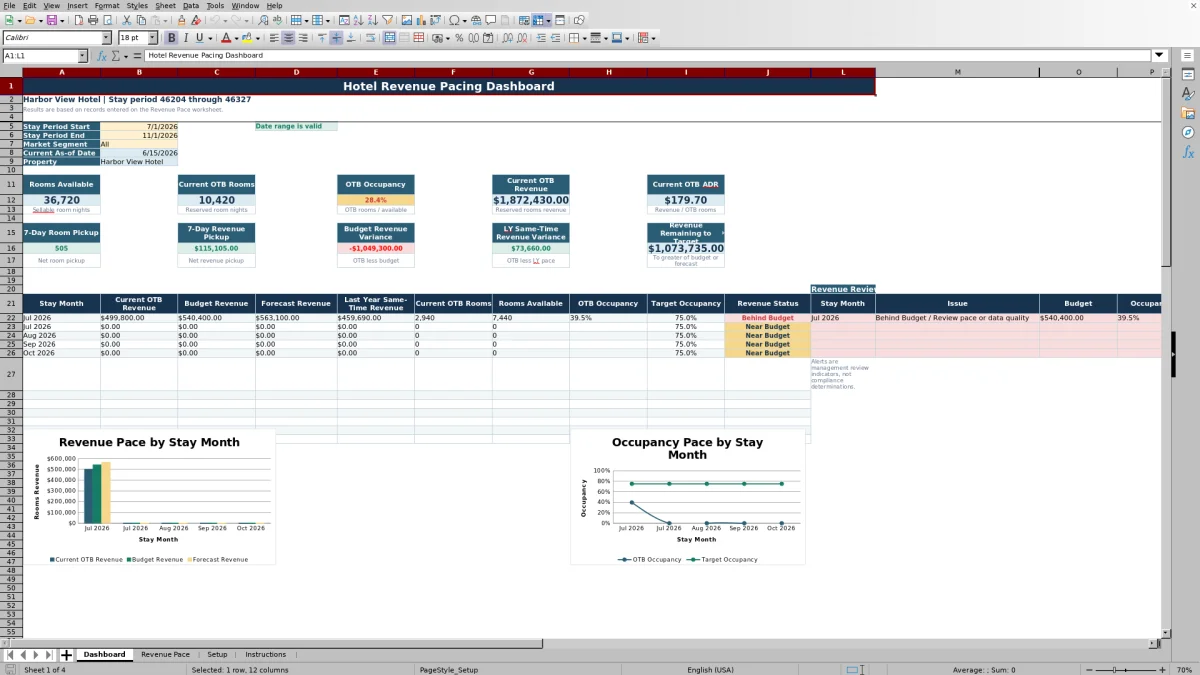
The workbook contains Dashboard, Revenue Pace, Setup, and Instructions worksheets. Hotel teams can filter dashboard results by stay period and market segment, review key pace indicators, and identify records that need attention before a revenue meeting.
The template is designed for summarized monthly records rather than individual reservations. Each row represents one as-of date, stay month, and market segment, providing a consistent structure for recurring pace reviews.
At a glance
What this workbook helps you manage
- Compares current OTB rooms and revenue with 7-day and 30-day prior snapshots.
- Measures revenue performance against budget, forecast, and last year at the same lead time.
- Summarizes ADR, occupancy, pickup, variances, and revenue remaining to target.
- Flags duplicate records and common rooms or revenue data issues for review.
See the actual file
Inside the workbook
Included in the file
- Four worksheets: Dashboard, Revenue Pace, Setup, and Instructions.
- Two Dashboard charts covering monthly revenue comparisons and occupancy versus target.
- Input validation for dates, segments, room counts, revenue amounts, and note length.
- A prepared Excel table with filters, calculated columns, and conditional formatting.
How to use the template
1. Complete the Setup worksheet
Enter the property name, property location, and standard room inventory. Review the default target occupancy, occupancy gap alert threshold, revenue variance alert threshold, and default dashboard dates. These thresholds are internal management assumptions, not regulatory requirements.
Maintain the market segment list used by the workbook controls. The supplied list includes Transient Retail, Group, Corporate Negotiated, Government, Wholesale, Contract, Complimentary, and Other, plus an All option for dashboard reporting.
2. Enter monthly pace records
Use the Revenue Pace worksheet to enter one summarized row for each as-of date, stay month, and market segment. Complete the yellow input columns, including Record ID, dates, segment, rooms available, current OTB results, prior snapshots, last-year figures, budget, forecast, and an optional event or demand note.
Enter rooms revenue before taxes and separately stated fees so comparisons use a consistent basis. The worksheet provides 200 prepared data rows. If additional rows are required, extend the Excel table and copy its formulas, formats, validations, and conditional formatting.
3. Preserve and review calculated fields
Do not overwrite the blue formula columns. They calculate Current OTB ADR, OTB Occupancy, 7-Day Room Pickup, 7-Day Revenue Pickup, 30-Day Room Pickup, 30-Day Revenue Pickup, Budget Revenue Variance, and Last Year Same-Time Revenue Variance.
Check the Data Quality Status column after every update. Its formulas can identify duplicate as-of date, stay month, and segment combinations, nonpositive room availability, OTB rooms above available rooms, and mismatched rooms and revenue entries.
4. Set the dashboard view
On Dashboard, select the stay period start, stay period end, and market segment. The date controls accept dates from 2025 through 2035, and the dashboard displays a message if the start date falls after the end date.
Review the current as-of date and confirm that the selected records represent the intended snapshot. Results are calculated from records entered on Revenue Pace.
5. Review pace and monthly alerts
Use the headline results to discuss rooms available, current OTB rooms, occupancy, OTB revenue, ADR, seven-day pickup, budget variance, last-year pace variance, and revenue remaining to the greater of budget or forecast.
The monthly view compares OTB revenue with budget, forecast, and last year at the same time. It also compares OTB occupancy with target occupancy. Treat the revenue review alerts as management indicators that call for investigation rather than final determinations.
What does the hotel revenue pacing report measure?
The report measures how reserved room nights and room revenue are building for future stay months. Current OTB rooms and revenue form the baseline. Formulas then calculate OTB ADR and occupancy, along with changes from the seven-day and 30-day prior snapshots.
The Dashboard also shows current revenue against budget and last year at the same lead time. Revenue remaining to target is based on the greater of budget or forecast, giving the revenue team a clear view of the remaining gap for the selected period.
How should hotel teams structure pacing data?
Each Revenue Pace row should represent one as-of date, stay month, and market segment. The stay month is entered as the first day of the month in which the guest nights occur. Rooms Available represents sellable room nights after known out-of-order room reductions.
Use consistent segment definitions and source reports from period to period. Current OTB, seven-day-prior, and 30-day-prior figures should come from the same reporting source whenever possible. A regular snapshot schedule, such as weekly, makes pickup comparisons more meaningful.
How do budget, forecast, and prior-year comparisons differ?
Budget Revenue represents the approved operating plan, while Forecast Revenue reflects the current management expectation. Last Year Same-Time Revenue measures the prior-year result at a comparable lead time. The workbook also stores final prior-year rooms and revenue as separate inputs.
These comparisons answer different operating questions. Budget variance shows whether current OTB revenue is ahead of or behind plan. Forecast supplies a current target, while the same-time comparison shows whether business is booking faster or slower than it did during the comparable prior-year booking window.
How can revenue managers interpret pickup and alerts?
Pickup is the change between current OTB results and a prior snapshot. Positive pickup indicates a net increase in reserved rooms or revenue. Negative pickup may reflect cancellations, wash, or a released group block, so it should be reviewed instead of automatically being treated as an error.
Event or Demand Note can document conventions, holidays, citywide events, renovations, severe weather, and other known demand factors. Dashboard alerts use the occupancy and revenue variance thresholds entered on Setup. The status legend identifies green as favorable or ready, amber as needing management review, and red as a data issue or material pace concern.
Questions about this workbook
What worksheets are included in the hotel revenue pacing template?
The workbook includes four worksheets: Dashboard, Revenue Pace, Setup, and Instructions. Dashboard summarizes selected results, Revenue Pace stores monthly records, Setup contains assumptions and segment options, and Instructions defines the fields and operating process.
What revenue should be entered?
Enter reserved rooms revenue before taxes and separately stated fees. Do not combine it with food and beverage, resort fees, parking, taxes, or unrelated revenue unless management intentionally changes the workbook's comparison basis.
Does the workbook calculate ADR and occupancy?
Yes. Current OTB ADR is calculated as current OTB revenue divided by current OTB rooms. OTB Occupancy is calculated as current OTB rooms divided by rooms available. Formula errors are handled so blank or unsuitable records do not display standard Excel errors.
Can the dashboard report one market segment?
Yes. The Dashboard includes a market segment selector connected to the list maintained on Setup. Choose All for combined results or select an individual listed segment for the chosen stay period.
How many pace records are prepared?
The Revenue Pace worksheet contains 200 prepared data rows, from row 6 through row 205. The Instructions worksheet explains that additional rows can be added by extending the table and copying formulas, formats, validations, and conditional formatting.
Does the Excel workbook connect to hotel systems?
No. The workbook does not connect directly to a PMS, channel manager, accounting system, or revenue-management system. Data must be entered or pasted into the prepared Revenue Pace rows.
Transparent credits
Editorial and workbook QA bylines
The named editorial signatures and their responsibilities stay consistent across the library.

Workbook guide and editorial context
Audrey Whitmore
Audrey Whitmore is the consistent editorial byline for practical setup guidance written from each workbook’s final manifest and published features.
Meet the editorial byline →
Workbook structure and formula QA byline
Ethan Cole
Ethan Cole is the consistent QA byline shown only when recorded checks pass for worksheet structure, formulas, validations, recalculation, and the published XLSX bytes.
See the QA byline and checks →